While I was looking for a better way to convert mkv file with soft subtitles to be played on my Playstation 3, I found there are some tools that allow me to to the conversion. Most of the conversion tools assume the mkv file uses H.264 as the video codec and AC3 as the audio codec. Even though most mkv files stick to H.264 for video, a lot of them use AAC as the audio codec.
If you’re thinking about purchasing a new GPU, we’d greatly appreciate it if you used our Amazon Associate links. The price you pay will be exactly the same, but Amazon provides us with a small commission for each purchase. It’s a simple way to support our site and helps us keep creating useful content for you. Recommended GPUs: RTX 5090, RTX 5080, and RTX 5070. #ad
Without re-inventing the wheel, I came up a way to convert the AAC sound track in mkv file to AC3 without re-encode the video. Here are the tools needed. Download and install them. Note that MKVToolnix doesn’t require installation, just extract it to a folder.
MKVToolnix
http://www.bunkus.org/videotools/mkvtoolnix/downloads.html#windows
MKVE Wizard
http://coreforge.org/frs/?group_id=33&release_id=20
VLC Player
http://www.videolan.org/vlc/download-windows.html
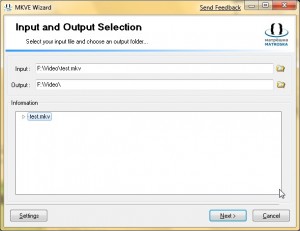
- Run MKVE Wizard to extract the audio. Specify the file location and click on Next.
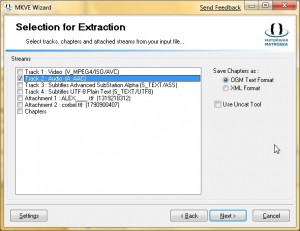
- Select the AAC audio track and click on Next to continue. Note that if the Wizard cannot find where you install MKVToolnix, you have to click on Settings to specify it manually. After a few moments, the AAC audio track is saved. It’s save as test_Track2.aac in this example.
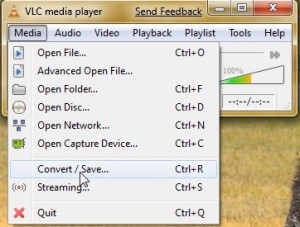
- Run VLC player to convert the AAC sound track to AC3. Click on Media and select Convert/ Save.
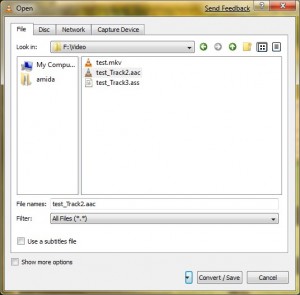
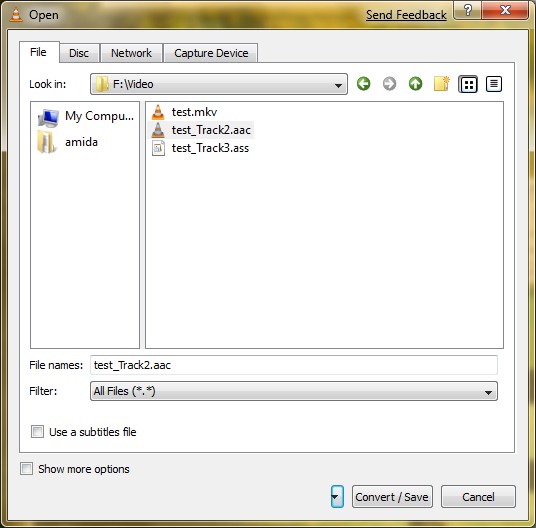
Change the Filter in the dialog window to All Files (*.*) , so you can select the AAC file extracted by step 2.
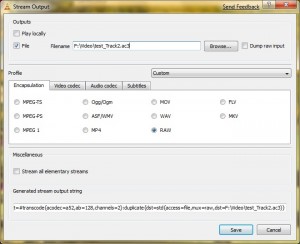
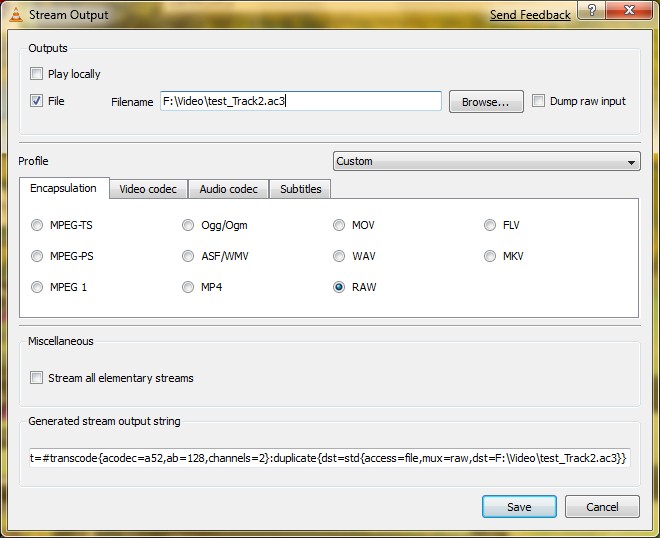
- In the Stream Output Windows, check File box and enter the file name. I named it test_Track2.ac3. In the Encapsulation tab, select RAW.
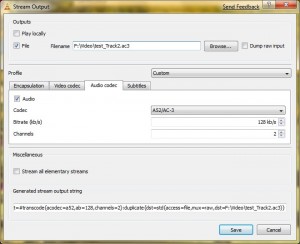
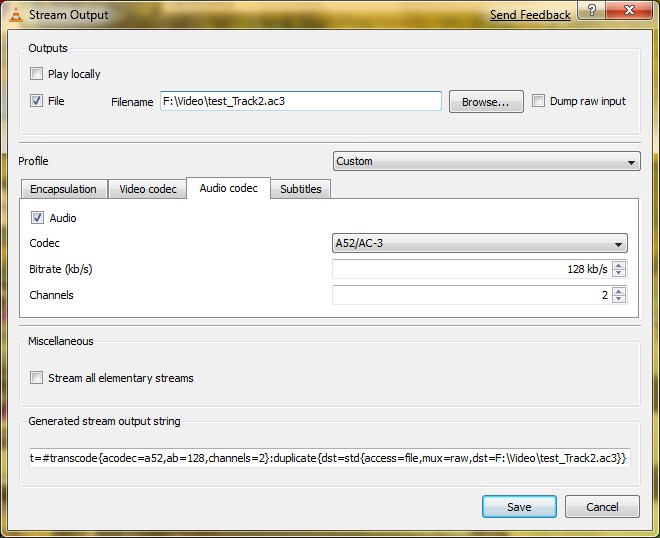
- Click on the Audio codec tab, select Audio check box and change the Codec to A52/AC-3. Specify the Bitrate and Channels if needed. Click on
 Save to convert the audio.
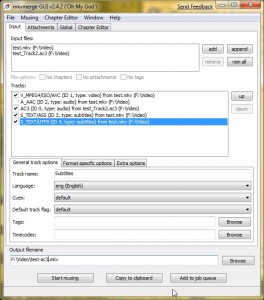
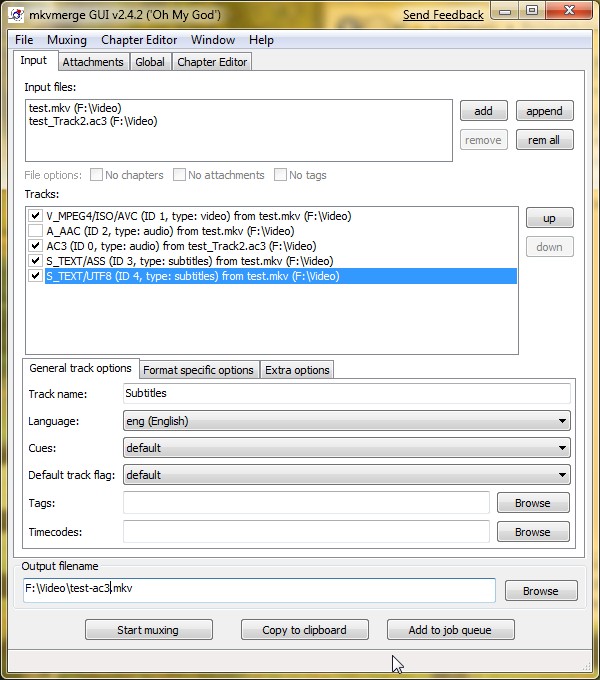
- Run mkvmerge GUI(mmg.exe) from the MKVToolnix folder.

- Drag and drop the original mkv file (test.mkv) and the converted audio track (test_Track2.ac3) to the Input files box. Uncheck the A_AAC track and move the AC3 track up before the subtitles tracks. Enter an output file name. Click on Start muxing to create the new mkv file.


There are quite a few steps, but the whole process doesn’t take long because the video is not re-encoded.
I want to thank you for this useful descriptions. I’ve searched on a lot of web sites but found nothing like yours…
I tried and it works very good…
Hi, Could you help me, I do all this process, but in my case show me a error that says, the track doesn´t exist.
I tried with several files but none works.
In the first step, with the MKVE Wizard , I download the ver. 1.2
Have you tried a different mkv file? Maybe the mkv file is corrupted.
MKVE Wizard requires MKVToolnix to run. Maybe it cannot find where you install MKVToolnix? Did you click on settings to specify the location?
Thanks a lot amida 168 , that was the error, I don´t specify the correct location, now everything run smooth,
Thanks.
hi, im having a prblem getting past the first step, when i manually go on settings and select the MKVToolnix folder it still doesnt work. is there a specific folder in the MKVToolnix folder that i need to click on or sumat?
also ive tried this with another movie with the AAC and it wont work but when i try it with movies that already have AC3 it works? btw the movies are bluray and over 4gb, is that why its not working?
also the movies arnt currupted because the video and sound works perfect on my laptop but my tv doesnt support AAC, and when i open the files which already have AC3 the MKV wizard shows info like size, duration, title, date etc but when i open the files which have ACC only the file size info is given and it wont work, pls could you help me
hey,
good post but was wondering to maintain the 5.1 channel surround sound from the AAC audio track did you add more channels (defaults is 2) in VLC to 5 ? or would i select 6 for 5.1 surround sound ?
im testing 5 atm and is streaming/saving now.
wats the dealeo though, do i have to wait for the whole audio track to play through whilst it converts it to AC3 ? soo slow
Cheers
I have never thought about this. The source AAC I worked with has two channels, so I selected 2. I guess you have to change the channels to 6 in VLC for 5.1 AAC.
Yes, you have to wait for the process to finish.
Thank you for posting the simple guide.
The converted ac3 file has wrong channel mapping. The center channel is mapped as Ls channel.
How can I fix the mapping poblem?
I checked VLC again and did not find anything about remapping the audio channels. I don’t know if it’s possible.
I had problems with the VLC part (steps 3-5) but managed with the use of ffmpeg. The following cmd did the trick for me: ffmpeg.exe -i “c:\tmp\file.aac” -acodec ac3 -ab 128k “c:\tmp\file.ac3”. This encodes with 128k. Had two audio tracks and converted both this way. After that mkvmerge GUI took care of the rest.
Great tutorial! Thanks
can you also guide me on how to convert Xvid in mkv file to H.264
I found Any Video Converter is easy to use and provides good video quality. You can consider using it to convert Xvid in mkv to H.264.
http://www.any-video-converter.com/products/for_video_free/
Good guide. This works except the channel mappings are incorrect!
Thanks mate for sharing this info, it help me a lot.
I had the same problem and succesfully used MediaCoder to convert AAC to AC3 while keeping the video untouched.
So I had a MP4 with H.264+AAC and converted it into a MKV with H.264+AC3.
Now my receiver understand the multi-channel audio 😉
Where do I find the streaming output? I cannot seem to find it.
at the convert stage, my vlc says “can not open file”! I have bee able to do this before,I do not understand why it can’t do it now! please help
in 2 cases it does not work:
-under windows x64
-if file 1,2 gb bigger
Hi there,
I’ve successfully converted the audio from aac to ac3. The problem now is that instead of center speaker, the sound comes out from rear speaker.
Please help!!