There are times when I want to create an ad hoc network to share files or a network connection. Here are the steps to create an ad hoc network in Windows 7.
If you’re thinking about purchasing a new GPU, we’d greatly appreciate it if you used our Amazon Associate links. The price you pay will be exactly the same, but Amazon provides us with a small commission for each purchase. It’s a simple way to support our site and helps us keep creating useful content for you. Recommended GPUs: RTX 5090, RTX 5080, and RTX 5070. #ad
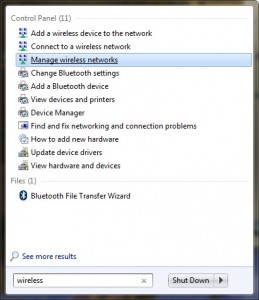
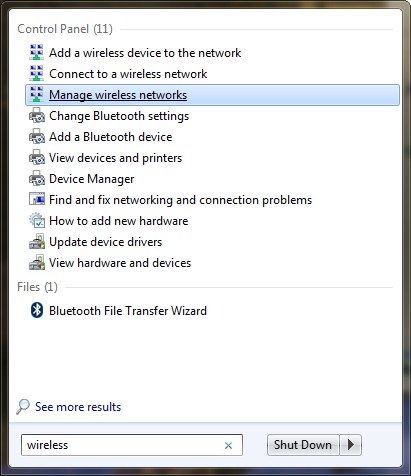
- Click on Start (Windows icon) and type wireless. Click on Manage wireless networks.
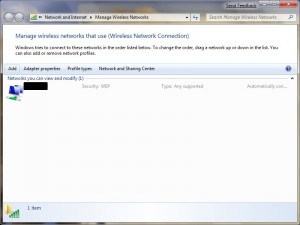
- Click on Add to add a network.
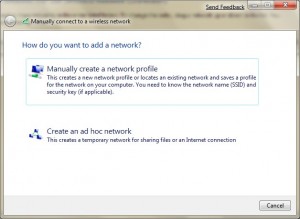
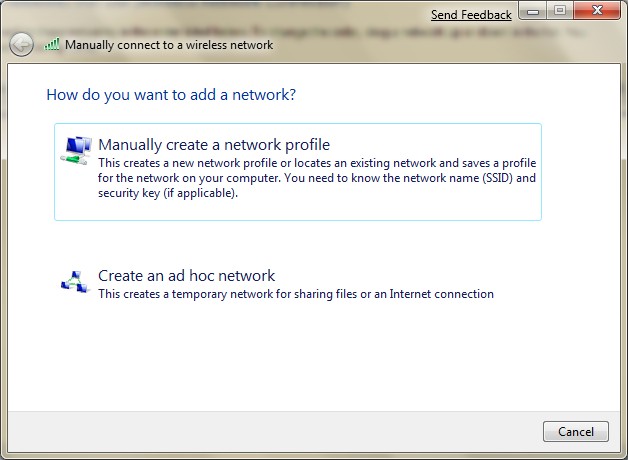
- Click on Create an ad hoc network.
- Click on Next.
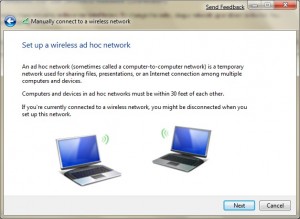
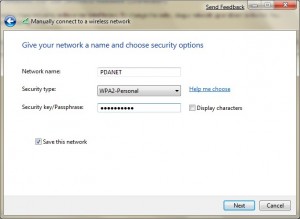
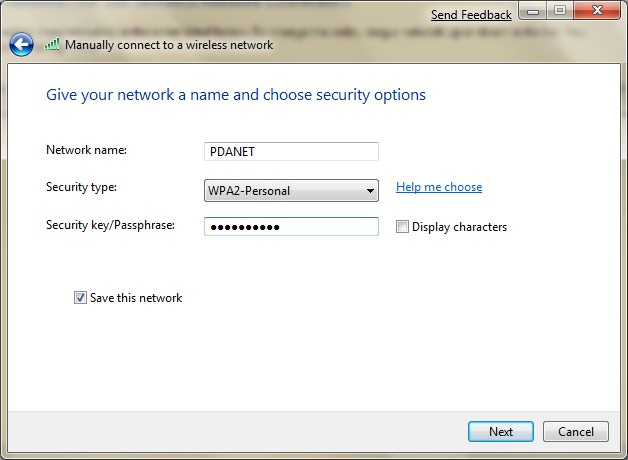
- Enter a name for your network and configure the security options. Click on Next when you are done.


[Update: 3/21/2009] If you are interested in setting up an ad hoc network with encryption, please see this post.
[Update: 8/17/2010] Please see my latest post about setting an ad hoc network to share an internet connection.
please send me an example oh adHoc password. I cant create a password!!! so soon…
it only accepts binary numbers as a password. which means you can only create password with the number 0 and 1 combinations only. ex. 100010001000 or 101010101010
This is not true. Please see this post for adding a password.
https://www.kombitz.com/2009/03/21/ad-hoc-network-encryption-on-windows-7/
What If it doesnt say create ad-hoc when you Click on add and the question “how do you want to add a network?
Is this ad gov network compatible with IPods and IPhones ?
Yes, you can connect your iPhones or any other WIFI devices to the ad hoc network.
i create ad hoc but there is no network connection to other Pc
Trying to connect my iphone to the adhoc network bt nt being able to. it says unable to connect..what should i do?
Can other device connect to the ad hoc network you created?
My phone cannot detect the ad hoc network ? my wifi is on al my phone ? i tried remaking it but no luck!
why my phone cannot connect to ad hoc/ even though it can read the ad hoc
It could be the security type. I found that WEP is better.
use this simple tool to create wifi adhoc networks in windows 8……
http://www.softpedia.com/get/Network-Tools/Misc-Networking-Tools/Wi-MAN.shtml
when i click Creat ad hoc… there’s this thing that pops out that says ” unexpected error occured” what to do?
create ad hock at open donot choose shared or wep encrypt disable you can acces net without pasword only and any mobile or pc can be connected thankyou
After cret a adhoc network 1 error see me .that one is window can not creat this network