Ever since we switched from Leopard to Snow Leopard, the old Cisco VPN client has not worked. The new Cisco AnyConnect VPN client is required. One user had troubles installing the client. I tried it myself and found that the installation was not straightforward. A bit of tinkering is required. Here are the steps:
If you’re thinking about purchasing a new GPU, we’d greatly appreciate it if you used our Amazon Associate links. The price you pay will be exactly the same, but Amazon provides us with a small commission for each purchase. It’s a simple way to support our site and helps us keep creating useful content for you. Recommended GPUs: RTX 5090, RTX 5080, and RTX 5070. #ad
- When you visit the AnyConnect VPN Client site, the automatic installation does not work. Follow the link on the page to download the installer: vpnsetup.sh .
- Invoke Terminal application.
- Change the directory to where you save the script. It’s usually ~/Downloads . Type the command in the Terminal window.
cd ~/Downloads
- The permission for the vpnsetup.sh is wrong; fix it by typing the following command.
chmod +x vpnsetup.sh
- Run the script. You will need to supply your password for this command.
sudo ./vpnsetup.sh
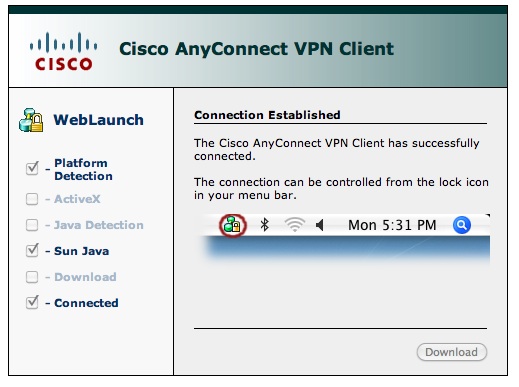
The client should be installed now. Point your browser back to your company’s Cisco AnyConnect VPN web site again and it should connect.
Leave a Reply