I worked on a Windows XP computer recently. This computer kept on rebooting continuously. I did not get a chance to see the blue screen of death for the error message for diagnostic purposes. While there are instructions available on how to disable AutoReboot when the computer can still boot normally, those instructions did not work in this case because the computer could not boot up at all.
If you’re thinking about purchasing a new GPU, we’d greatly appreciate it if you used our Amazon Associate links. The price you pay will be exactly the same, but Amazon provides us with a small commission for each purchase. It’s a simple way to support our site and helps us keep creating useful content for you. Recommended GPUs: RTX 5090, RTX 5080, and RTX 5070. #ad
With the help of Ultimate Boot CD(UBCD) for Win, I was able to modify the registry of the sick computer and stop it from continuous rebooting. Here are the steps:
- Download the CD image from this site on a working computer.
- Burn the CD image to a CD.
- Boot the sick computer using the CD. It usually involves pressing a function key during start up. Consult your machine’s user manual to find out which key to press.
- Launch UBCD for Win.
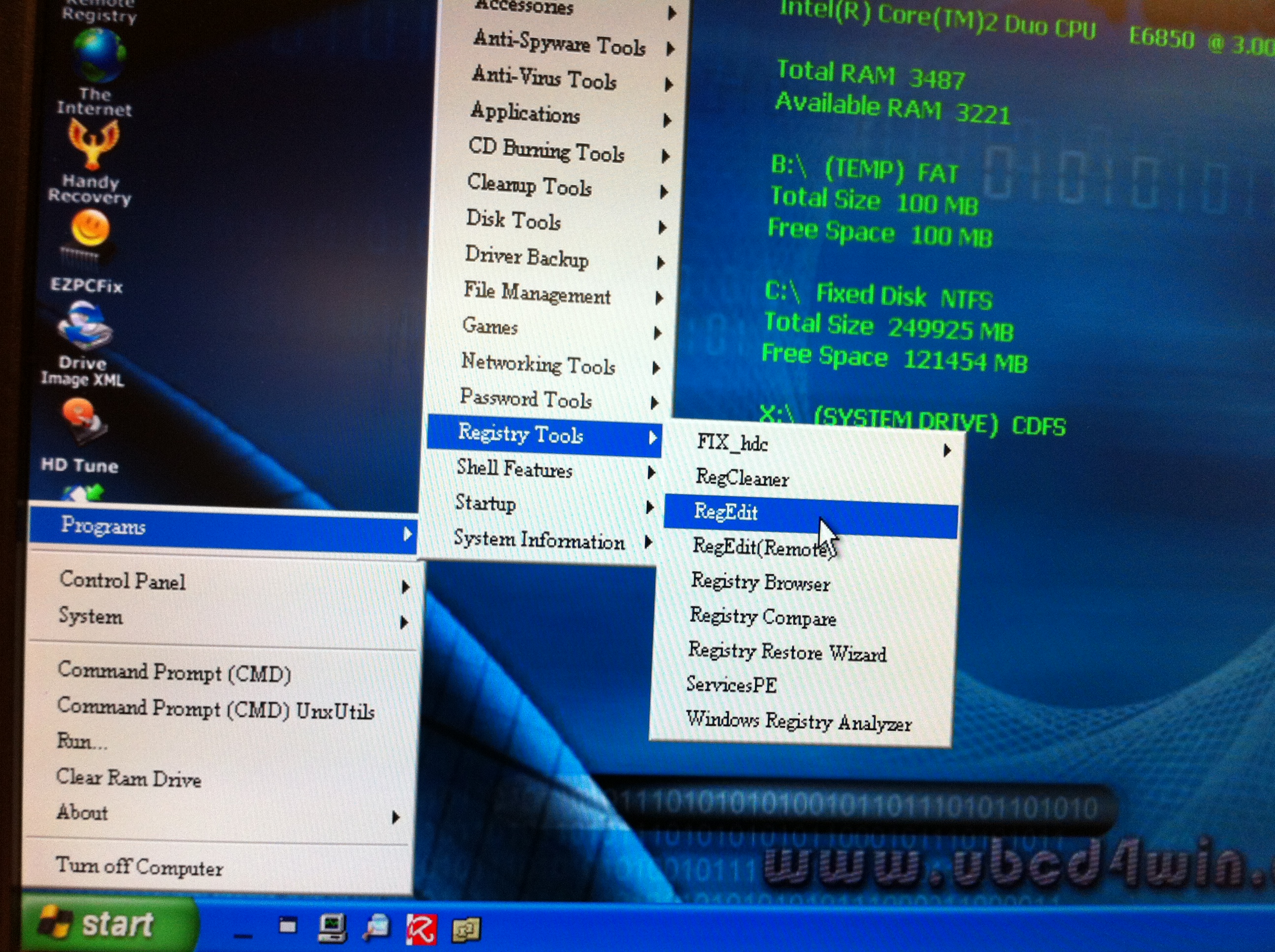
- Click on Start -> Programs -> Registry Tools -> RegEdit.

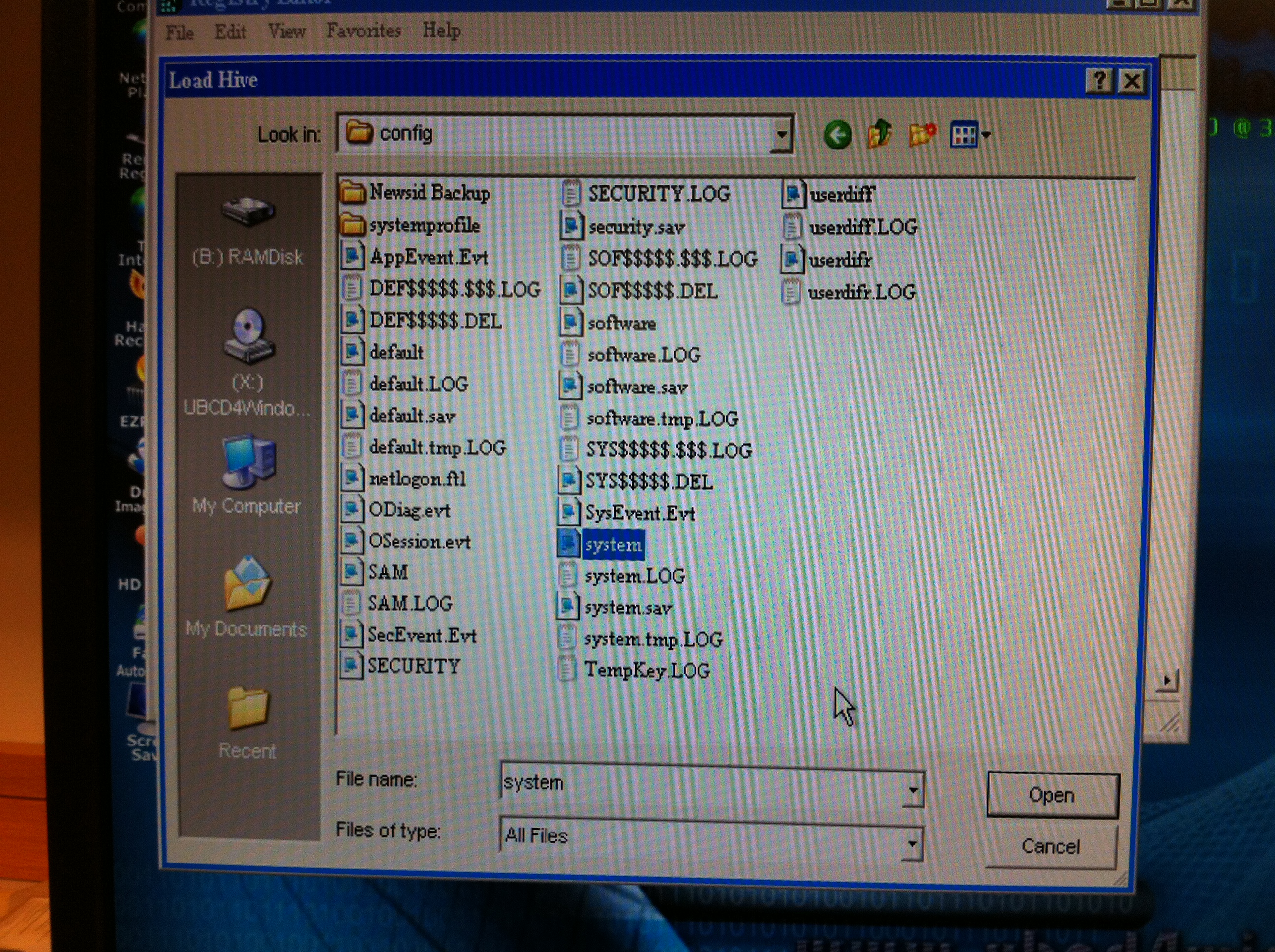
- Click on HKEY_LOCAL_MACHINE to select it and then click on File -> Load Hive… .
- Browse to C:\Windows\System32\config\ and select system. Click on OK. Name it LocalSystem.

- Once the registry hive is loaded, browse to this key: HKEY_LOCAL_MACHINE\LocalSystem\ControlSet001\Control\CrashControl\AutoReboot

- Double click on the key and change the value to 0.
- Click on File -> Unload Hive … .
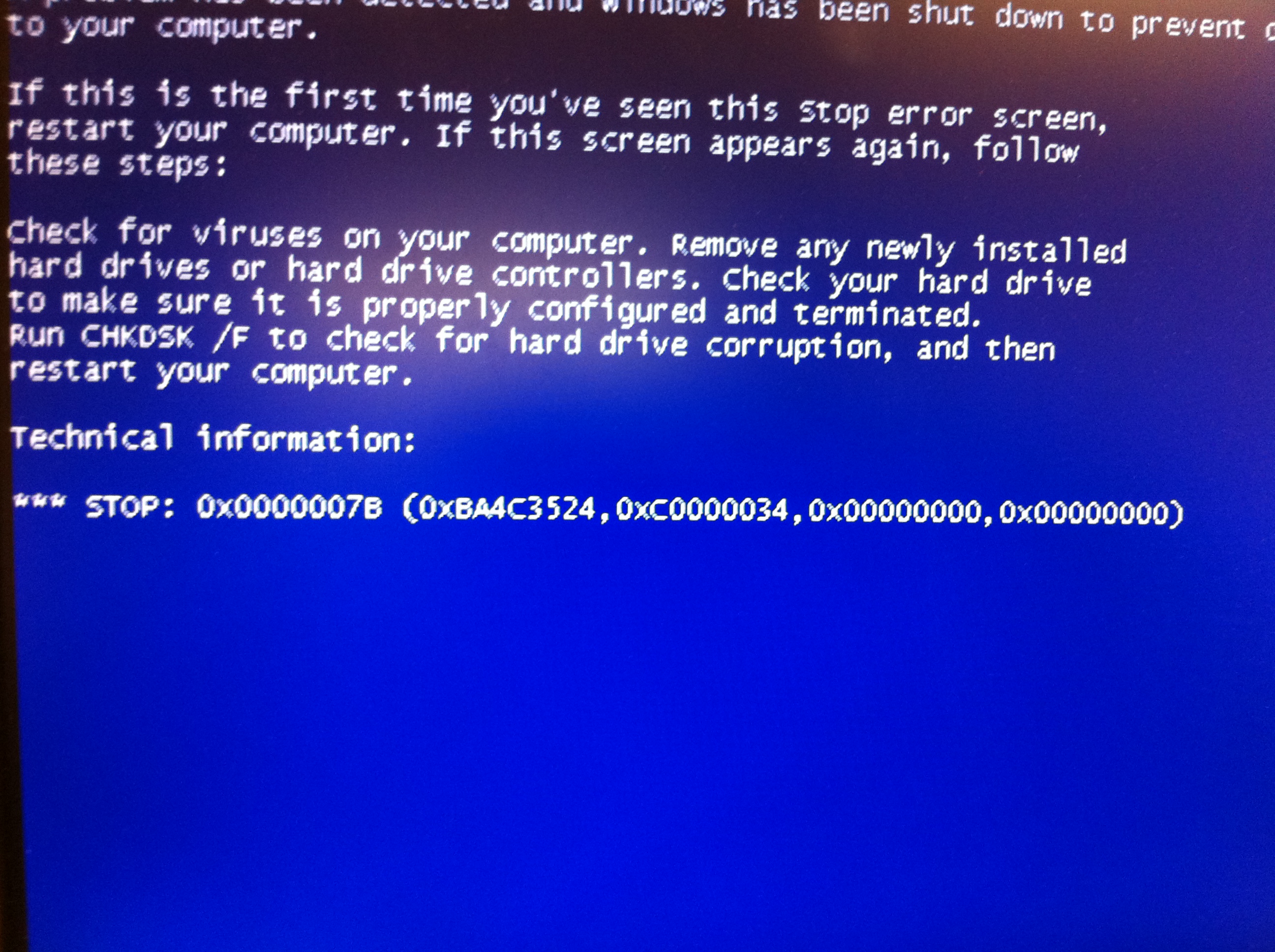
- Reboot the machine. Now the computer won’t start continuous rebooting again, and you should be able to see the error message.


Leave a Reply