For those who are unfamiliar with bokeh, it is the blur in the out-of-focus areas of an image. This effect is easily achieved by using a DSLR camera. On a compact camera, it is difficult to have bokeh because of the small lens and sensor.
If you’re thinking about purchasing a new GPU, we’d greatly appreciate it if you used our Amazon Associate links. The price you pay will be exactly the same, but Amazon provides us with a small commission for each purchase. It’s a simple way to support our site and helps us keep creating useful content for you. Recommended GPUs: RTX 5090, RTX 5080, and RTX 5070. #ad
You could however “simulate” bokeh effect using an image editor. In this tutorial, I am going to show you how to do it using the open source GIMP.
- Invoke GIMP and open the image you want to edit.
- Click on the Free Select Tool.
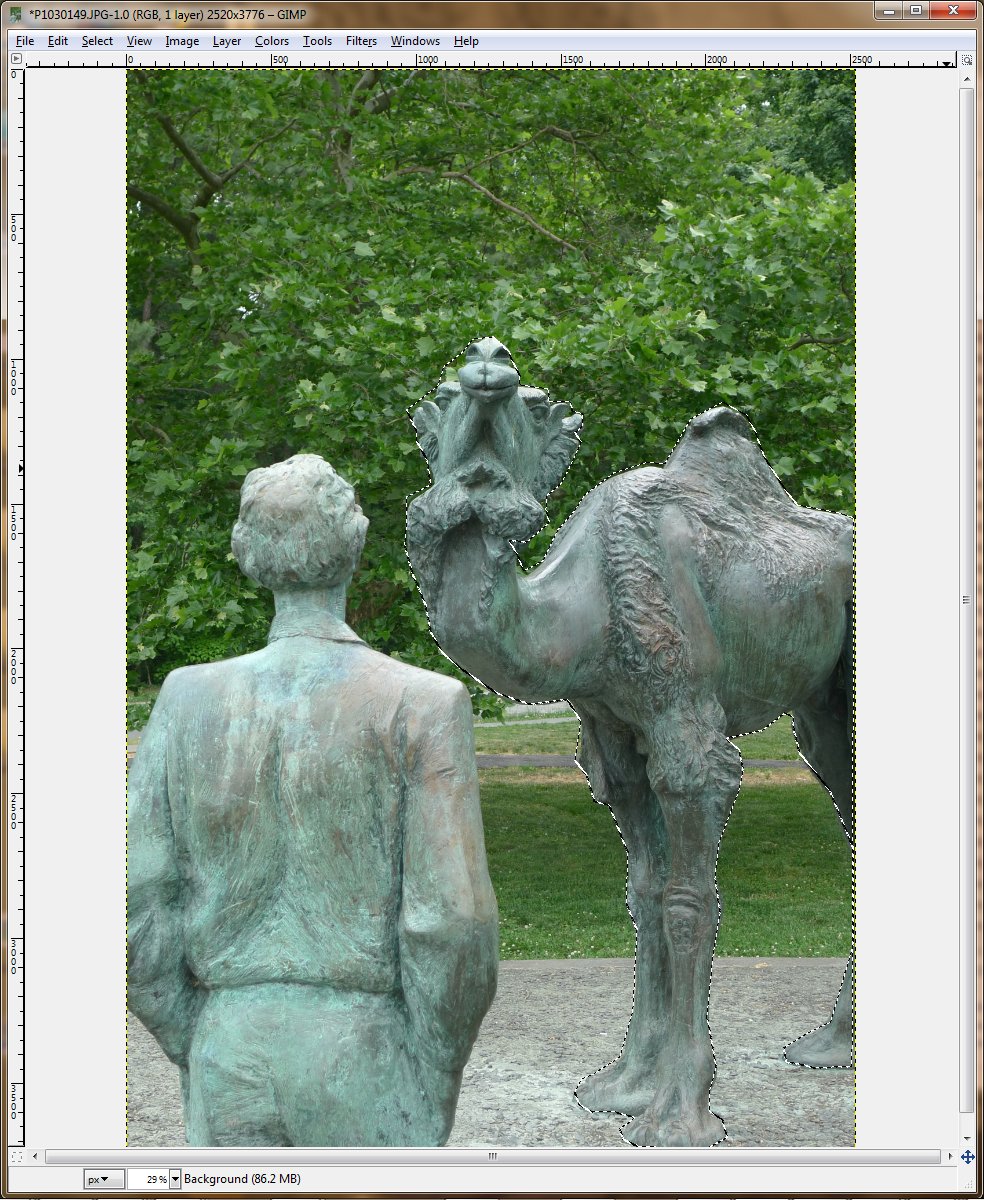
- Trace your subject with the Free Select Tool.
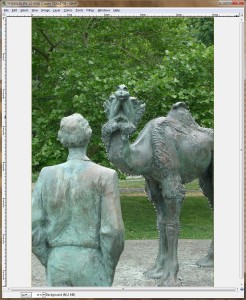
- Once your subject is selected, click on Select -> Invert to invert the selection. The background is now selected.
- Click on Filters -> Blur -> Gaussian Blur… to bring up the Gaussian Blur dialog.
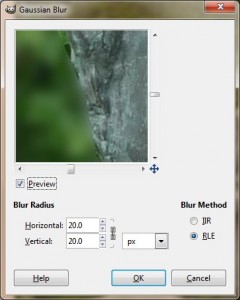
- Enter the size of Blur Radius. You have to experiment a bit to figure out the size. In this example, it is a 10MP image, and I used 20.0 px for the Blur Radius. Click on OK to close the dialog.
- Save the image under a different name so that the original is unaltered.

Here are the sample photos.
BEFORE
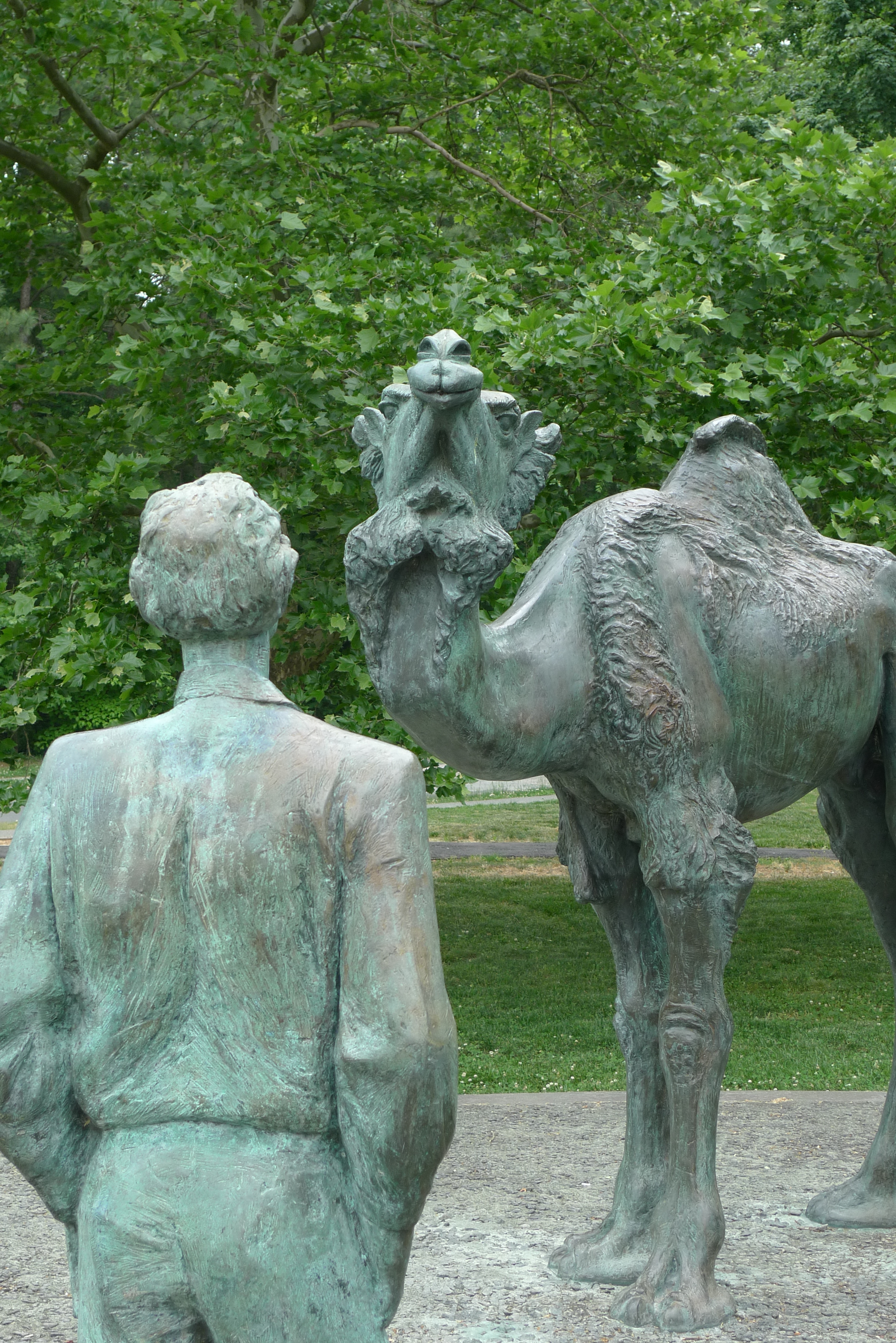
AFTER
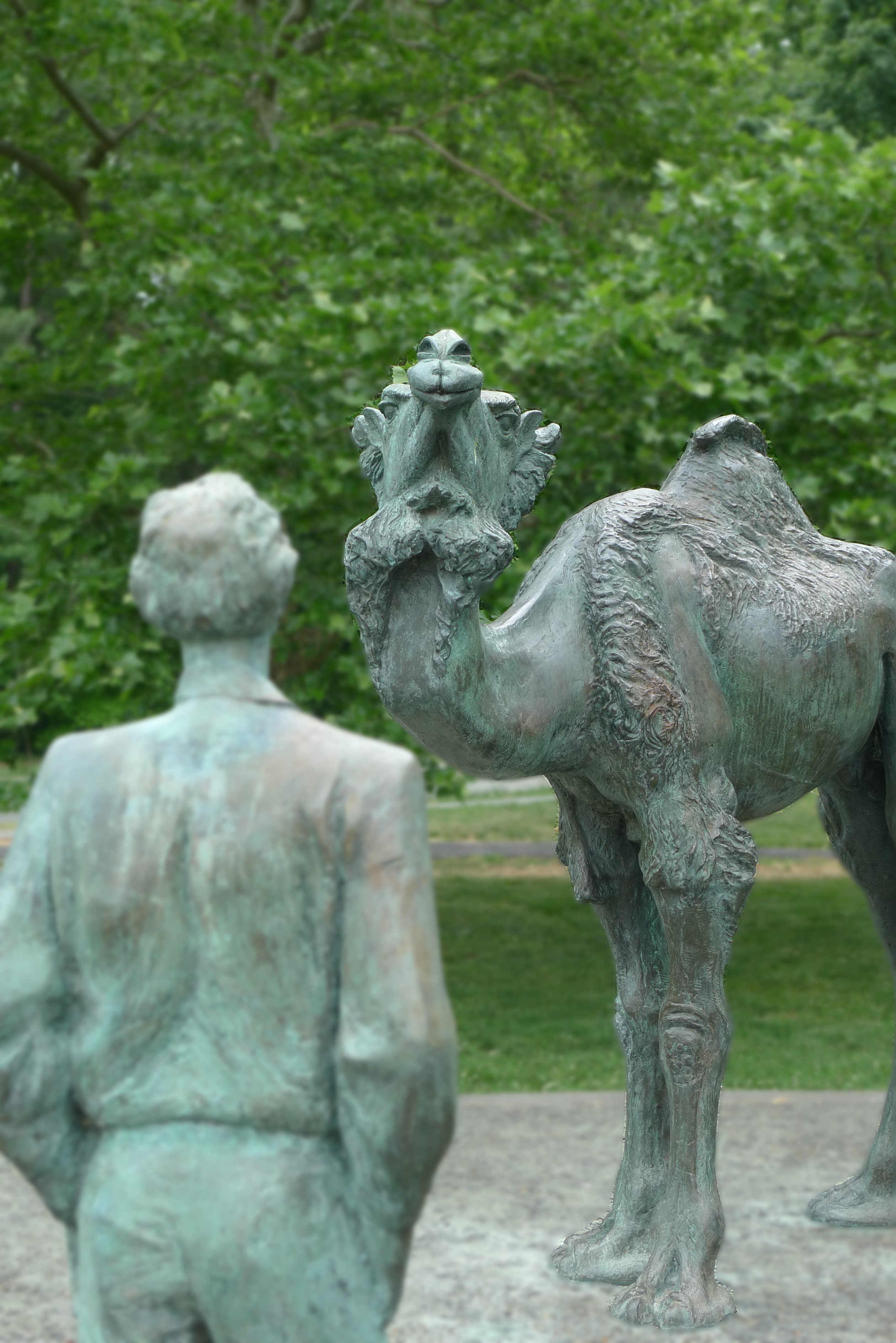
The thumbnails are a bit small for you to notice the difference. Click on the thumbnails to see the full size images.
Leave a Reply