If you ever install applications written for other languages in Windows 98, you know that most of the time the user interface is not readable. With introduction of Windows 2000 and Windows XP, Microsoft has added the ability to display application user interface in other language. I’ll show the steps to enable the system to show the application written for Japanese.
If you’re thinking about purchasing a new GPU, we’d greatly appreciate it if you used our Amazon Associate links. The price you pay will be exactly the same, but Amazon provides us with a small commission for each purchase. It’s a simple way to support our site and helps us keep creating useful content for you. Recommended GPUs: RTX 5090, RTX 5080, and RTX 5070. #ad
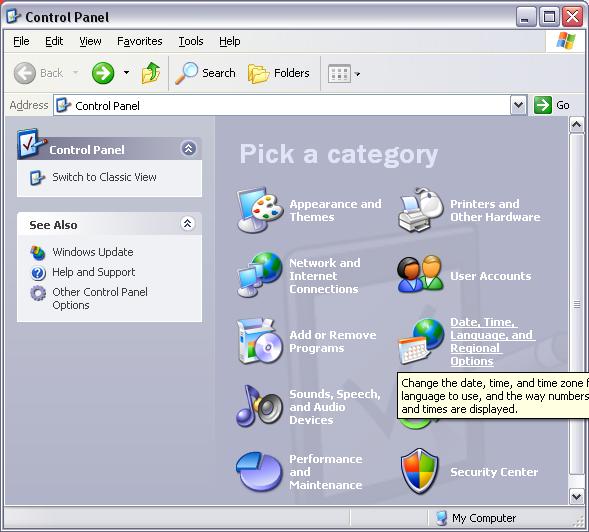
- Click on “Start” button and select “Control Panel” to bring up Control Panel.
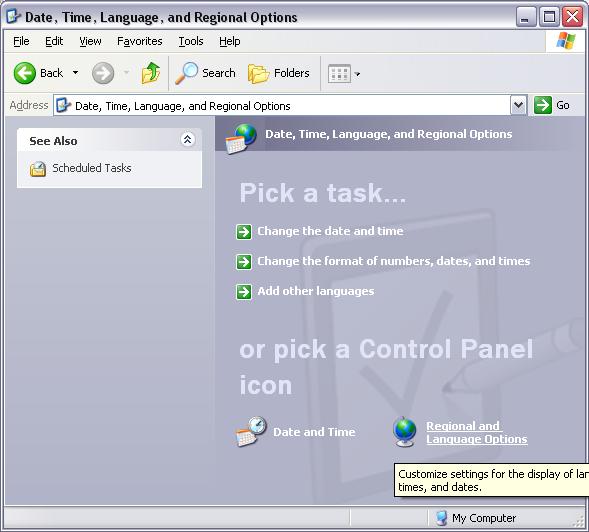
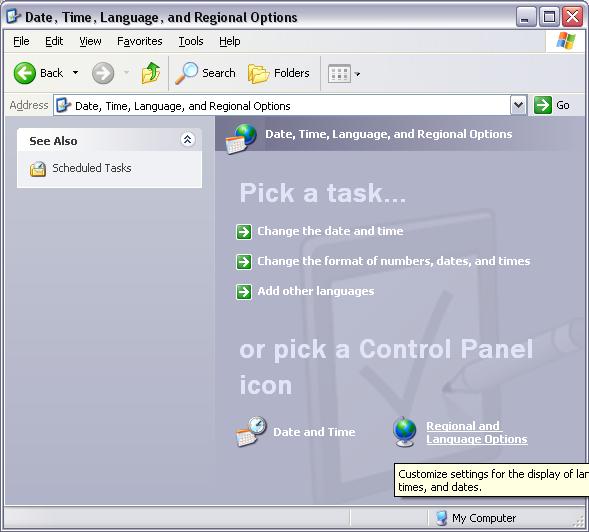
- Click on “Date, Time, Language, and Regional Options” to bring up the following dialog.
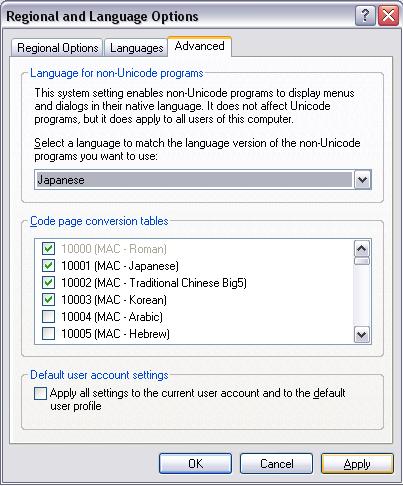
- Click on “Regional and Language Options” to bring up the next dialog.
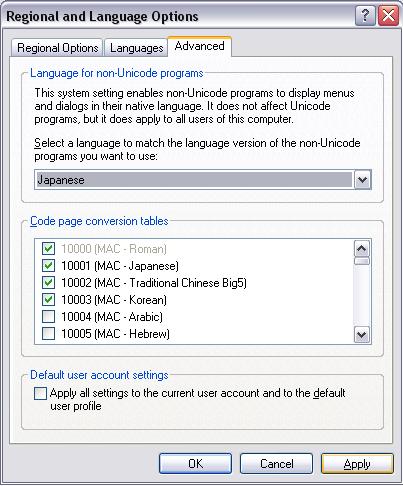
- In this dialog, click on the “Advanced” tab. In the “Language for non-Unicode programs” section, select the language you want. In this case, I picked Japanese. Finally, click on OK to close the dialog. You need to reboot the computer to use the new settings.
Leave a Reply