
A few days ago, I read an article about Google Android is gaining popularity among cellphone makers. One research firm predicts that it will grow to 14 percent of the global smartphone market in 2012. The Android will be the number 2 platform after Symbian.
If you’re thinking about purchasing a new GPU, we’d greatly appreciate it if you used our Amazon Associate links. The price you pay will be exactly the same, but Amazon provides us with a small commission for each purchase. It’s a simple way to support our site and helps us keep creating useful content for you. Recommended GPUs: RTX 5090, RTX 5080, and RTX 5070. #ad
The popularity of Android has also expanded to other devices. Acer today announced the availability of the Aspire One AOD250 netbook with a dual-boot option including Android and Windows XP. The inclusion of Android gives the system instant-on ability that users can quickly turn on the system and surf the internet in no time.
If you want to try out Android, you can download Live Android, a LiveCD version of Android. Here is a tutorial on how to run the LiveCD on VirtualBox. The version of Live Android used in this tutorial is 0.3 and the VirtualBox version is 3.0.8.
- Download the iso files from this site. There are two files to download: liveandroidv0.3.iso.001 and liveandroidv0.3.iso.002.
- Combine the two files on Windows by using this command in a command prompt.
copy /b liveandroidv0.3.iso.001 + liveandroidv0.3.iso.002 liveandroidv0.3.iso
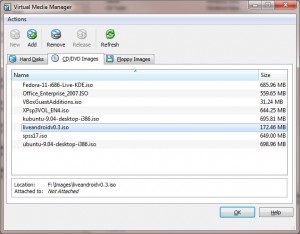
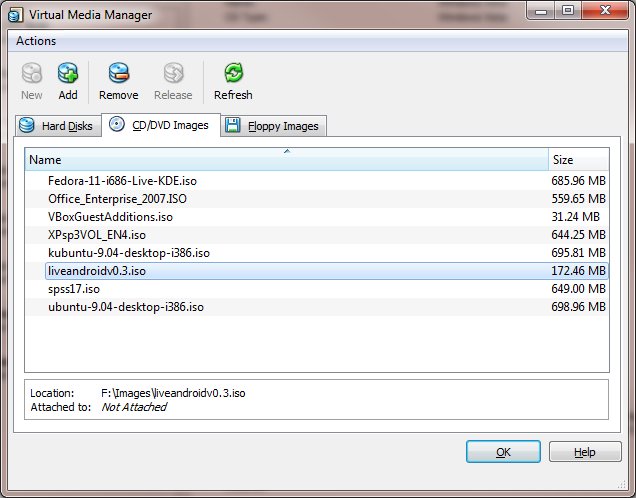
- Run VirtualBox. Click on File -> Virtual Media Manager. Click on CD/DVD Images tab and then click on Add to add the iso image. Click on OK when you are done.
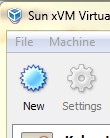
- Back to the main windows of VirtualBox, click on New to create a new virtual machine.
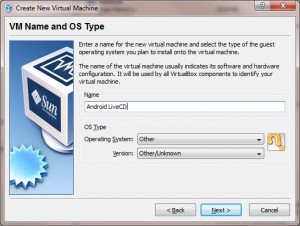
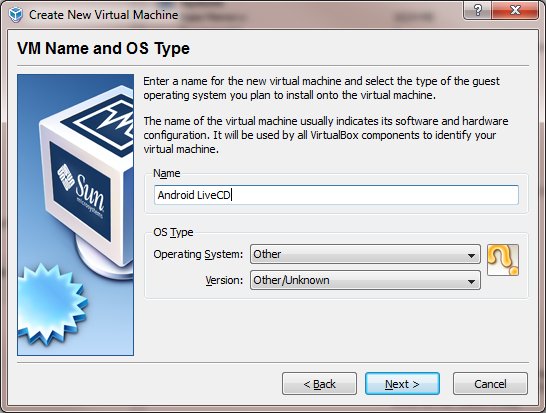
- Enter a name for the virtual machine and select the OS type. Click on Next to continue.
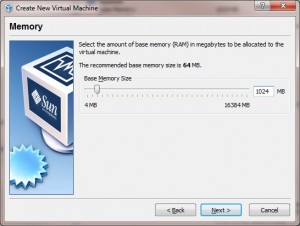
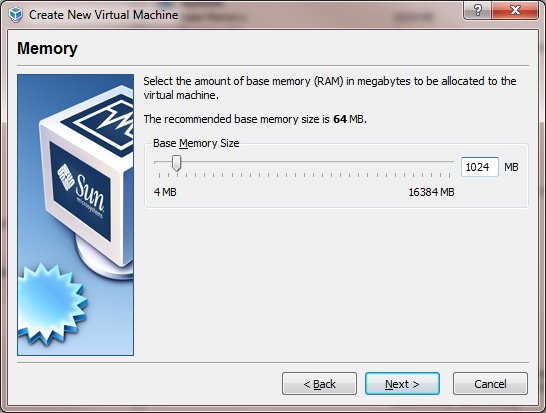
- Set the memory size. 1024MB is plenty. Set it to 512MB or smaller if you do not have a lot of memory for your machine. Click on Next to continue.
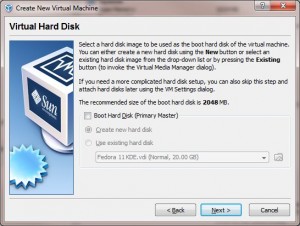
- Uncheck Boot Hard Disk, since we are not using the hard drive for this virtual machine. Click on Next to continue.
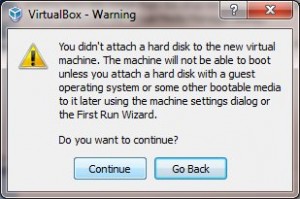
- A warning pops up about not having a hard drive. Click on Continue.
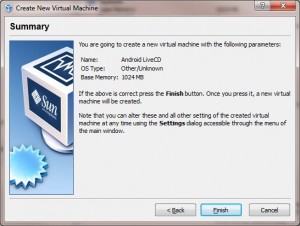
- Click on Finish to finish creating the new virtual machine.
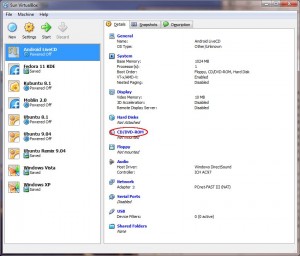
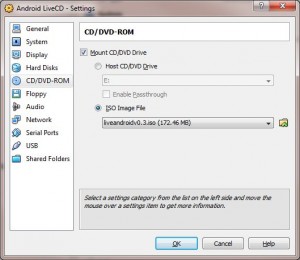
- Back to the main window, with Android LiveCD selected, double click on CD/DVD-ROM.
- Check Mount CD/DVD Drive, click on ISO Image File and select the Live Android cd image we added in step 3. Click on OK to continue.
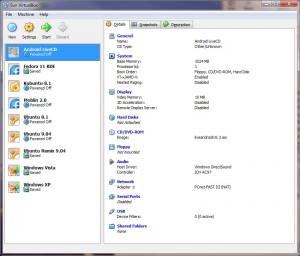
- Back to the main windows. The virtual machine is configured to mount the Live Android.
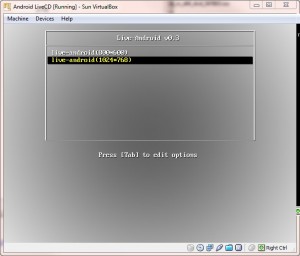
- Start the virtual machine and select the resolution if you want and press Enter to boot.
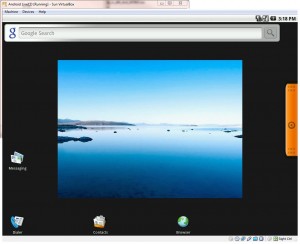
- Live Android boots up. You are ready to try it.


Note that this can be adapted to other LiveCD. Use the Virtual Media Manager to add a different iso image and choose the newly added cd image in step 11.
For those who are new to Android, there are some special keys.
Left Windows key: Home
Application key: Menu
ESC key: Back
Here is a pic of Home and Menu keys on your keyboard.

very much useful fof the beginners… Thanks