I tried to use the default backup utility in Windows 7 to move my data from one hard drive to another. After the files were restored, I found that my Firefox settings and Thunderbird emails were not saved by the backup utility. This behavior is the same as the Easy Transfer Wizard. The non-MS application settings are left out by default.
If you’re thinking about purchasing a new GPU, we’d greatly appreciate it if you used our Amazon Associate links. The price you pay will be exactly the same, but Amazon provides us with a small commission for each purchase. It’s a simple way to support our site and helps us keep creating useful content for you. Recommended GPUs: RTX 5090, RTX 5080, and RTX 5070. #ad
If you wish to save everything in your profile, you’ll need to configure the backup utility properly. Here are the steps:
- Invoke Backup and follow the wizard.
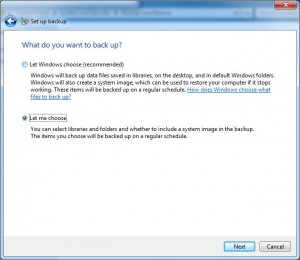
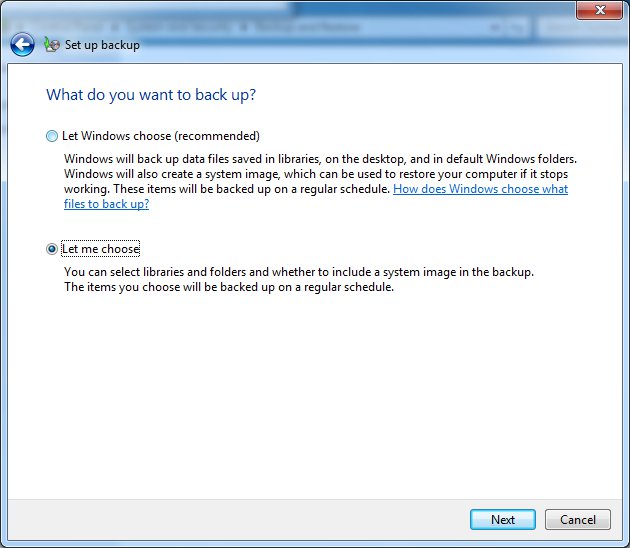
- When you are prompted for “What do you want to backup?“, click on “Let me choose”
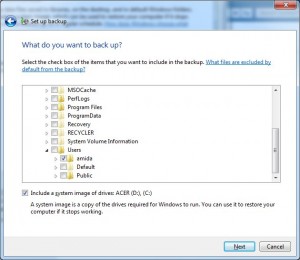
- In the next dialog, expand the C drive and Users. Click on your profile to select it.
- Follow the rest of the on screen instructions to finish the wizard.

Everything in your profile will be included in the next backup.
Leave a Reply