Firefox 4 features a newly designed user interface, and it looks more like the Google Chrome browser now. The new design saves a lot of on-screen real estate and is good for a laptop screen. However, you might not like the new design- instead, you want the classic look back. Fortunately, it’s not difficult to revert to the original design. Here are the steps:
If you’re thinking about purchasing a new GPU, we’d greatly appreciate it if you used our Amazon Associate links. The price you pay will be exactly the same, but Amazon provides us with a small commission for each purchase. It’s a simple way to support our site and helps us keep creating useful content for you. Recommended GPUs: RTX 5090, RTX 5080, and RTX 5070. #ad
- Right click on the toolbar to bring up a context menu. We will use this context menu exclusively for our classic UI.
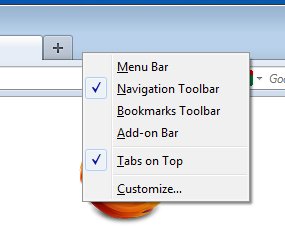
- Check Menu Bar to enable it.
- Right click on the toolbar and check Bookmarks Toolbar to enable it.
- Right click on the toolbar and check Add-on Bar to enable it.
- Right click on the toolbar and uncheck Tabs on Top to disable it.
- Right click on the toolbar and click on Customize to customize the Navigation Toolbar. You can then select the buttons on the toolbar and rearrange them. I moved the Home, Refresh and Stop buttons to the left side. Click on Done when you are finished.
Here is a screenshot of the original Firefox 4 UI.
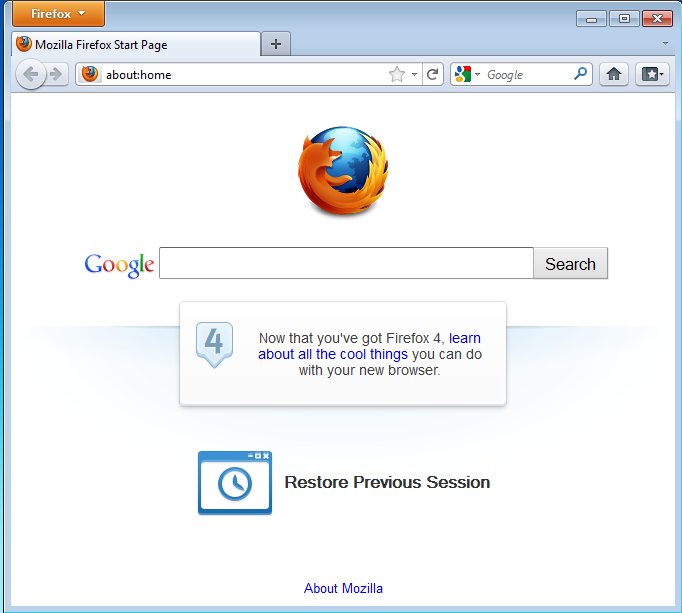
Here is a screenshot of the classic UI after customization.

Thank you! My wife (foolishly) installed FF4 and she hates the design! These tips are great!