We just got an Asus Eee Slate EP121. It came pre-installed with Windows 7 Home Premium edition. Since it was going to be used in an Enterprise environment, I wiped the hard drive clean and installed the Enterprise edition of Windows 7. When the tablet booted up the first time, I noticed a problem. The machine required me to press Ctrl+Alt+Del to log on. I had to connect a USB keyboard and use that to log on. Fortunately, the Eee Slate comes with a wireless keyboard, so it will not be a problem if you have the keyboard paired and ready to use. However, it can be a problem if you are out in the field without either a wired or wireless keyboard handy.
If you’re thinking about purchasing a new GPU, we’d greatly appreciate it if you used our Amazon Associate links. The price you pay will be exactly the same, but Amazon provides us with a small commission for each purchase. It’s a simple way to support our site and helps us keep creating useful content for you. Recommended GPUs: RTX 5090, RTX 5080, and RTX 5070. #ad
There is a way to disable the pressing Ctrl + Alt + Del requirement, through the Local Security Policy. Here are the steps:
- Click on the Windows logo.
- Enter secpol.msc and press Enter.
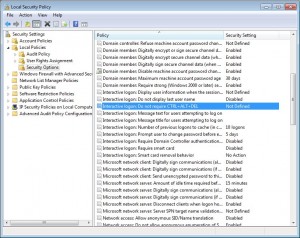
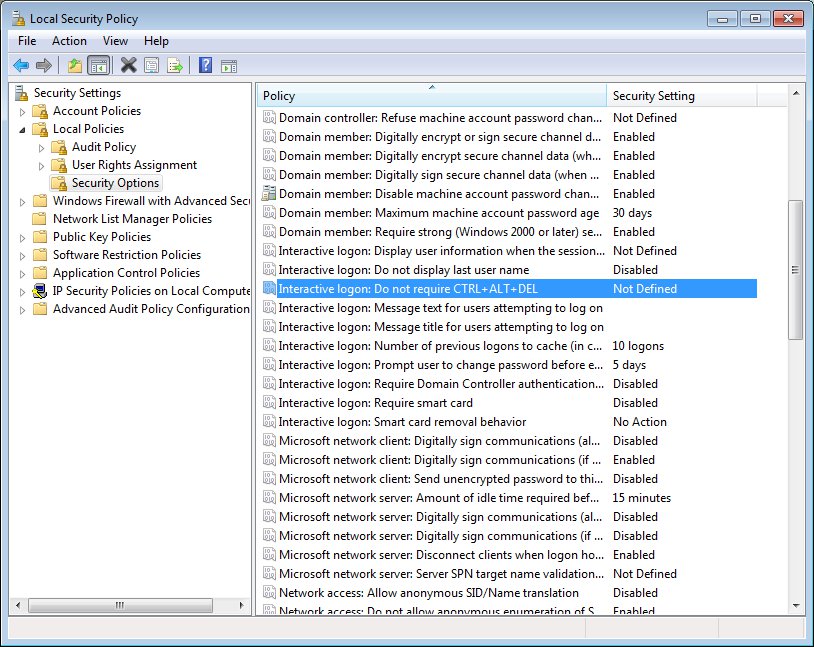
- Local Security Policy shows up. Expand Local Policies and then Security Options.
- Scroll down on the pane and double click on Interactive logon: Do not require CTRL + ALT + DEL.
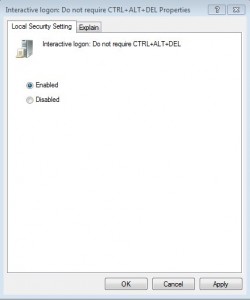
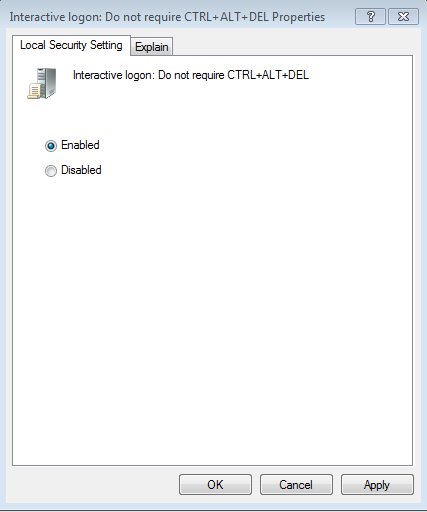
- Click on Enabled and click on OK.
- Reboot the computer. You do not have to press Ctrl + Alt + Del on the log on screen any more.
yes