The biggest change of Windows 8 is the Metro interface. While the Metro interface is good for a tablet, it’s not designed for desktop computers. I upgraded my main workstation to Windows 8 a while ago. I use the desktop about 99% of time, and I only use the Metro interface when it’s necessary.
If you’re thinking about purchasing a new GPU, we’d greatly appreciate it if you used our Amazon Associate links. The price you pay will be exactly the same, but Amazon provides us with a small commission for each purchase. It’s a simple way to support our site and helps us keep creating useful content for you. Recommended GPUs: RTX 5090, RTX 5080, and RTX 5070. #ad
I found that if you have multiple monitors, you can configure it so that Metro only shows on the second monitor. This works very well, and the interface does not interfere with the applications on the main monitor. Here is how to do it.
- Move the cursor to the corner of the second monitor.
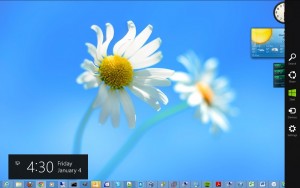
- Click on the Start icon.
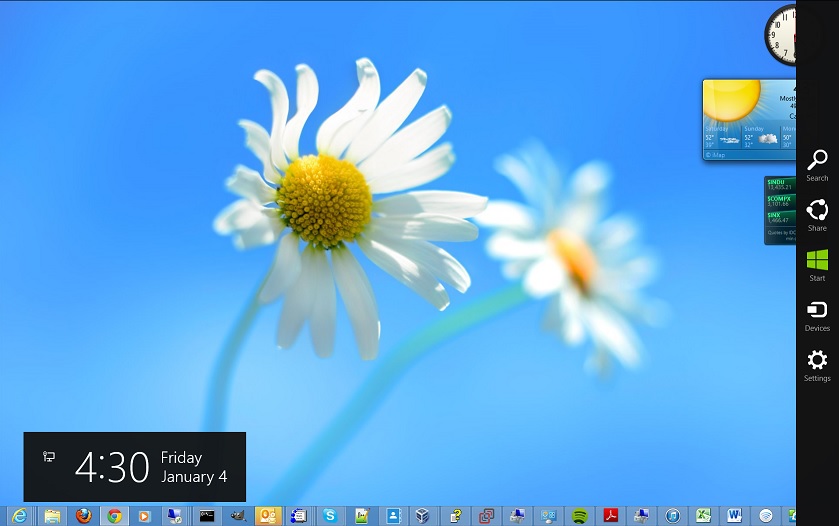
This activates the Metro interface on the second monitor. From now on, whenever you press the Windows key, the Metro interface will show on the second monitor. Note that this change only applies to the current session. You’ll have to do it again the next time you log on.
Leave a Reply