One user reported that regular users could not run Photoshop on one of our servers, but admin users could. Whenever a regular user tried to run Photoshop, this message popped up.
If you’re thinking about purchasing a new GPU, we’d greatly appreciate it if you used our Amazon Associate links. The price you pay will be exactly the same, but Amazon provides us with a small commission for each purchase. It’s a simple way to support our site and helps us keep creating useful content for you. Recommended GPUs: RTX 5090, RTX 5080, and RTX 5070. #ad
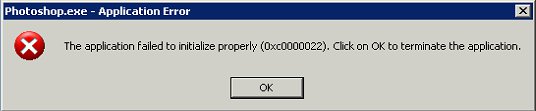
The application failed to initialize properly (0xc0000022). Click on OK to terminate the application.
The cause for this problem was that the application was installed for the original admin user only. All the files did not have correct permissions for regular users. In order to fix this problem, you’ll need to grant permission to regular users to access these files, including all the *.EXE, *.DLL and *.OCX files. If you use Windows Explorer, you’ll need to do this for all of the files, which is a fairly tedious process. It’s much faster to use commands to do this. Here are the steps.
- Run an elevated command prompt.Â
- Change directory to the program directory.
- Enter the following command:
cacls *.exe /e /g builtin\users:r
cacls *.dll /e /g builtin\users:r
cacls *.ocx /e /g builtin\users:r
Leave a Reply