When I first installed Windows 8 on Virtual PC, I ran into a problem: the Guest Additions were not compatible with Windows 8. I had to use Recovery mode to refresh my Windows 8 installation. The Recovery mode was automatically invoked after I failed to boot the virtual machine up several times. I tried the Guest Additions today, thinking that it would be compatible with Windows 8 after a few months passed. It turned out that the Guest Additions were still not compatible with Windows 8. I ran into the same problem again; the virtual machine booted up to a black screen. I tried to reboot the virtual machine several times, hoping that it would invoke Recovery Mode for me to uninstall the Guest Additions. However, the Recovery Mode did not run automatically this time. I found a trick to force the Windows 8 virtual machine to boot to Recovery Mode. All you have to do is to disable the network adapter. Here are the steps:
If you’re thinking about purchasing a new GPU, we’d greatly appreciate it if you used our Amazon Associate links. The price you pay will be exactly the same, but Amazon provides us with a small commission for each purchase. It’s a simple way to support our site and helps us keep creating useful content for you. Recommended GPUs: RTX 5090, RTX 5080, and RTX 5070. #ad
- Select the Windows 8 virtual machine and click on Settings.
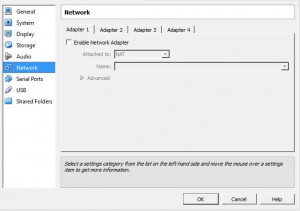
- Click on Network and make sure Enable Network Adapter is not checked for all 4 adapters.
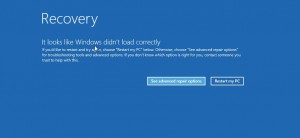
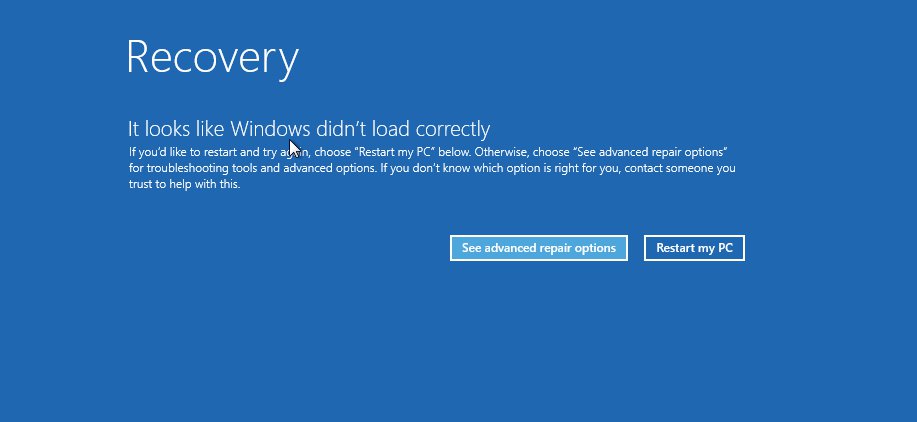
- Start the virtual machine and it will enter Recovery Mode.

Leave a Reply