We just found out that, when a HP printer is installed- even if the printer is capable of duplex printing- it may not be enabled for some computers. You will have to manually enable duplex printing. Here is how:
If you’re thinking about purchasing a new GPU, we’d greatly appreciate it if you used our Amazon Associate links. The price you pay will be exactly the same, but Amazon provides us with a small commission for each purchase. It’s a simple way to support our site and helps us keep creating useful content for you. Recommended GPUs: RTX 5090, RTX 5080, and RTX 5070. #ad
- Click on the printer you want to enable duplex printing in Devices and Printers.
- Click on Customize your printer.
- If you see a button on the left bottom corner that says Change properties, click on it. If you do not see this button, you can skip to the next step.
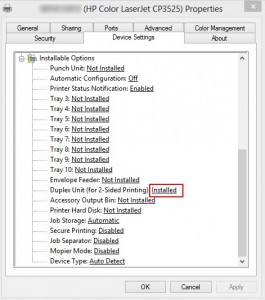
- Click on Device Settings and find Duplex Unit (for 2-Sided Printing). Change it to Installed.
- If you want to set duplex printing as default, click on General tab and then Preferences …. A new dialog pops up. Click on Finish and then check Print on both sides.

Leave a Reply