If you have ever tried to empty or delete cache from Google Chrome, you’ll know that it’s a multistep process. Google has a tutorial for it, so I won’t repeat it here. I’ve just found out a way to do it quickly, and it’s also easier to write instructions for the process.
If you’re thinking about purchasing a new GPU, we’d greatly appreciate it if you used our Amazon Associate links. The price you pay will be exactly the same, but Amazon provides us with a small commission for each purchase. It’s a simple way to support our site and helps us keep creating useful content for you. Recommended GPUs: RTX 5090, RTX 5080, and RTX 5070. #ad
- Copy and paste this string to the address bar and press Enter.
chrome://settings/clearBrowserData#cache
- The clear browsing data dialog shows up, click on Clear browsing data button.
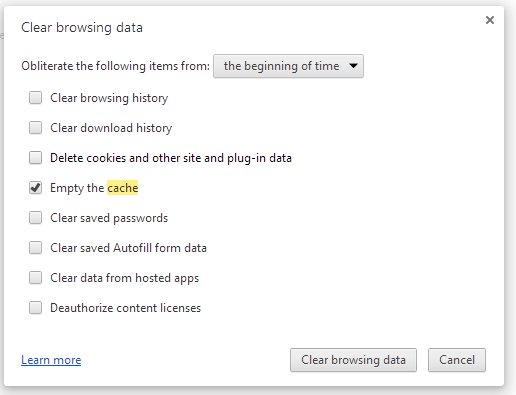
This works on Chrome version 27. If this does not work for some reason, you can try the longer version. My instructions differ from the tutorial provided by Google. Here they are, for your convenience:
- Click on the Customize and control Google Chrome icon on the top right corner and select settings.

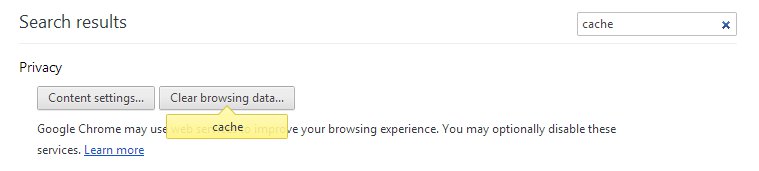
- Enter cache in the Search settings box and press Enter.
- Click on Clear browsing data button.
- The clear browsing data dialog shows up, click on Clear browsing data button.
Leave a Reply