We bought a PowerConnect N2024 switch for a small cluster. During the installation, the DHCP server did not seem to work. The compute node could not get an IP address and the installation failed. I saw a FAQ about the problem with PowerConnect 5224.
If you’re thinking about purchasing a new GPU, we’d greatly appreciate it if you used our Amazon Associate links. The price you pay will be exactly the same, but Amazon provides us with a small commission for each purchase. It’s a simple way to support our site and helps us keep creating useful content for you. Recommended GPUs: RTX 5090, RTX 5080, and RTX 5070. #ad
I had a hard time while trying to follow the guide. The first problem I had was with entering the command to assign an IP address for the switch. I didn’t know that there were two different modes for the switch. You need to enter
enable
first to enter the command. After you enter the command, the prompt changes from > to #. You can then enter the command to assign an IP address for the switch.
config
interface vlan 1
ip address 10.1.2.3 255.0.0
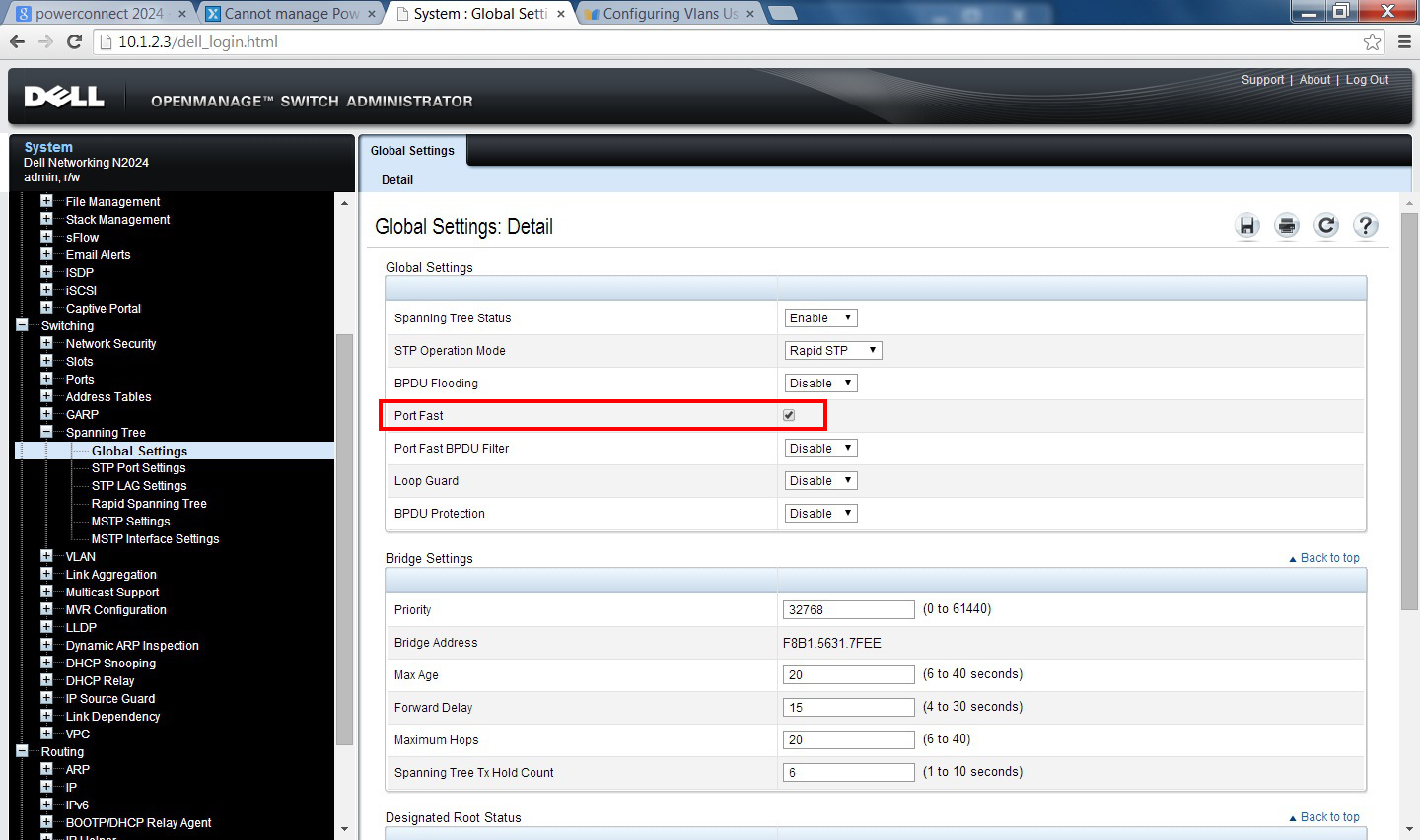
The second problem I had was that I couldn’t find the place to change “edge port” settings. The guide suggested that this setting could be labeled as “fast link”. On the N2024 switch, it is not called either “edge port” or “fast link”; it is called Port Fast. You can enable this setting by going to Switching -> Spanning Tree -> Global Settings -> Port Fast.
Leave a Reply