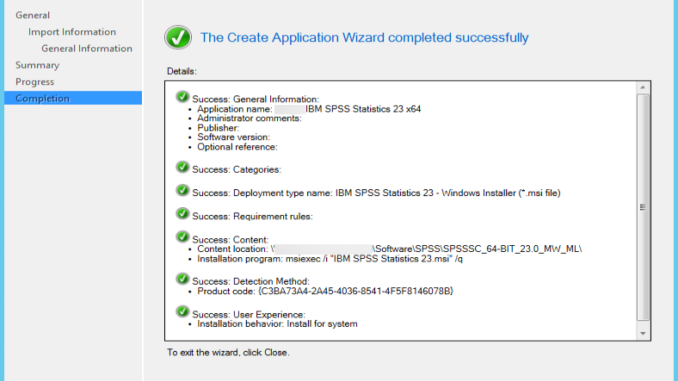
There are two ways to create software installation packages in SCCM 2012. The Application is the new and recommended method. Here are the steps:
If you’re thinking about purchasing a new GPU, we’d greatly appreciate it if you used our Amazon Associate links. The price you pay will be exactly the same, but Amazon provides us with a small commission for each purchase. It’s a simple way to support our site and helps us keep creating useful content for you. Recommended GPUs: RTX 5090, RTX 5080, and RTX 5070. #ad
- Download the application in MSI format and put it on a server share.
- Open up System Center Configuration Manager and browse to Software Library -> Overview -> Application Management -> Applications
- Click on Create -> Create Application

- Browse to the server share in step 1 and select the msi file and click on Next.

- Click on Yes, if you see a warning dialog about publisher could not be verified.

- Click on Next.
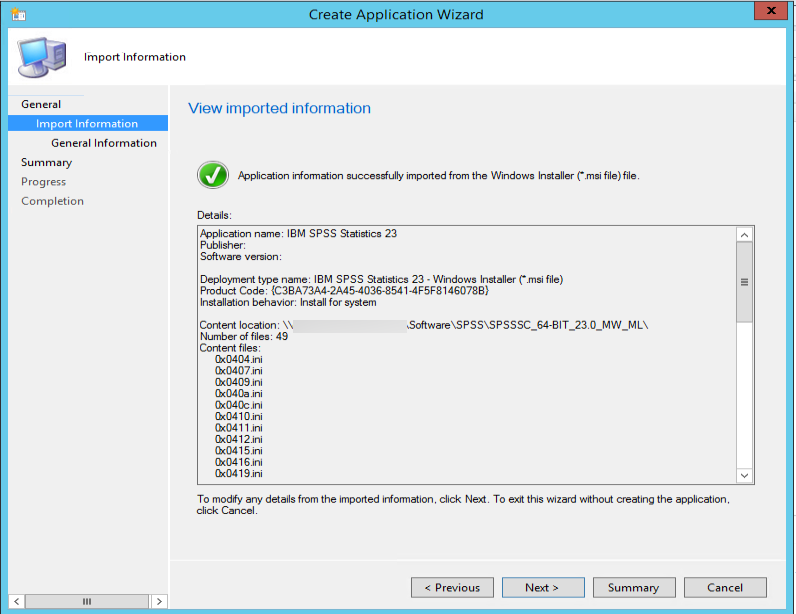
- Change the name if needed. Click on Next.

- Click on Next.

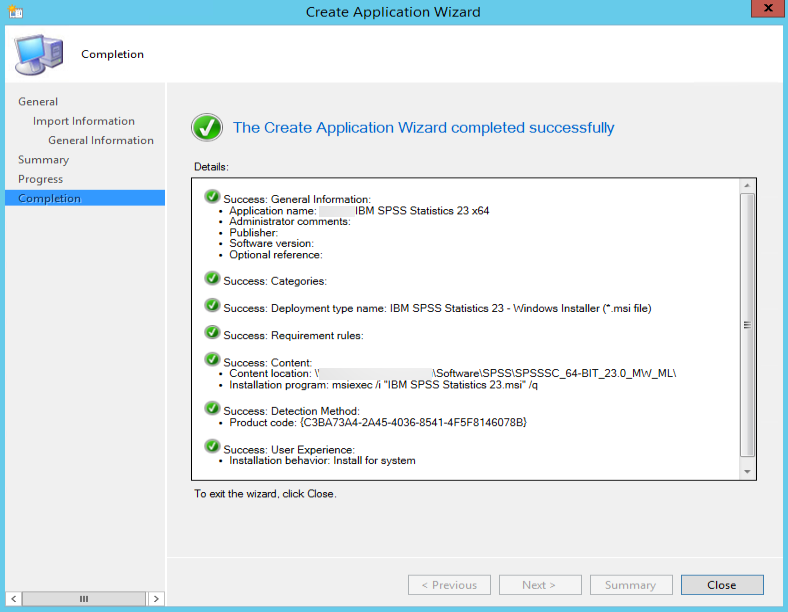
- Click on Close to finish the wizard.
Leave a Reply