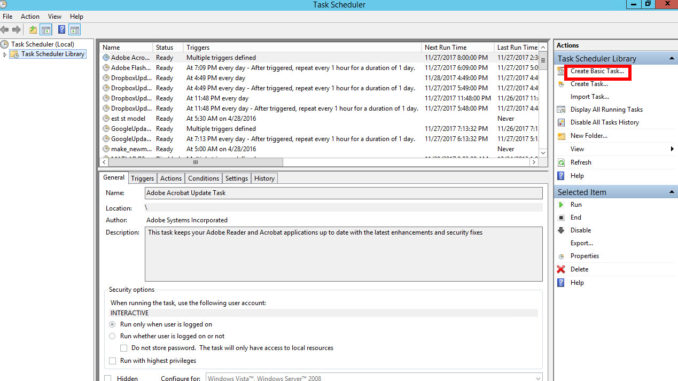
From time to time, we need to schedule a reboot for our Windows servers. I did the screenshots on a server running Windows 2012, but it should apply to Windows 10. Here are the steps.
If you’re thinking about purchasing a new GPU, we’d greatly appreciate it if you used our Amazon Associate links. The price you pay will be exactly the same, but Amazon provides us with a small commission for each purchase. It’s a simple way to support our site and helps us keep creating useful content for you. Recommended GPUs: RTX 5090, RTX 5080, and RTX 5070. #ad
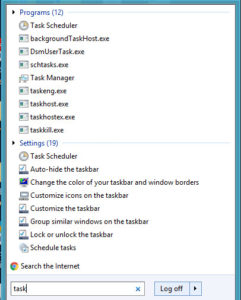
- Search for Task Scheduler and run it.
- Click on Create Basic Task.

- Enter a name and click on Next

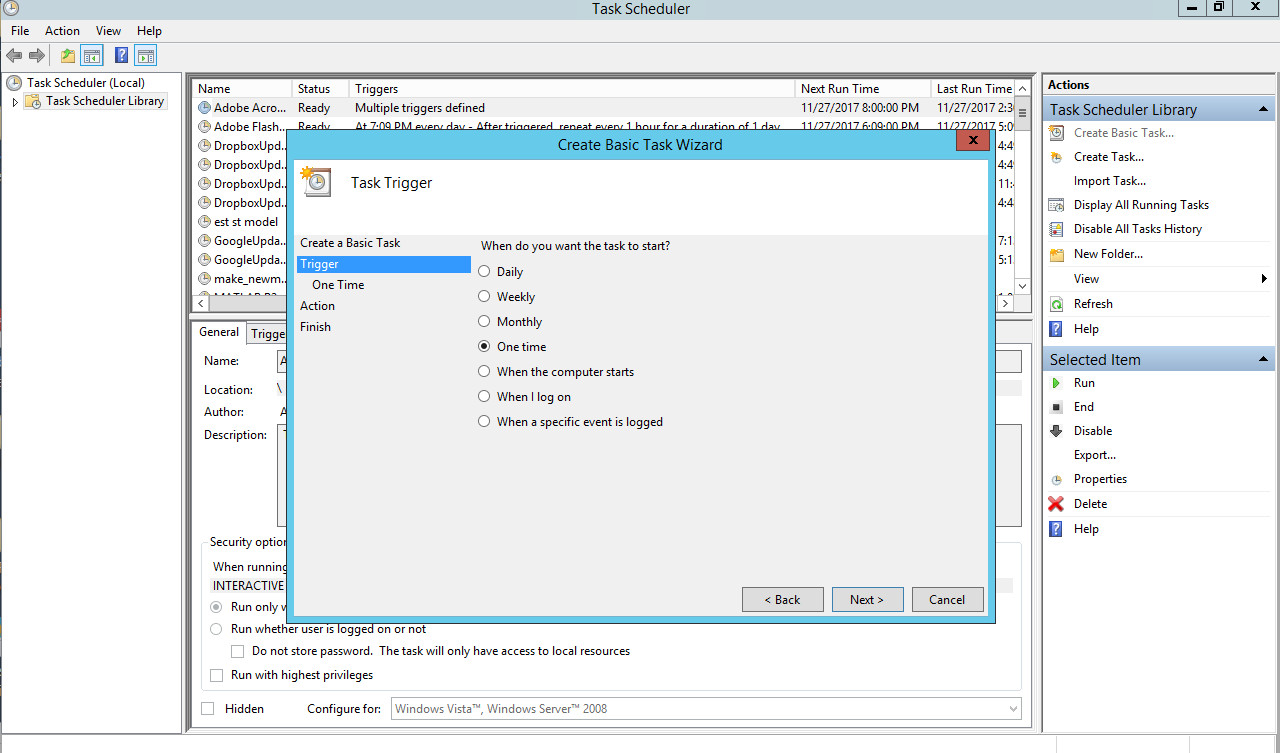
- Select one time and click on Next.

- Set the date and time you want to reboot your computer.

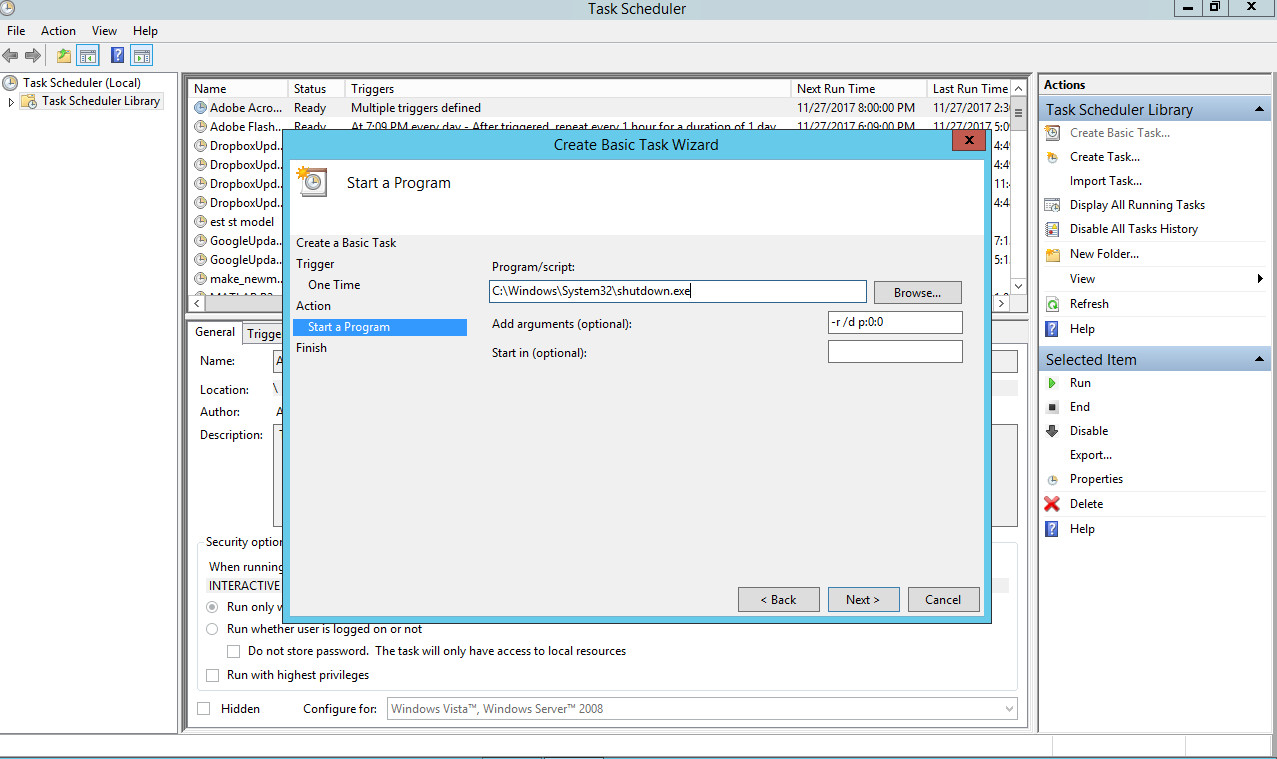
- Select Start a program and click on Next.
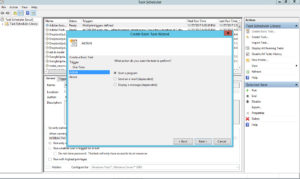
- Enter the information as shown in the screenshot and click on Next. Note that the code p:0:0 means the reboot is planned and the reason for reboot is Other. Please refer to the documentation of shutdown.exe if you need a different code.

- Check Open the Properties dialog for this task when I click Finish. Click on Finish

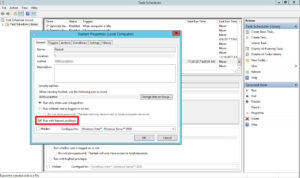
- Check Run with highest privileges and click on Ok.






Leave a Reply