In the process of making our web site compliant with the new web accessibility standard, one issue was brought up. The PDF files on the site have to be compliant, too. Adobe Acrobat Pro DC has functions just for this purpose. You can use Acrobat Pro DC to check the PDF files for accessibility issues and fix them. I am going to show you how to check the PDF files for accessibility in this article.
If you’re thinking about purchasing a new GPU, we’d greatly appreciate it if you used our Amazon Associate links. The price you pay will be exactly the same, but Amazon provides us with a small commission for each purchase. It’s a simple way to support our site and helps us keep creating useful content for you. Recommended GPUs: RTX 5090, RTX 5080, and RTX 5070. #ad
- Run Acrobat Pro DC and open a PDF file.
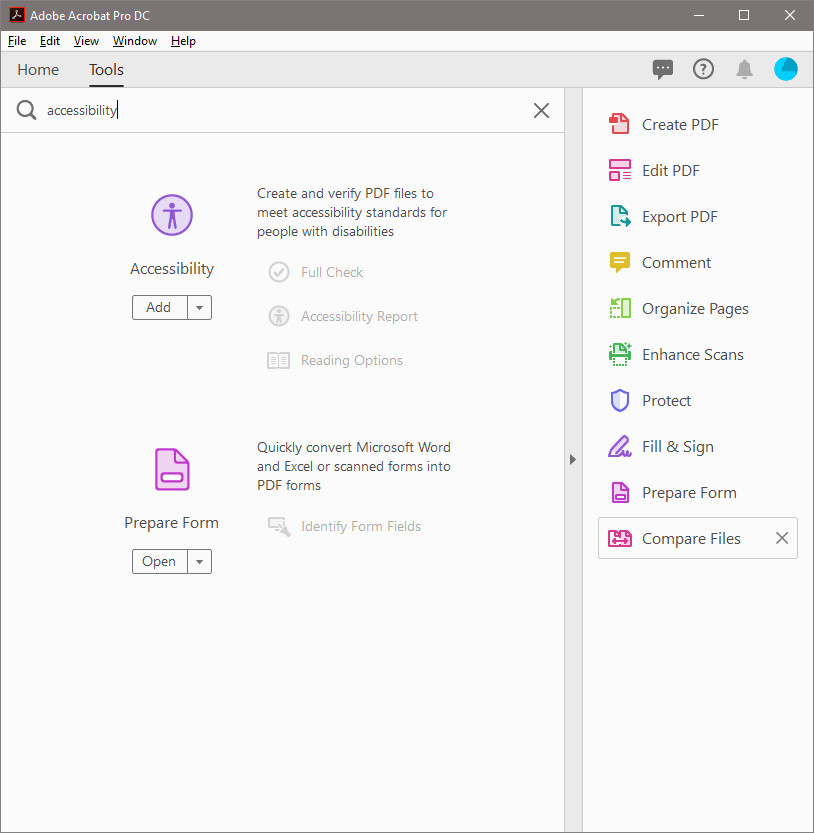
- If Accessibility is not on the side panel, click on Tools and search for Accessibility.
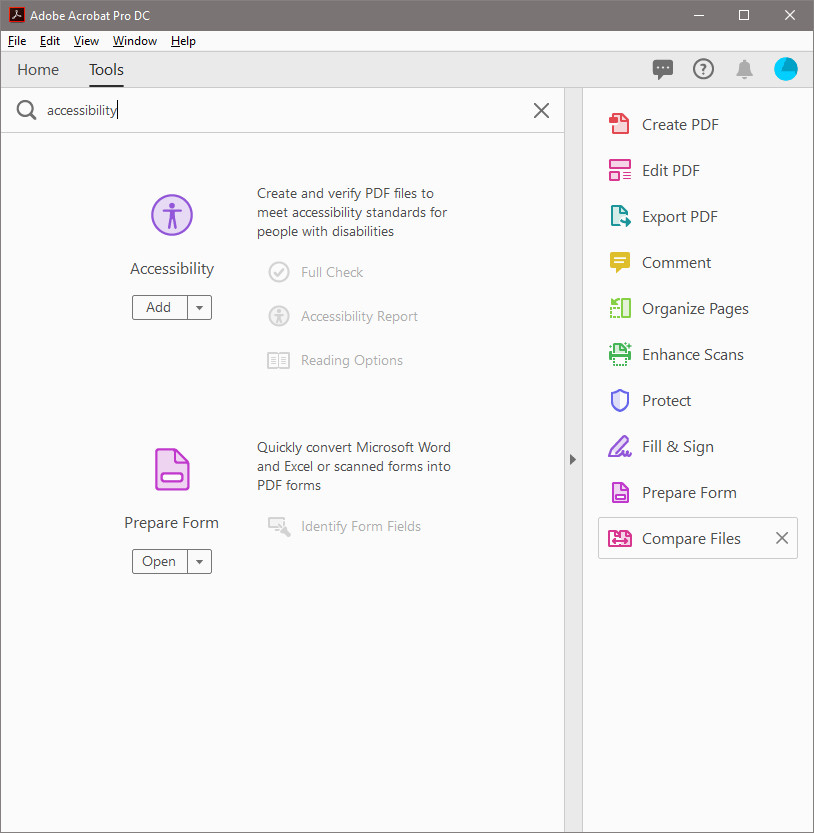
- Click on Add to add Accessibility to the side panel for easy access later.
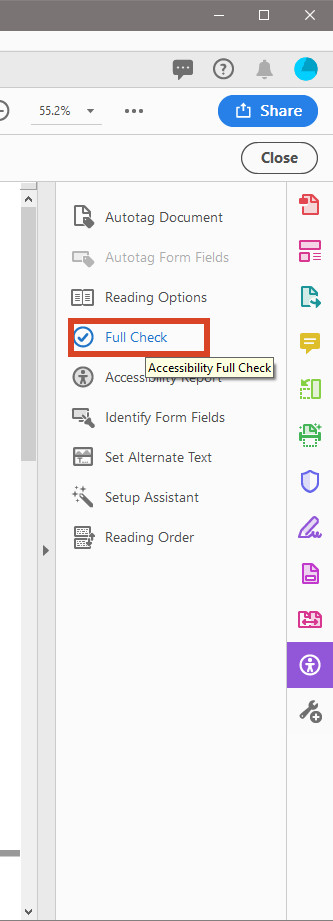
- With the PDF file open, click on Accessibility on the side panel and then click on Full Check.

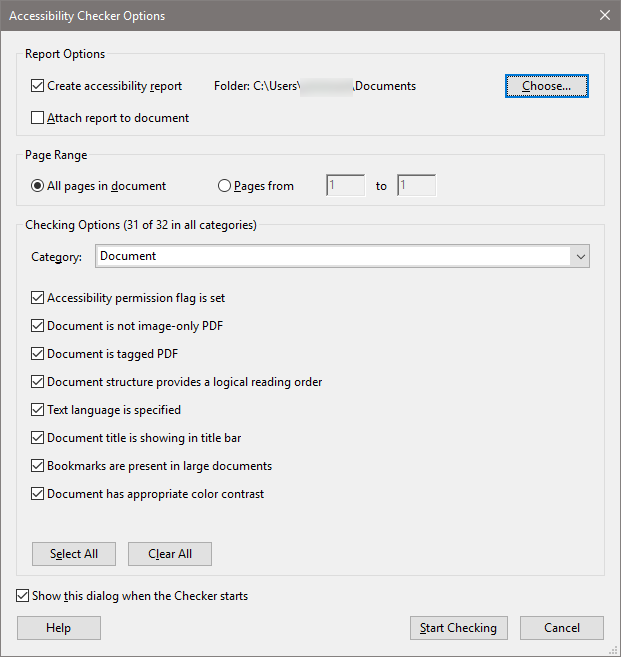
- Click on Start Checking and a report will be generated in current user’s Documents directory.
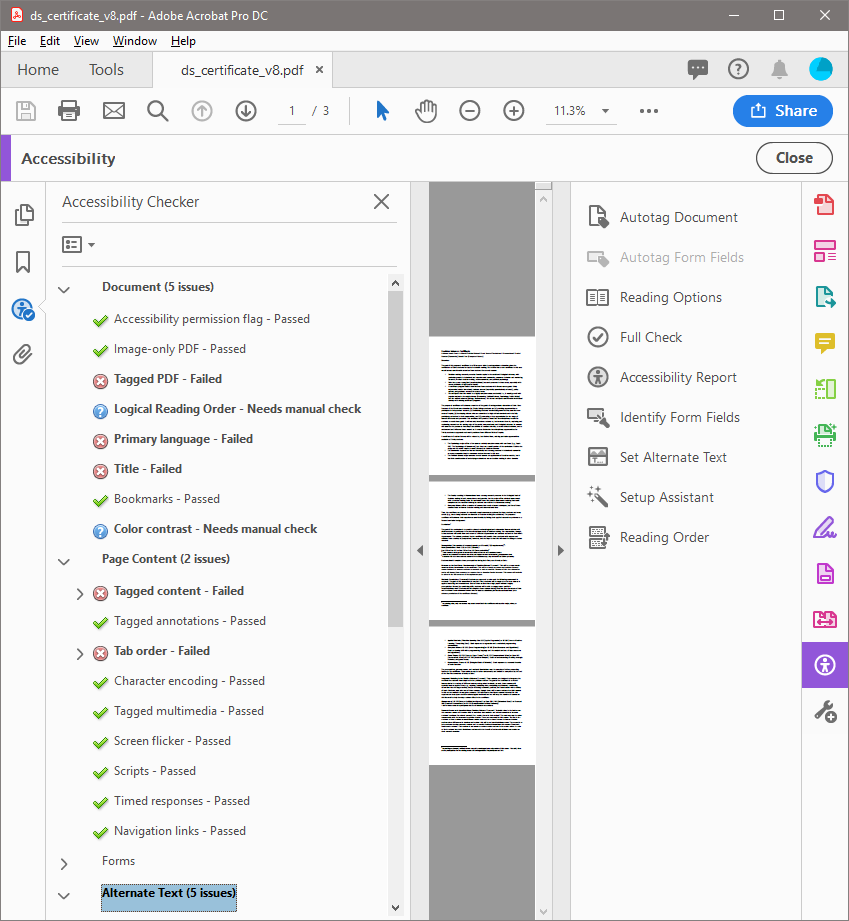
- After the checking is done, you can see the issues on the left panel or you can check them later by reading the generated report.
That’s it for now. I will post again once I learn more about the how to fix the issues using Acrobat.
Leave a Reply