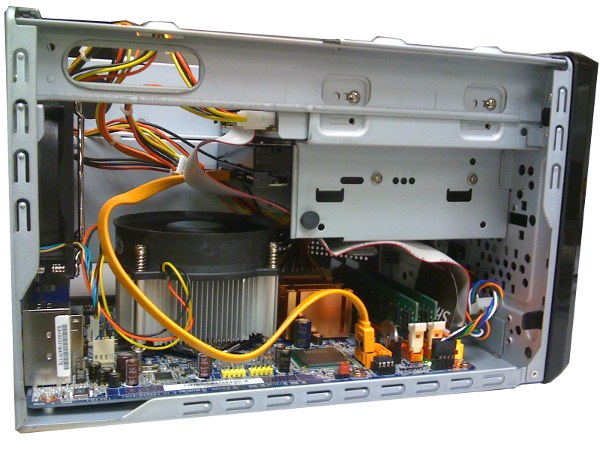
I have always wanted to learn how to cut out the background of my photo, but I never got a chance. I finally got around to it using GIMP this afternoon. Here is what I figured out.
If you’re thinking about purchasing a new GPU, we’d greatly appreciate it if you used our Amazon Associate links. The price you pay will be exactly the same, but Amazon provides us with a small commission for each purchase. It’s a simple way to support our site and helps us keep creating useful content for you. Recommended GPUs: RTX 5090, RTX 5080, and RTX 5070. #ad
- Invoke GIMP and open a photo of your choice.
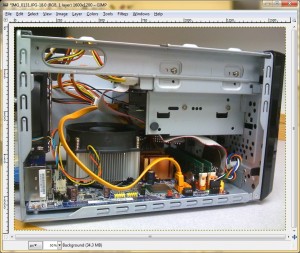
- Use the Paths Tool to create a path around the subject. When you are about to close the path, press and hold Ctrl key and click on the first point.
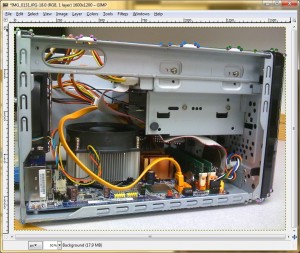
- Click on Select -> From Path to select the subject.
- Click on Select -> Invert to invert the selection. The background is now selected.
- Click on Edit -> Cut to cut out the background.
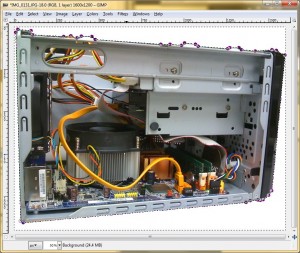
- Save the file.
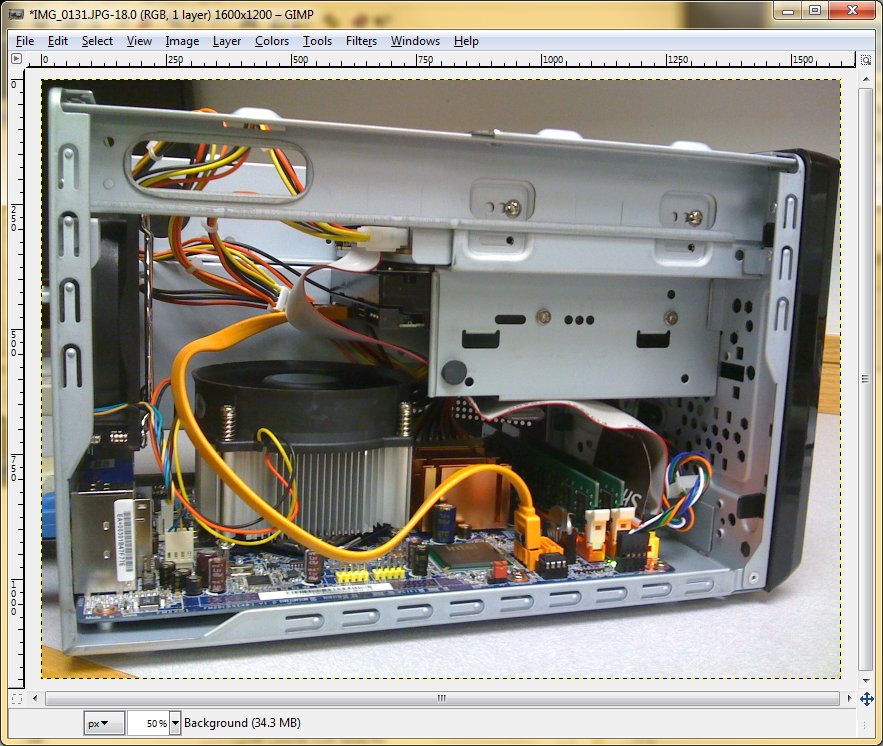
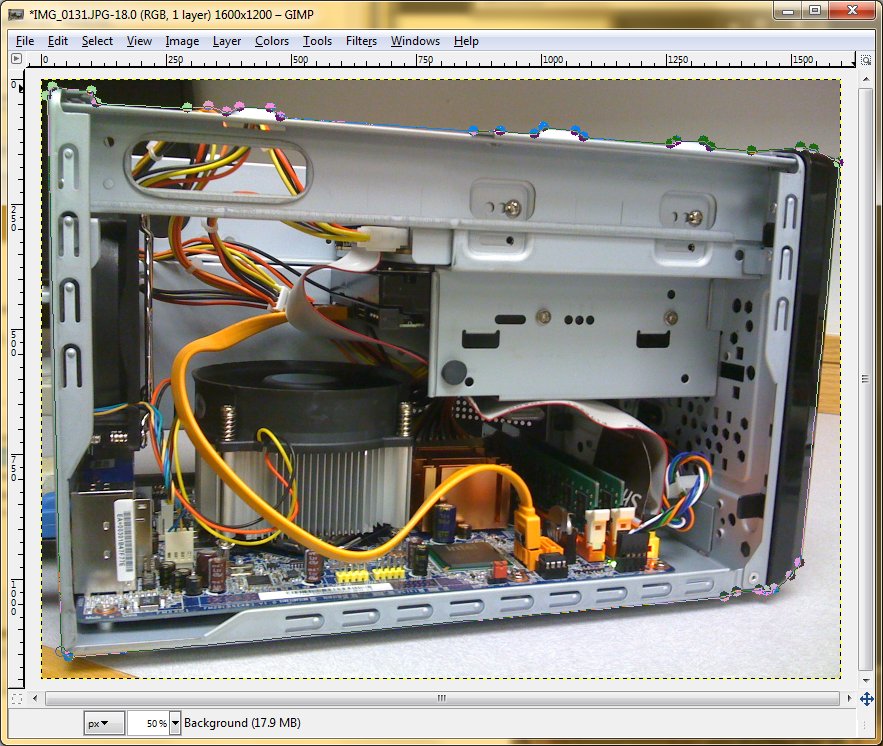
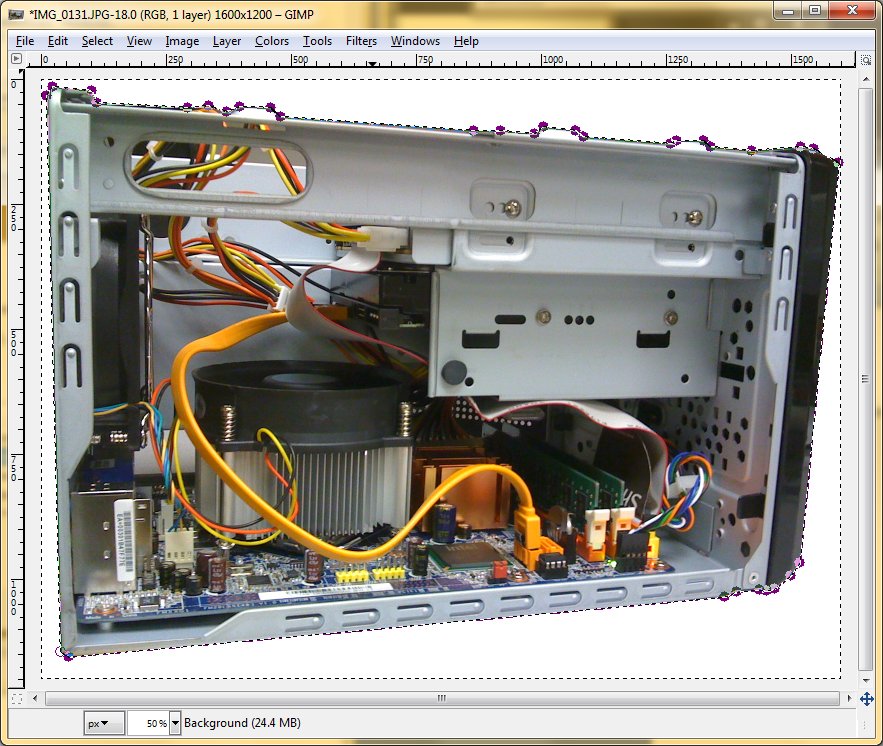
Not too difficult, is it? Just in case you are wondering, the picture shown is a Shuttle K48 I built a while ago.
Great tutorial! Thank you very much!
Sometimes the anwer is very simple, but yoy have someone to tell you!