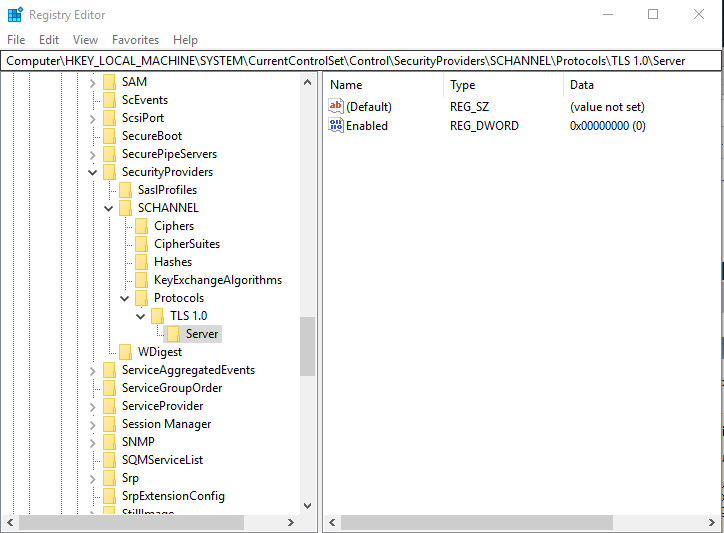
We just got notified by our security department that they want us to disable TLS 1.0 for the remote desktop connection because it’s not considered secure. In order to disable TLS 1.0, you need to modify the registry. The registry key is not there by default. You will have to create new keys for it. If you want to create it manually, here are the steps.
If you’re thinking about purchasing a new GPU, we’d greatly appreciate it if you used our Amazon Associate links. The price you pay will be exactly the same, but Amazon provides us with a small commission for each purchase. It’s a simple way to support our site and helps us keep creating useful content for you. Recommended GPUs: RTX 5090, RTX 5080, and RTX 5070. #ad
- Run regedit as Administrator
- Browse to
Computer\HKEY_LOCAL_MACHINE\SYSTEM\CurrentControlSet\Control\SecurityProviders\SCHANNEL\Protocols\
- Right click on Protocols and select New -> Key
- Rename the new key TLS 1.0
- Right click on TLS 1.0 and select New -> Key
- Rename the new key Server
- Right click on the Server and select New -> DWORD (32bit) Value
- Rename the value Enabled
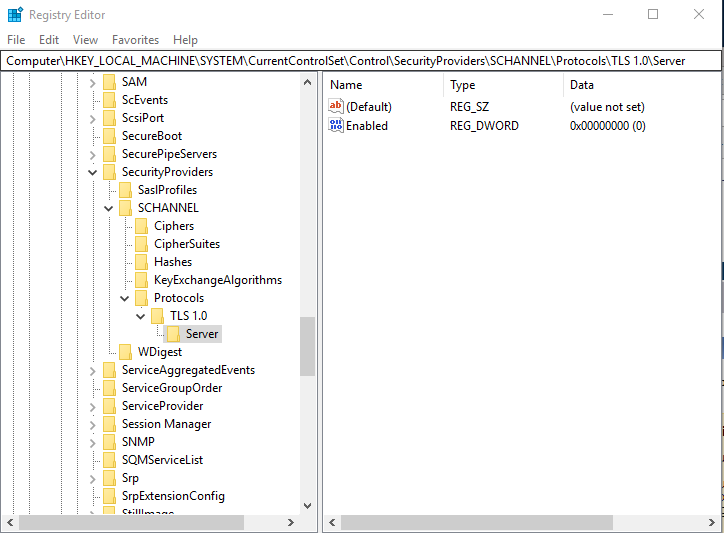
When you are done, it would be like this screenshot.
If you have a lot of machines to change, I’d recommend using a group policy object to deploy the registry to all the computers.
Leave a Reply