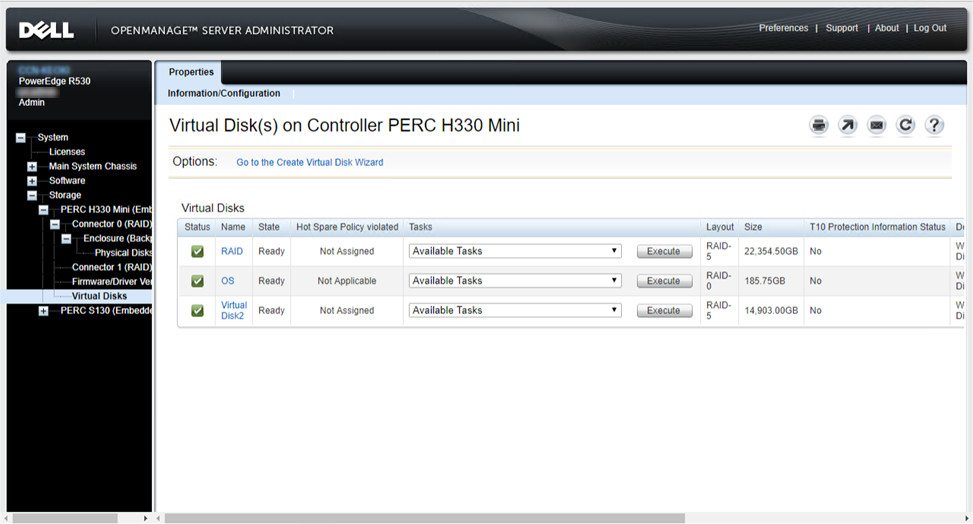
I helped a user to expand storage on a PowerEdge R530 server running Windows 2016. The server has 8 bays for 3.5 hard drives. 5 out of the 8 bays are used already, so we bought 3 additional drives to add storage to the server. Here are what I did to add the disks.
If you’re thinking about purchasing a new GPU, we’d greatly appreciate it if you used our Amazon Associate links. The price you pay will be exactly the same, but Amazon provides us with a small commission for each purchase. It’s a simple way to support our site and helps us keep creating useful content for you. Recommended GPUs: RTX 5090, RTX 5080, and RTX 5070. #ad
- Insert hard drives to the server using the drive caddies.
- After adding the disks. Go to System->Storage->PERC H330 Mini (Embedded) -> Connector 0 (RAID) -> Enclosure (Backplane) -> Physical Disks on OpenManage
- Change the task to Convert to RAID Capable and click on Execute
- Once all the disks are ready. Go to System->Storage->PERC H330 Mini (Embedded) -> Virtual Disks
- Click on Go to the Create Virtual Disk Wizard
- Click on Advanced Wizard and change the RAID level to RAID-5. Click on Continue
- Select the available drives and click on Continue
- Click on Finish to finish the wizard
- Use Disk Manager to format the RAID and assign a drive letter
Leave a Reply