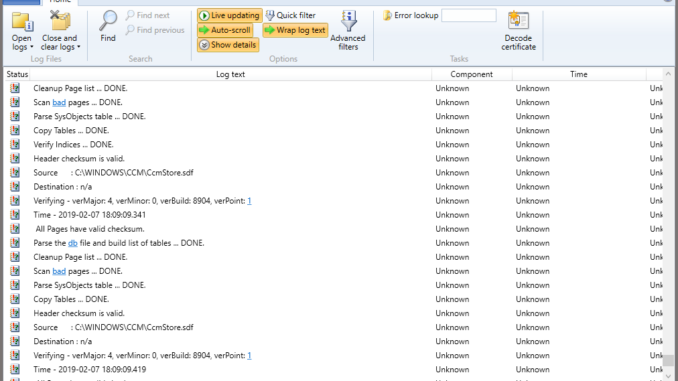
One problem we often encounter when using SCCM is the amount of logs generated and how to view the logs efficiently. One colleague mentioned that Microsoft has a tool to help you easily collect and view the logs. It’s called System Center 2012 Configuration Manager Support Center. Here are instructions on how to use the tools to view logs.
If you’re thinking about purchasing a new GPU, we’d greatly appreciate it if you used our Amazon Associate links. The price you pay will be exactly the same, but Amazon provides us with a small commission for each purchase. It’s a simple way to support our site and helps us keep creating useful content for you. Recommended GPUs: RTX 5090, RTX 5080, and RTX 5070. #ad
- Download the software from Microsoft
https://www.microsoft.com/en-us/download/details.aspx?id=42645 - Double click on the downloaded file cmsupportcenter.msi to install it (Note that the file name might change)
- After installation is done, run Support Center

- Click on Collect selected data to create a bundle for the local machine
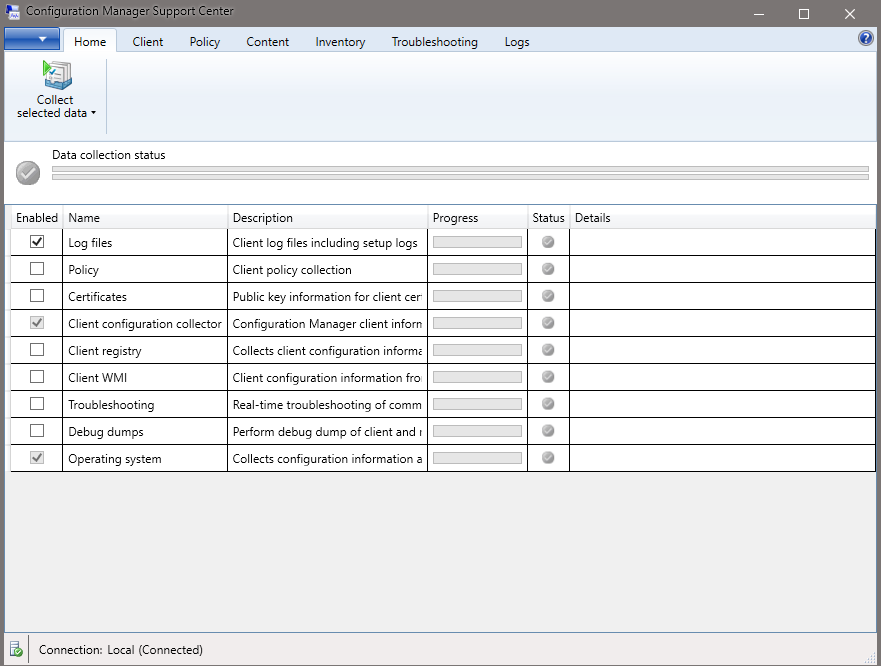
- Alternatively, you can connect to a remote machine and collect data.

- Run Support Center Viewer
- Click on Open bundle to load the bundle saved earlier

- Click on Configuration tab to view the configuration or Logs to view the logs.
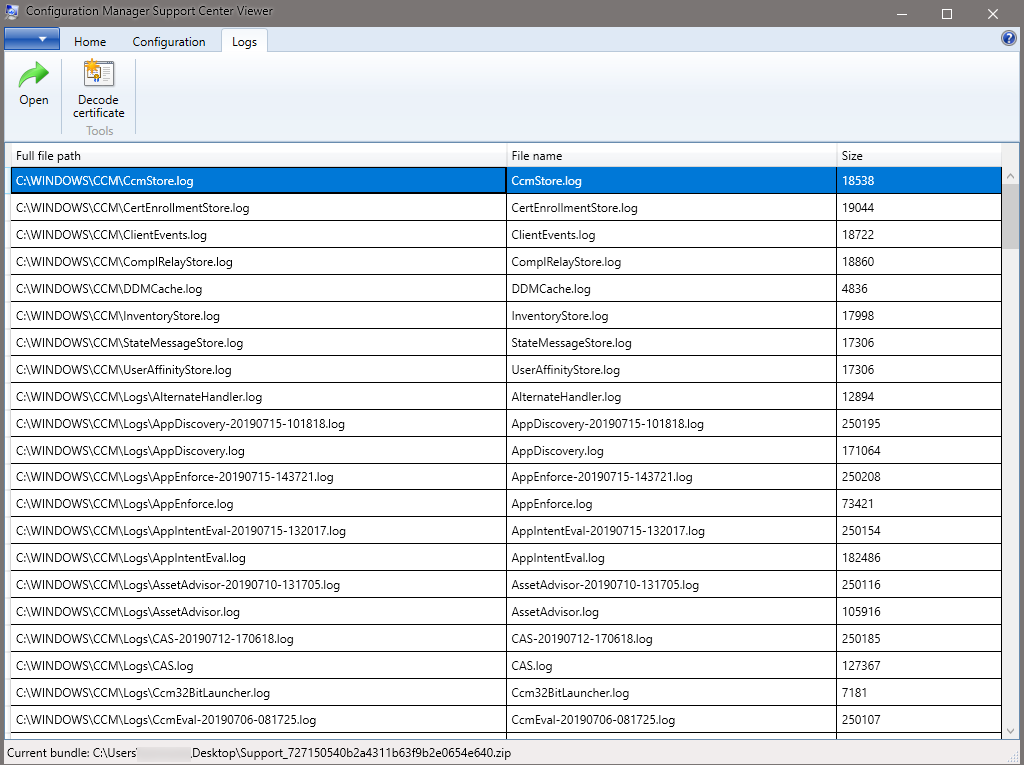
- Double click on a log, System Center Log Viewer opens automatically with the selected log loaded.

Leave a Reply