I was working on a Windows 2016 server this week. I had to move some big folders to a different disk. After copying the folders, I needed to delete the big folders. I first tried to use the File Explorer to delete the folders, but it took too long to scan all the files and folders.
If you’re thinking about purchasing a new GPU, we’d greatly appreciate it if you used our Amazon Associate links. The price you pay will be exactly the same, but Amazon provides us with a small commission for each purchase. It’s a simple way to support our site and helps us keep creating useful content for you. Recommended GPUs: RTX 5090, RTX 5080, and RTX 5070. #ad
I then tried to use the command line del command to try deleting the folders. It worked only partially, got a lot of errors about files with long file name. I thought PowerShell might have better luck dealing with the long file name problem. I was wrong. The Remove-Item cmdlet cannot handle long file name.
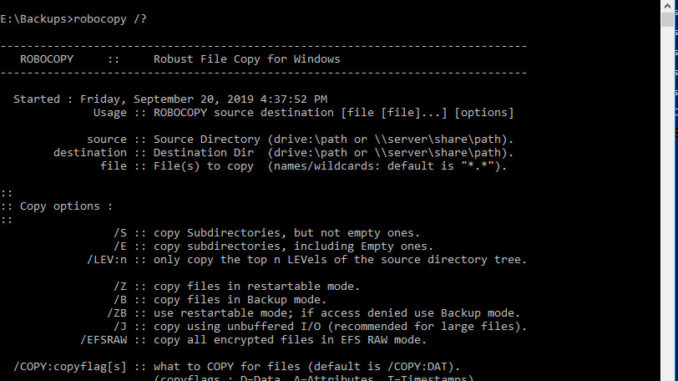
I finally came across a post about using robocopy to delete folder and it works perfectly. The trick is to create an empty folder and use the /MIR flag to mirror the empty folder to the folder your want to delete.
The steps to delete a folder using robocopy:
- Open up an elevated command prompt.
- Change directory to where the folder you want to delete is.
- Type the following commands (Replace the folder-name with the folder name you want to delete)
mkdir empty
robocopy empty folder-name /mir > nul
rmdir empty
rmdir folder-name
Leave a Reply