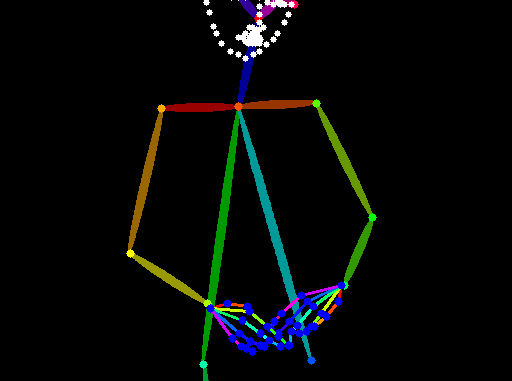
ControlNet 1.1 has published with new models recently. The new models have added a lot functionalities to ControlNet. I am going to show you how to use it in this article.
If you’re thinking about purchasing a new GPU, we’d greatly appreciate it if you used our Amazon Associate links. The price you pay will be exactly the same, but Amazon provides us with a small commission for each purchase. It’s a simple way to support our site and helps us keep creating useful content for you. Recommended GPUs: RTX 5090, RTX 5080, and RTX 5070. #ad
Enable the Extension
- Follow the instructions in this article to enable the extension. Download the models mentioned in that article only if you want to use the ControlNet 1.0 models.
- The new ControlNet 1.1 models can be downloaded from this page. The models have the .pth file extension. You don’t have to download all the models. Just download the ones you want to use.
- Download the control_v11p_sd15_openpose.pth file and place it in extensions/sd-webui-controlnet/models folder under the webui folder.
- You also need the Stable Diffusion 1.5 model if you don’t have it. Visit this page and download the model(v1-5-pruned.ckpt). Move it to models/Stable-diffusion folder.
- Restart webui.
ControlNet 1.1 Openpose Example
- Visit https://civitai.com/models/26870?modelVersionId=32160 to download the Lunar Diffusion model 1.26 and move it to models/Stable-diffusion folder.
- Visit https://civitai.com/models/24542/wowifier to download the wowifier LoRA model V2 and move it to models/Lora folder.
- Click on txt2img and use this prompt:
an award winning photograph of a beautiful woman, complex robot, Lace dress outfit, intricate design, highly detailed, soft bokeh background, art by mooncryptowow and playboy <lora:wowifierV2:0.7>
- Negative prompt:
(worst quality, normal quality:1.5), (busty:1.5), (lens flares), black and white , cartoon, 3d, (disfigured), (bad art), (deformed), (poorly drawn), (extra limbs), strange colours, blurry, boring, sketch, lacklustre, repetitive, cropped, (split screen:1.25), headphones
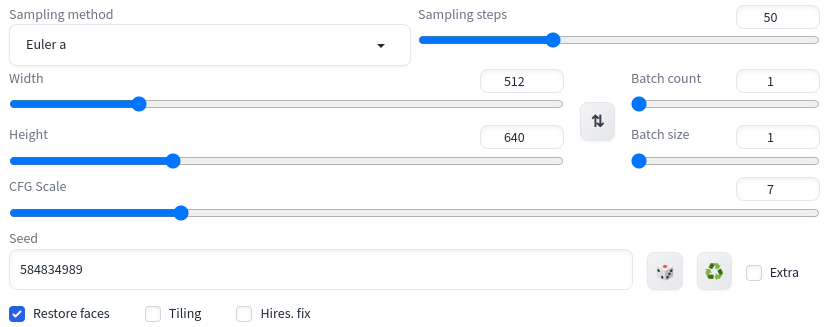
- Enter these parameters:
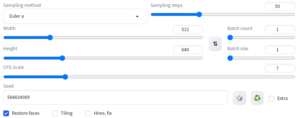
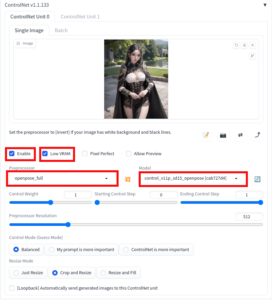
- Expand ControlNet, drop an image of your choice to transfer the pose. Specify the options as follows (Low VRAM is optional):
- Click on Generate to generate the image.

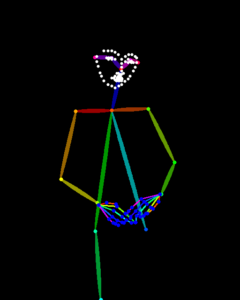


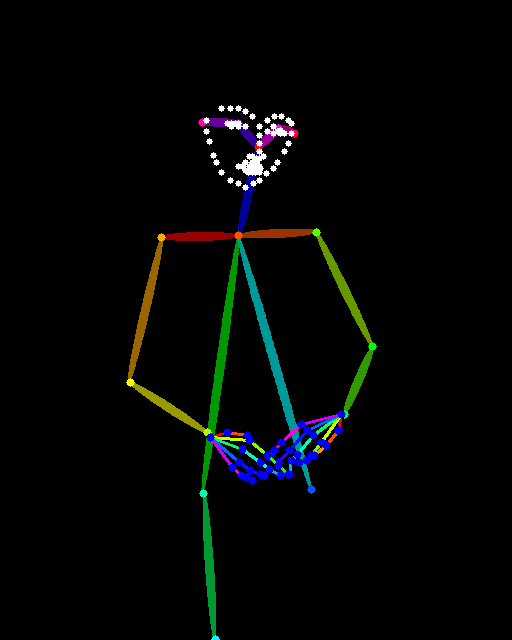
As you can see from the output, the facial feature and hands pose are also transferred.
Leave a Reply