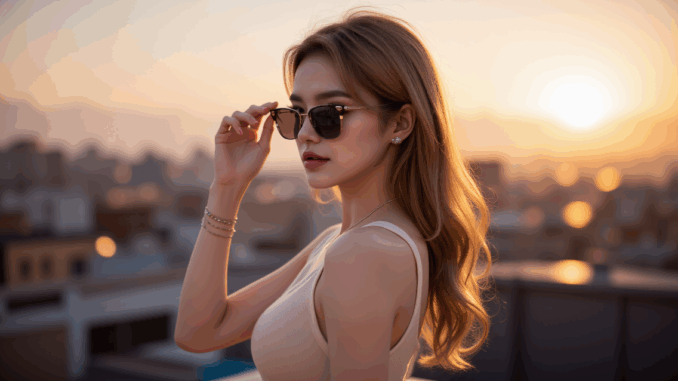
Turning still images into cinematic video has never been easier, thanks to the latest advances in AI and open-source tooling. WAN 2.2 image-to-video model known for its realistic motion and film-like aesthetic, is now available in the efficient GGUF format—making it possible to run locally without cloud dependencies. Even better, it can now be integrated directly into ComfyUI, a popular node-based interface for Stable Diffusion workflows. In this post, we’ll walk you through how to set up and use WAN 2.2 GGUF inside ComfyUI to transform static images into smooth, eye-catching AI-generated videos—right from your desktop.
If you’re thinking about purchasing a new GPU, we’d greatly appreciate it if you used our Amazon Associate links. The price you pay will be exactly the same, but Amazon provides us with a small commission for each purchase. It’s a simple way to support our site and helps us keep creating useful content for you. Recommended GPUs: RTX 5090, RTX 5080, and RTX 5070. #ad
Wan 2.2 Image-to-Video Models
- GGUF Models: Unlike the Wan 2.1 model, you need two models to download. One is for high noise, and the other is for low noise. You can find the GGUF models here. I have a RTX 5090, and I use the Q8 variant. I downloaded
wan2.2_i2v_high_noise_14B_Q8_0.gguf and wan2.2_i2v_low_noise_14B_Q8_0.gguf. Put the GGUF models in ComfyUI\models\unet\ . - Text Encoders: Download umt5_xxl_fp8_e4m3fn_scaled.safetensors and place it in ComfyUI\models\text_encoders\ .
- VAE: The 14B Wan 2.2 models still use the VAE for Wan 2.1. If you don’t have it. You can download it here. Put the VAE in ComfyUI\models\vae\ .
Installation
- Update your ComfyUI to the latest version if you haven’t already. (Run update\update_comfyui.bat for Windows)
- Download the json file. Open the json file in ComfyUI.
- Use ComfyUI Manager to install missing nodes.
- Restart ComfyUI.
Nodes

Select the high noise GGUF model on the first GGUF Loader and select the low noise GGUF model on the second GGUF Loader.
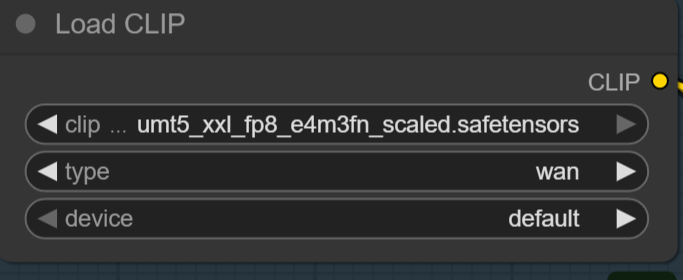
Select the umt5_xxl_fp8_e4m3fn_scaled.safetensors here.
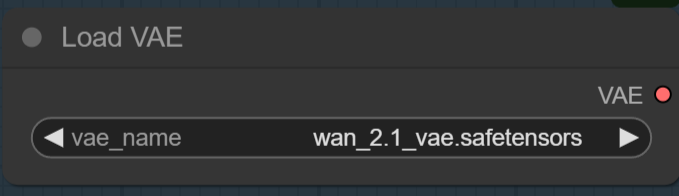
Pick the Wan 2.1 VAE for 14B model. If you use the 5B model, use the Wan 2.2 VAE.
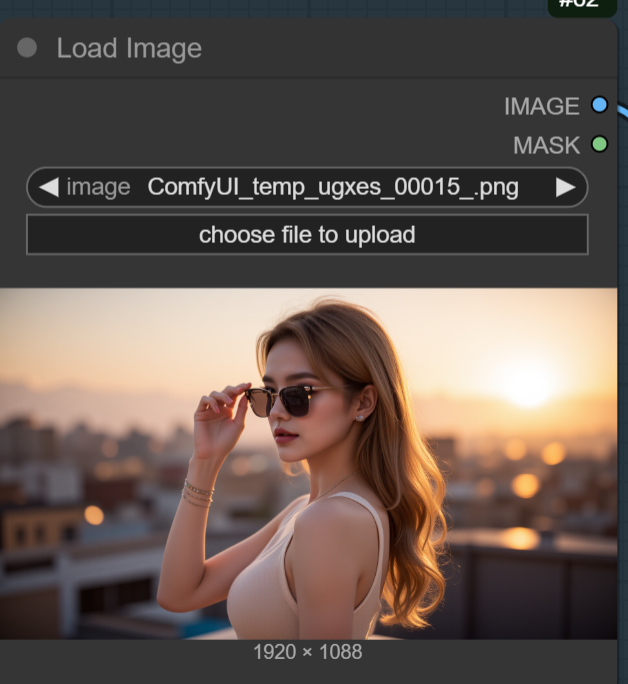
Upload an image here.
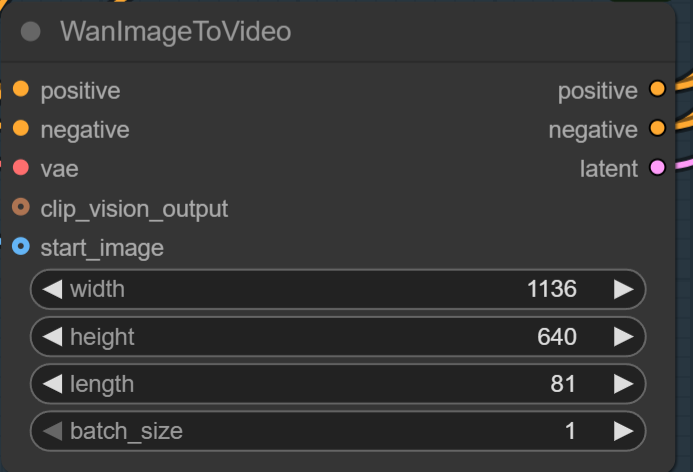
Specify width and height here. The length is the number of frames. 81 frames is about 5 seconds of 16fps video. The generation time for a RTX 5090 is about 44 mins for 1280 x 720 81 frames, and about 28 minutes for 1136 x 640 81 frames.
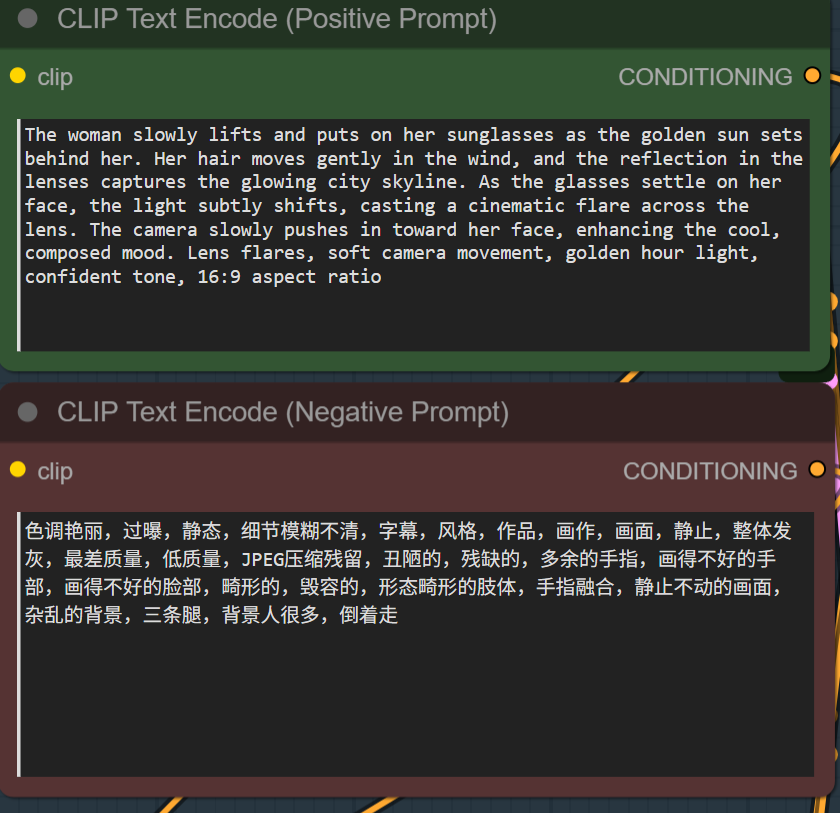
Type positive prompt and negative prompts here. The negative prompt here is the default for Wan video models.
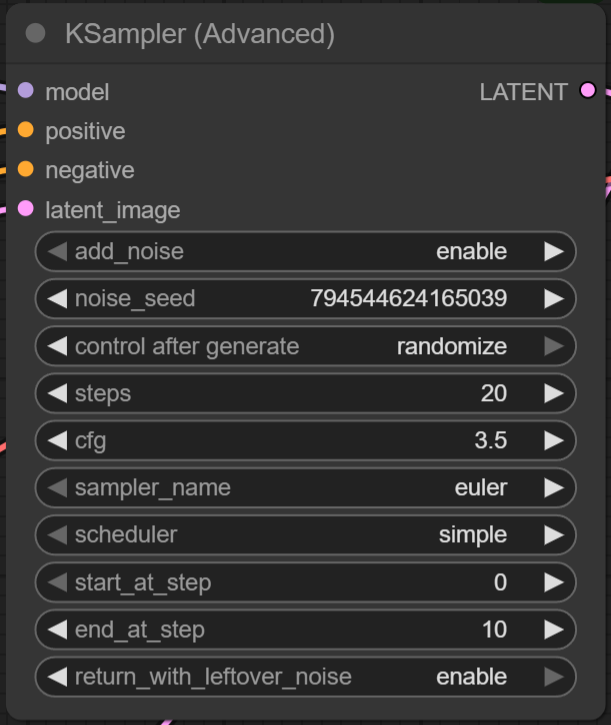
The first KSampler is for the high noise model and it’s used for step 1 to 10.
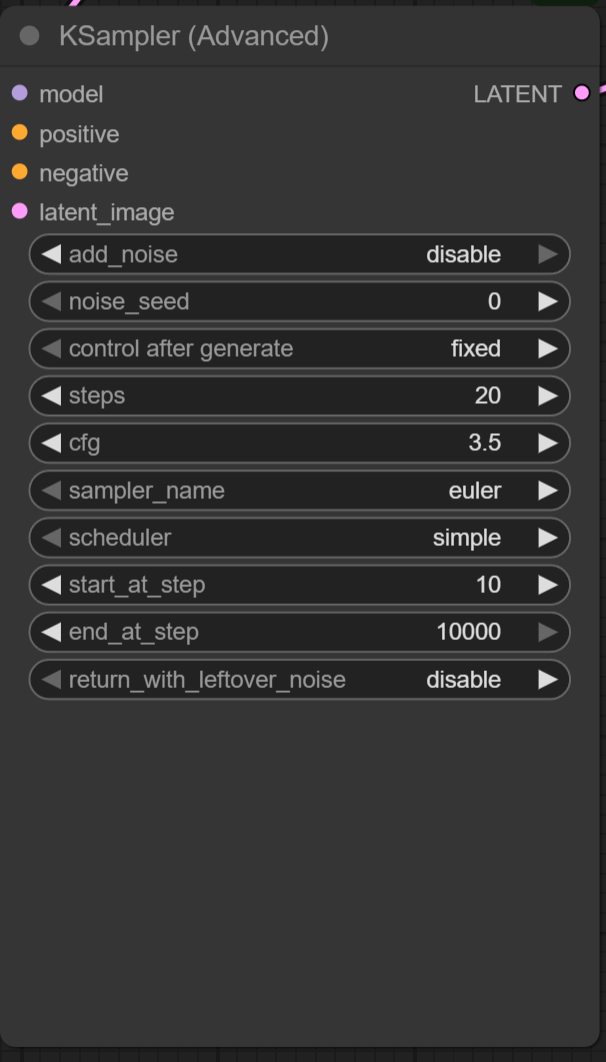
The second KSampler is for the low noise model, and it’s used for step 11~20.
Wan 2.2 Image-to-Video Examples
Input image:
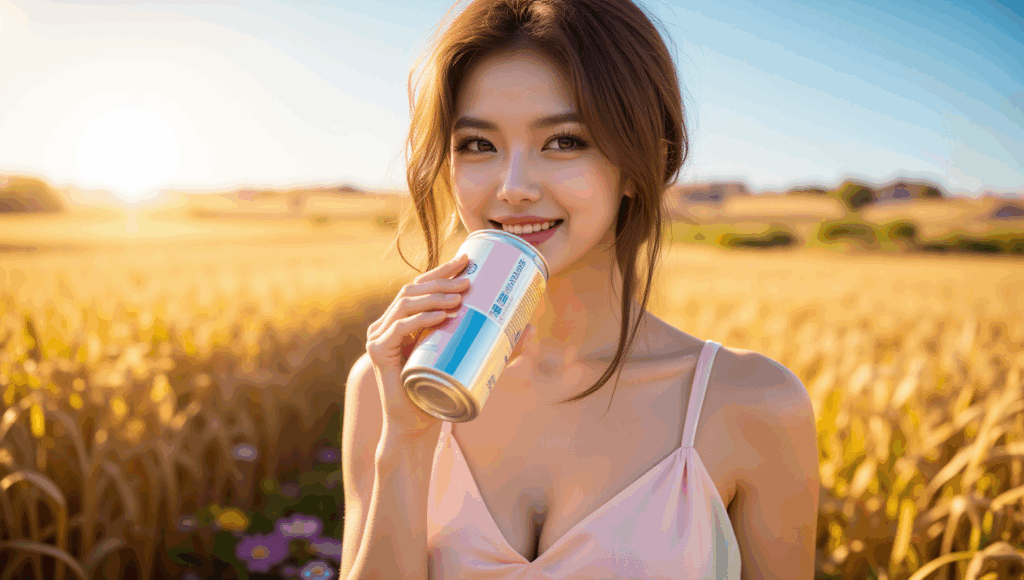
Prompt:
The woman gently tilts the can and takes a refreshing sip, her eyes closing slightly with pleasure. A light breeze makes her hair and dress flutter The camera slowly pans and tilts upward as the sunlight flares more intensely behind her, creating a dreamy golden shimmer. Light lens flares, soft wind movement in the wheat field, subtle camera shake for realism. Warm and radiant motion, smooth transitions, soft glowing ambiance, cinematic light bloom, 16:9 aspect ratio.
Output video (1280 x 720):
Input image:
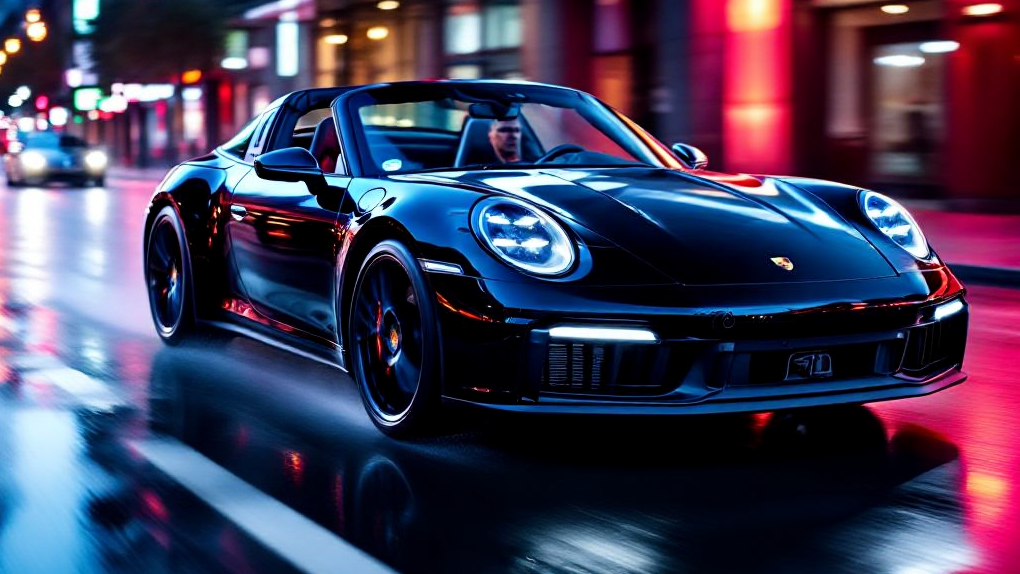
Prompt:
The camera tracks the sleek black sports car as it races down a wet, neon-lit city street at night. Reflections of magenta, cyan, and red lights shimmer on the car’s glossy surface and the wet asphalt. The car accelerates slightly as the lights streak past in the background, with a subtle motion blur and tire spray. Its headlights flare and cast sharp beams forward, illuminating the wet road ahead. The camera rotates around the front-left side of the car, highlighting its curves and aggressive stance. Soft raindrops hit the windshield in slow motion. Soundless, but with cinematic tension. High contrast lighting, futuristic tone, slow motion elements, hyper-realistic motion, 16:9 aspect ratio
Output video (1280 x 720):
Input image:
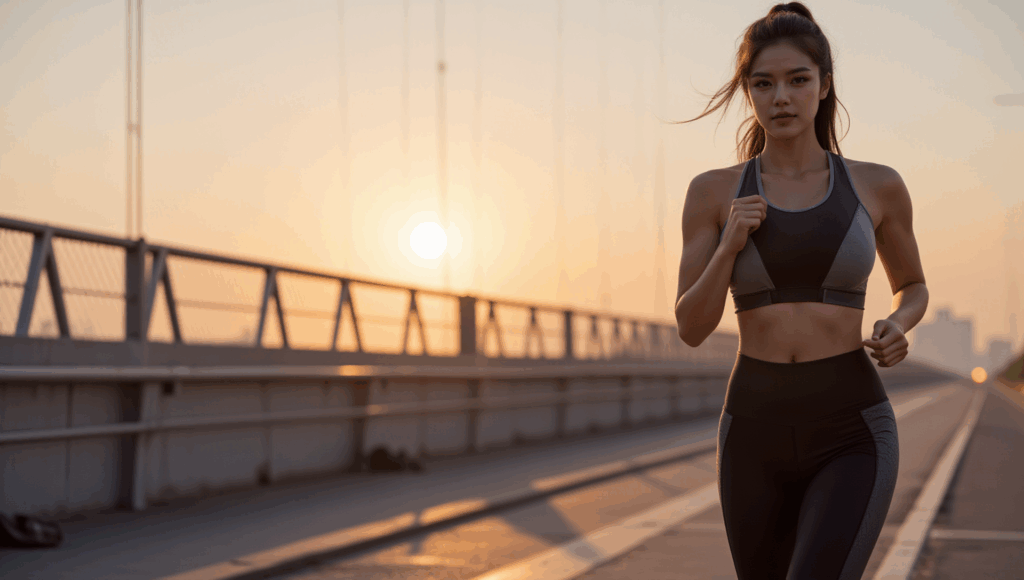
Prompt:
The woman runs steadily forward, her steps rhythmic and powerful. Her ponytail bounces with each stride as warm morning light ripples across her body and the bridge. Subtle camera shake adds realism as the scene follows her from a side angle. A light breeze moves her clothing naturally. The sun rises behind her, casting golden flares through the bridge cables. Drops of sweat glisten and roll down her skin in slow motion. The video closes with her stopping to catch her breath, turning toward the camera with a confident smile. Realistic motion, slow-to-normal pacing blend, dynamic light transitions, motivational mood, cinematic tone, 16:9 format
Output video (1136 x 640):
Input image:
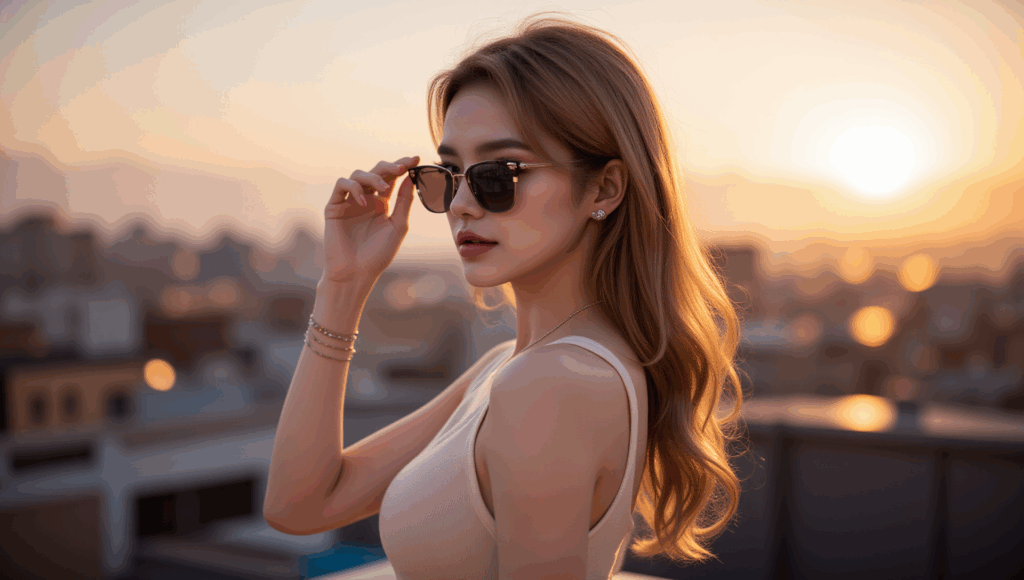
Prompt:
The woman slowly lifts and puts on her sunglasses as the golden sun sets behind her. Her hair moves gently in the wind, and the reflection in the lenses captures the glowing city skyline. As the glasses settle on her face, the light subtly shifts, casting a cinematic flare across the lens. The camera slowly pushes in toward her face, enhancing the cool, composed mood. Lens flares, soft camera movement, golden hour light, confident tone, 16:9 aspect ratio
Output video (1136 x 640):
Conclusion
Whether you’re a content creator, designer, or just an AI enthusiast, WAN 2.2 Image-to-Video in GGUF format offers a powerful new way to bring still images to life—locally, efficiently, and with stunning results. By combining photorealistic detail with smooth cinematic motion, this workflow gives you full creative control from prompt to playback. As GGUF support expands and tools continue to evolve, we’re entering an exciting new era of local generative video. If you haven’t tried WAN 2.2 yet, now’s the perfect time to dive in and explore what’s possible.
Reference
- https://comfyanonymous.github.io/ComfyUI_examples/wan22/
- https://docs.comfy.org/tutorials/video/wan/wan2_2
Further Reading
Simple ComfyUI Workflow for WAN2.1 Image-to-Video (i2v) Using GGUF Models
Leave a Reply