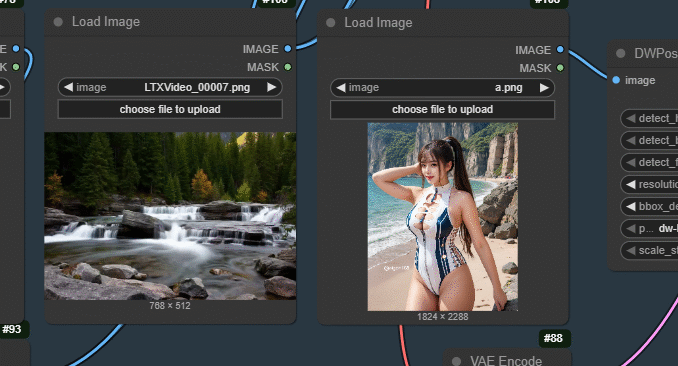
AI-powered image editing has taken a big leap forward with Qwen-Image-Edit-2509, the latest model from Qwen that specializes in precise and intuitive image manipulation. When paired with ControlNet inside ComfyUI, creators gain even more control—allowing edits to follow structure, poses, or outlines while still keeping the flexibility of natural language instructions. In this guide, we’ll walk through how to set up and use ControlNet with Qwen-Image-Edit-2509 in ComfyUI so you can unlock fine-grained edits, from subtle retouching to complex transformations.
If you’re thinking about purchasing a new GPU, we’d greatly appreciate it if you used our Amazon Associate links. The price you pay will be exactly the same, but Amazon provides us with a small commission for each purchase. It’s a simple way to support our site and helps us keep creating useful content for you. Recommended GPUs: RTX 5090, RTX 5080, and RTX 5070. #ad
Qwen-Image-Edit-2509 Models
If you have followed my previous post to download the models, you can skip tthis section.
- GGUF Models: You can find the GGUF models here. You only need one model. I have a RTX 5090, and I use the Q8 variant. I downloaded
Qwen-Image-Edit-2509-Q8_0.gguf. If your GPU has less VRAM, consider the Q5 or Q4 variants. Put the GGUF model in ComfyUI\models\unet\ . - Text Encoder: Download qwen_2.5_vl_7b_fp8_scaled.safetensors and put it in ComfyUI\models\text_encoders\ .
- VAE: Download qwen_image_vae.safetensors and put it in ComfyUI\models\vae\ .
- LoRA: If you want to try the 4 steps LoRA, download Qwen-Image-Lightning-4steps-V1.0.safetensors and put it in ComfyUI\models\loras\ .
Qwen-Image-Edit-2509 GGUF with ControlNet Workflow Installation
- Update your ComfyUI to the latest version if you haven’t already. (Run update\update_comfyui.bat for Windows). Depending on which gguf custom node you installed before, you also need to update the ComfyUI-GGUF or gguf custom node to the latest version if you have not updated it recently.
- Download the json file and open it using ComfyUI.
- Use ComfyUI Manager to install missing nodes.
- Restart ComfyUI.
Nodes
Since most of the nodes are the same as the previous post, please see that post for notes about the nodes.

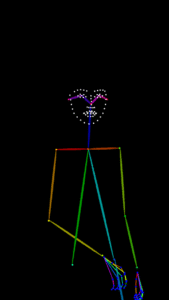
The only new node is the DWPose Estimator. A DWPose estimator takes an image of a person and outputs keypoints connected into a stick-figure skeleton showing their pose. If you connect a preview image node to the image output of DWPose estimator, you can see the pose image. Here is an example of the pose image.
Qwen-Image-Edit-2509 ControlNet Examples
Input:

Prompt:
The girl in image1 changes her pose to image3. she is standing on the rock in image2.
Output:

Input:

Prompt:
The girl in image1 changes her pose to image3.
Output:

Conclusion
By combining Qwen-Image-Edit-2509 with ControlNet in ComfyUI, you can achieve editing results that balance both precision and creativity. Whether you’re refining small details, adjusting composition, or guiding edits with reference structures, this workflow makes image editing more reliable and versatile. As Qwen models continue to evolve, integrating them with ControlNet in ComfyUI opens up a powerful toolkit for creators who want professional-level control without sacrificing ease of use.
Leave a Reply