
Qwen-Image-Edit-2511 is the latest release in the Qwen Image Edit series, built on top of the powerful Qwen-Image foundation model. This update focuses on improving image editing accuracy, character consistency, and instruction understanding, making it easier to perform precise edits while keeping the original image structure intact.
If you’re thinking about purchasing a new GPU, we’d greatly appreciate it if you used our Amazon Associate links. The price you pay will be exactly the same, but Amazon provides us with a small commission for each purchase. It’s a simple way to support our site and helps us keep creating useful content for you. Recommended GPUs: RTX 5090, RTX 5080, and RTX 5070. #ad
Unlike traditional text-to-image models, Qwen-Image-Edit-2511 is designed specifically for image-to-image editing. You provide an image, describe the change in natural language, and the model edits only what is needed. This makes it especially useful for tasks like object replacement, background changes, clothing edits, and fine visual adjustments.
While the official examples use Python-based workflows, many creators prefer ComfyUI for its visual, node-based interface. By using the GGUF version of Qwen-Image-Edit-2511, the model can run more efficiently, reducing VRAM usage and making it accessible on a wider range of GPUs. In this article, we’ll focus on how to use the Qwen-Image-Edit-2511 GGUF model in ComfyUI, allowing you to experiment with advanced image editing without writing code.
Qwen-Image-Edit-2511 Models
- GGUF Models: You can find the GGUF models here. You only need one model. I have a RTX 5090, and I use the Q8 variant. I downloaded
qwen-image-edit-2511-Q8_0.gguf. If your GPU has less VRAM, consider the Q5 or Q4 variants. Put the GGUF model in ComfyUI\models\unet\ . - Text Encoder: Download qwen_2.5_vl_7b_fp8_scaled.safetensors and put it in ComfyUI\models\text_encoders\ .
- VAE: Download qwen_image_vae.safetensors and put it in ComfyUI\models\vae\ .
- LoRA: If you want to try the 4 steps LoRA, download Qwen-Image-Edit-2511-Lightning-4steps-V1.0-fp32.safetensors and put it in ComfyUI\models\loras\ . If you are low in system resources. You can try the bf16 version in the same download page.
Qwen-Image-Edit-2511 GGUF Workflow Installation
- Update your ComfyUI to the latest version if you haven’t already. (Run update\update_comfyui.bat for Windows). Depending on which gguf custom node you installed before, you also need to update the ComfyUI-GGUF or gguf custom node to the latest version if you have not updated it recently.
- Download the json file and open it using ComfyUI.
- Use ComfyUI Manager to install missing nodes.
- Restart ComfyUI.
Nodes
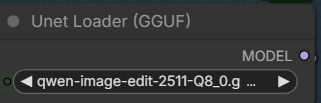
Select the Qwen-Image-Edit-2511 GGUF model here.
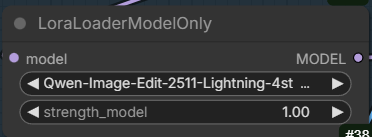
Choose the 4 steps lightning LoRA here. If you don’t want to use it, select it and press (Ctrl+B) to disable it. Be sure to change the steps and cfg accordingly.
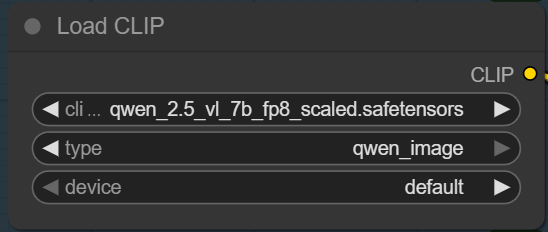
Specify the text encoder here.
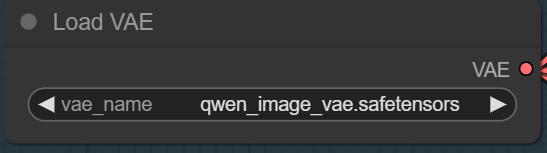
Pick the VAE here.
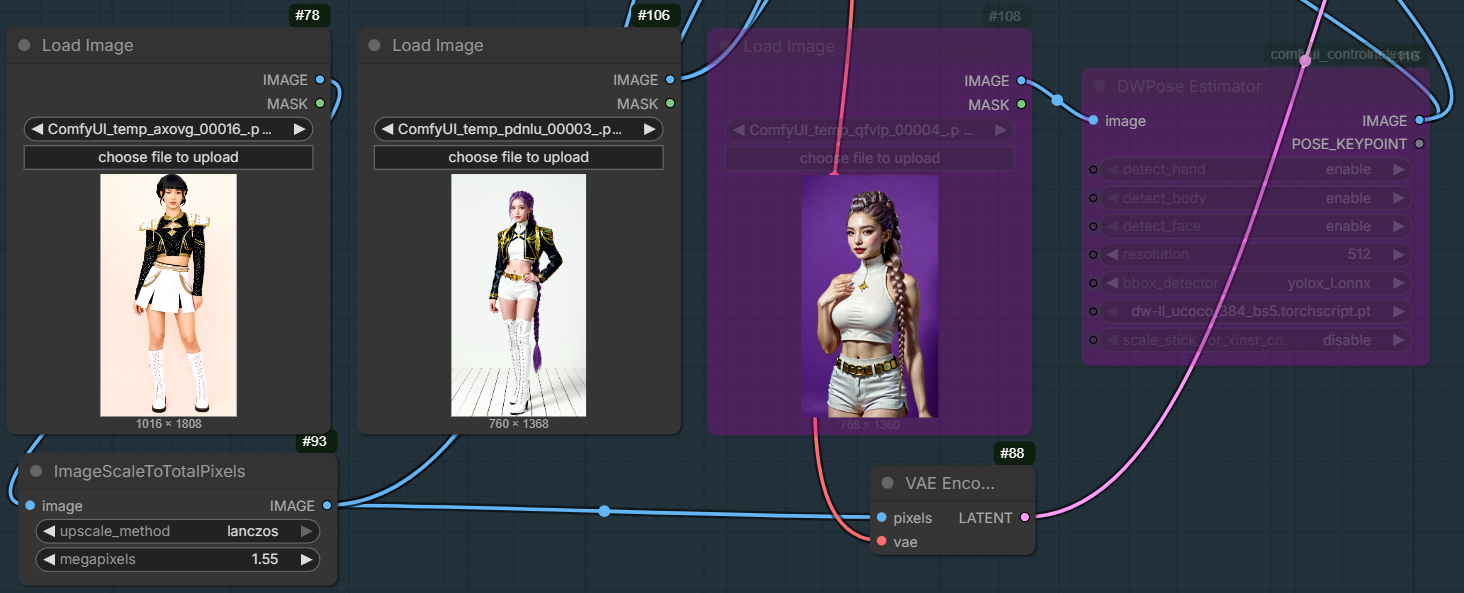
Upload your input reference images here. I also include a controlnet node for the 3rd reference image. Please see this post for examples.
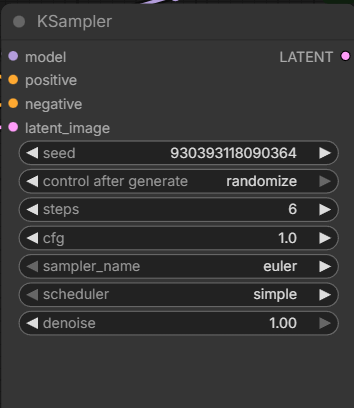
I use the 4 step LoRA, but I set the steps to 6 to improve the quality. The cfg is set to one. If you don’t use the LoRA, set the steps > 20, and set the cfg higher (2.5 ~ 4).
Examples
The examples for Qwen-Image-Edit and Qwen-Image-Edit-2509 still apply. You can check the previous posts for them. Here are some examples generated using Qwen-Image-Edit-2511.
Input:
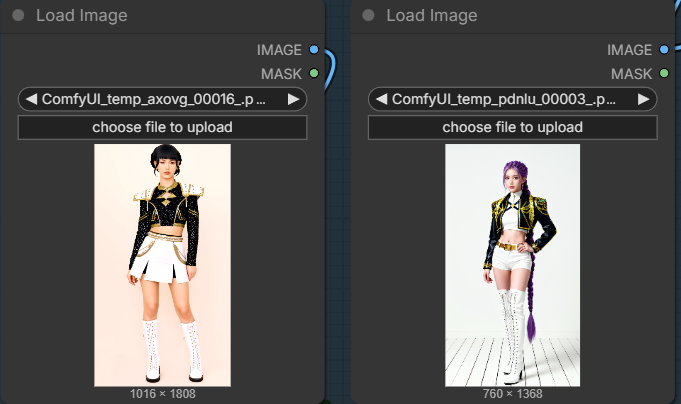
Prompt:
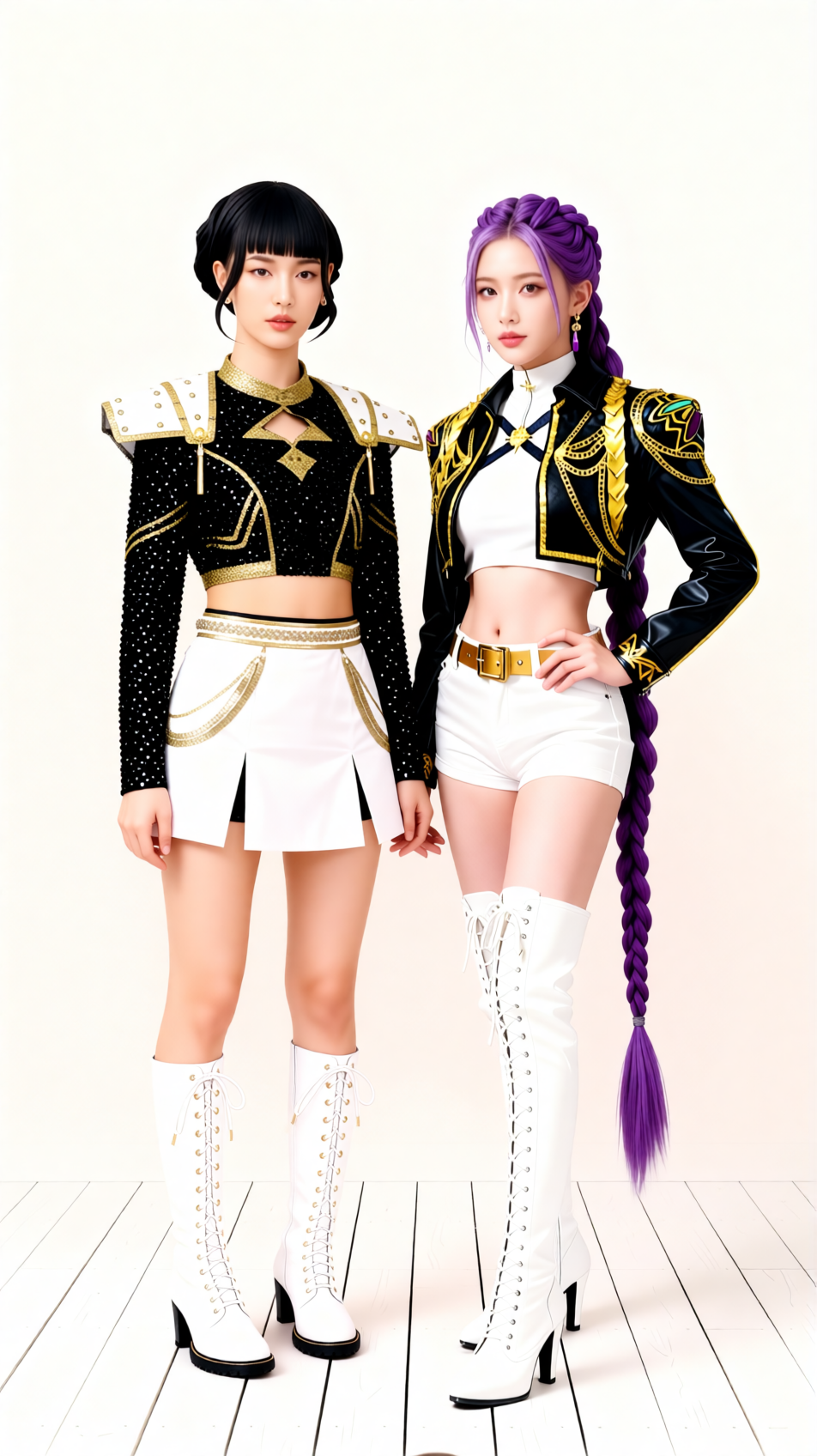
the girls are standing together. Make them the same height.
Output:
Input:

Prompt:
Soft light. Use soft light to relight the image.
Output:

Input:

Prompt:
the camera turns to the left 90 degrees.
Output:

Input:

Prompt:
Change the red car’s color to white
Output:

Conclusion
Qwen-Image-Edit-2511 brings a meaningful upgrade to open-source AI image editing, offering stronger control, better consistency, and more reliable edits guided by simple text instructions. When paired with ComfyUI and GGUF, it becomes a practical tool that balances performance and usability, even on systems with limited VRAM.
Using ComfyUI’s visual workflow makes it easy to integrate Qwen-Image-Edit-2511 into existing pipelines, test different prompts, and fine-tune edits without complex setup. As tooling around GGUF models continues to improve, this approach provides a flexible and efficient way to explore next-generation image editing today, while remaining ready for future updates to the Qwen ecosystem.
Leave a Reply