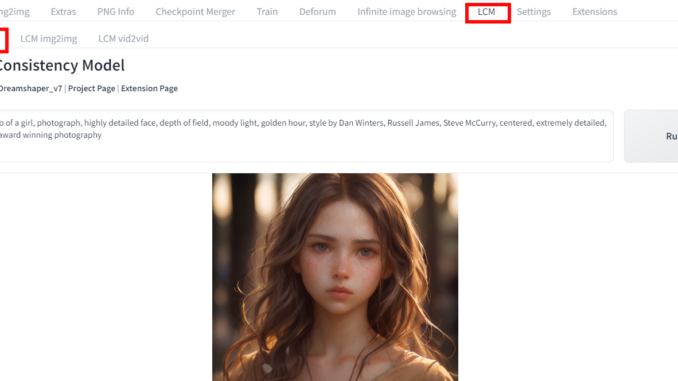
Latent Consistency Model (lcm) is a new model to improve the speed of image generation for Stable Diffusion. You only need 4 steps to generate a high quality image. I am going to show you how to install this on Automatic1111’s webui as an extensiton.
If you’re thinking about purchasing a new GPU, we’d greatly appreciate it if you used our Amazon Associate links. The price you pay will be exactly the same, but Amazon provides us with a small commission for each purchase. It’s a simple way to support our site and helps us keep creating useful content for you. Recommended GPUs: RTX 5090, RTX 5080, and RTX 5070. #ad
Enable the Extension
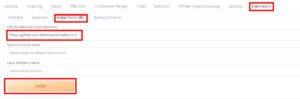
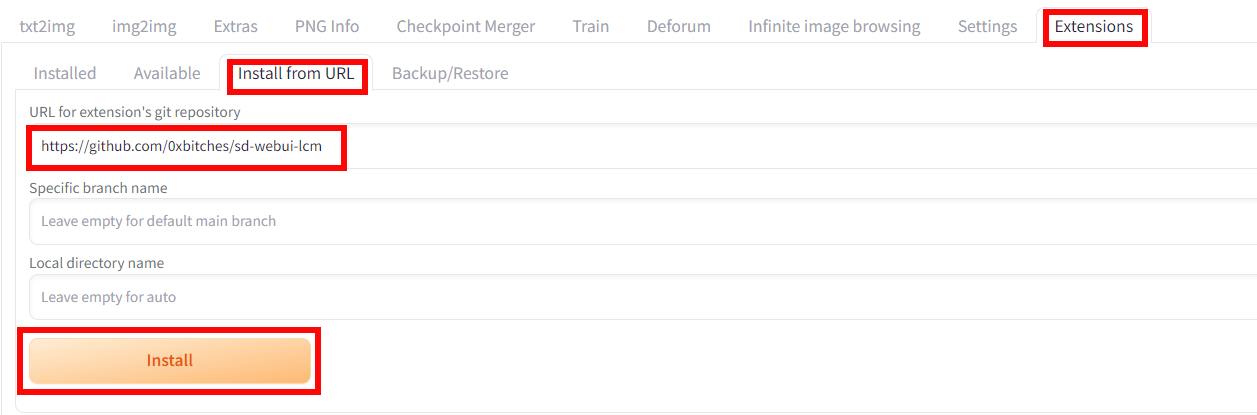
- Click on Extensions tab and then click on Install from URL.
- Enter https://github.com/0xbitches/sd-webui-lcm in the URL box and click on Install.
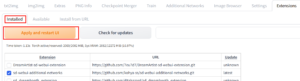
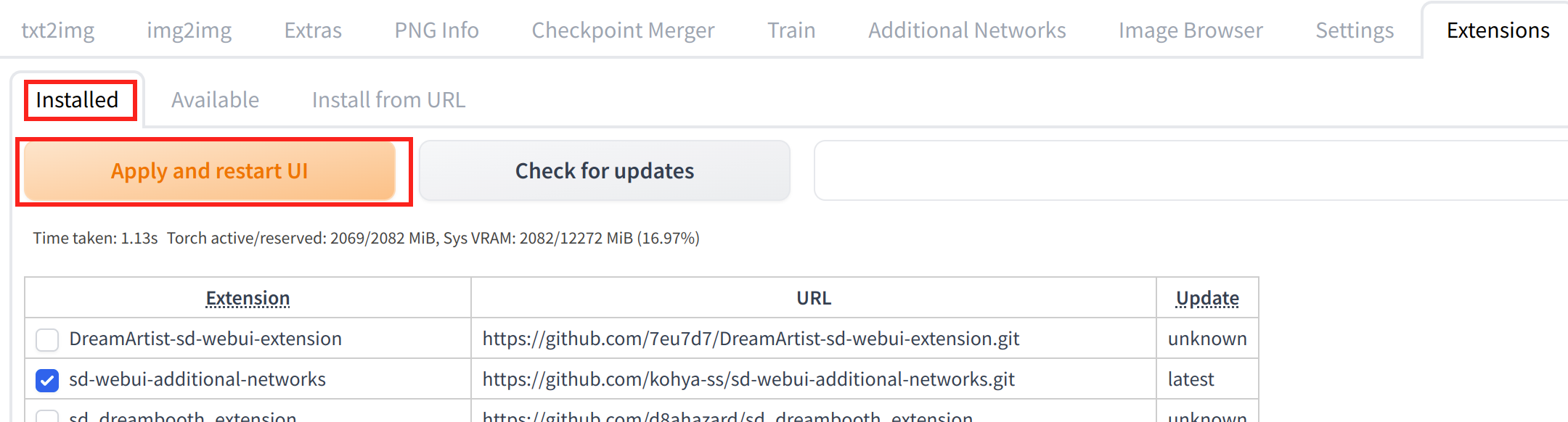
- Click on Installed and click on Apply and restart UI.
Text to Image Example
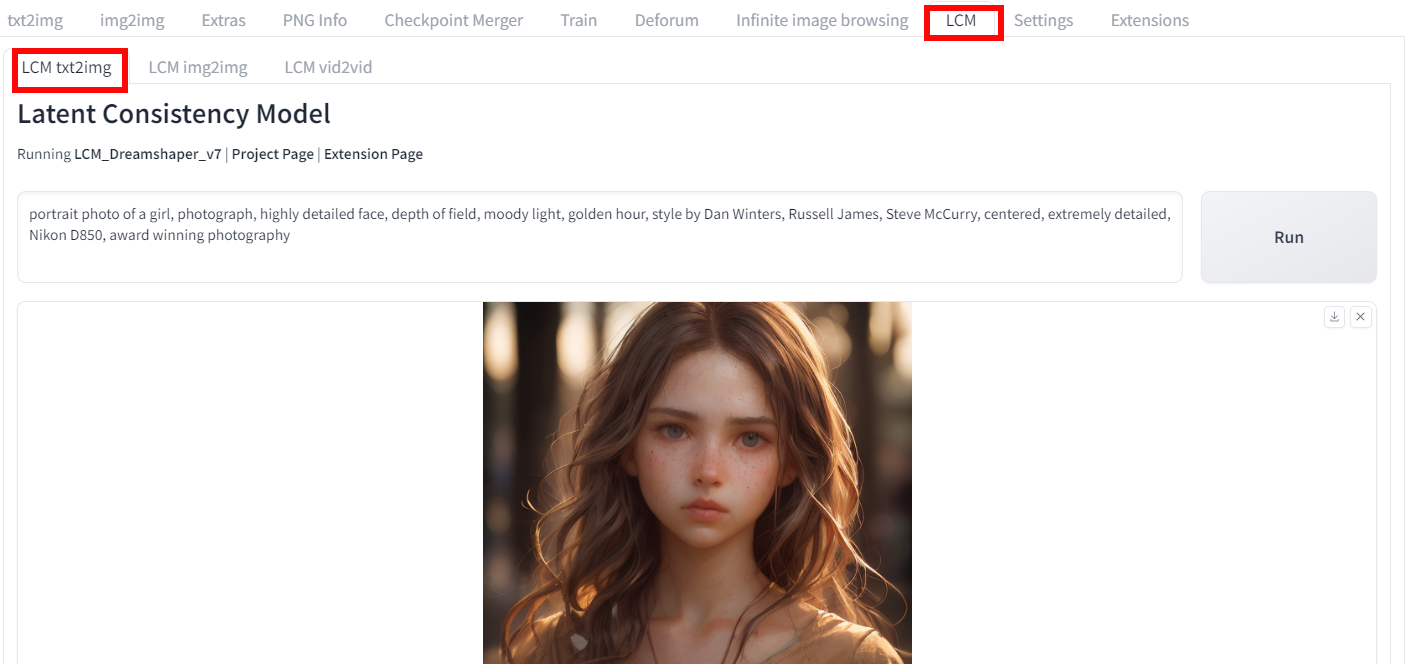
- After UI is restarted, you can see a new tab LCM. If the tab is not showing, please restart webui. Click on the LCM tab and then LCM txt2img
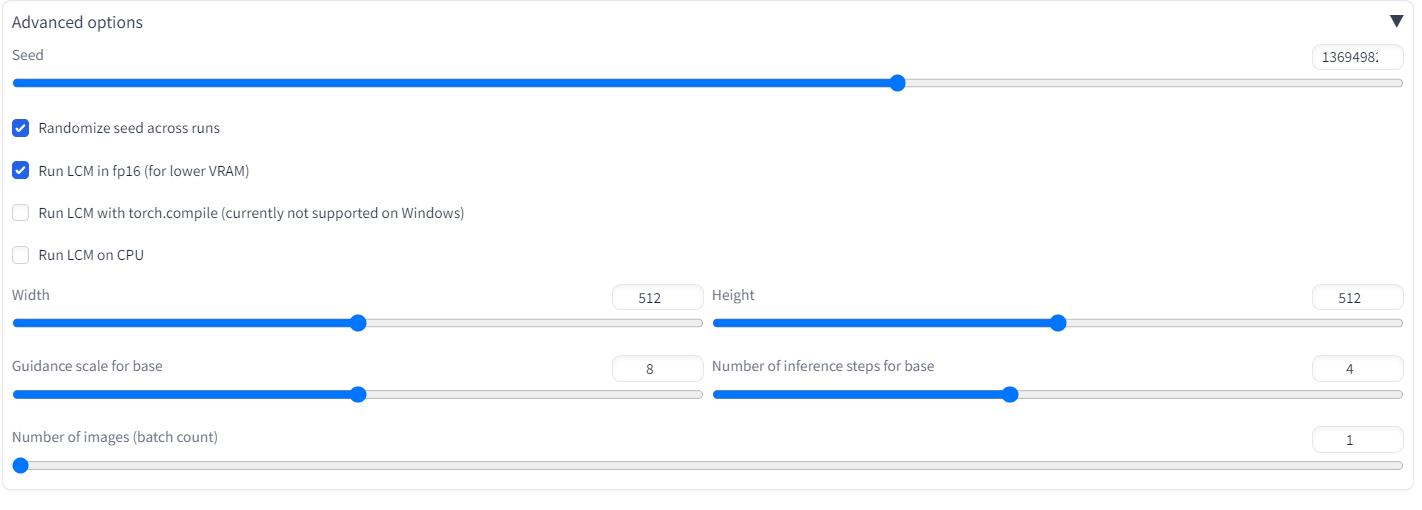
- Enter your prompt. Expand the Advanced option and change the setting as needed. Note that there is no negative prompt, and the default batch count is 4 and the default steps is 4.

- Click on Generate to begin generation. When you do it the first time, it downloads the models from the repo and it might take a long time. After you run it a few times, it should be fast. On my Nvidia RTX 2080Ti, it takes about 0.4 ~ 0.5 seconds for a 512×512 images and 4 steps. By default, the images are saved under outputs\txt2img-images\LCM .
When I tried to run img2img and video2video, I got this error.
TypeError: slice indices must be integers or None or have an __index__ method
I will update this post again when this error is fixed.
curious if you got this fixed, having the exact same issue in ComfyUI
Just tried again. It’s still not fixed. The extensions have not updated for a while. It’s probably abandoned.