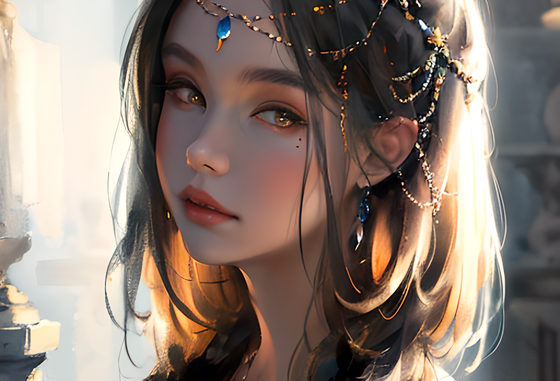
When I create AI images, I often have this problem. Some models tend to generate backlighted images. I tried to change the prompts to avoid backlighted situation, but most of the time, it’s not working well. I recently discovered an upscaler which works pretty well. I am going to show you how to use it.
If you’re thinking about purchasing a new GPU, we’d greatly appreciate it if you used our Amazon Associate links. The price you pay will be exactly the same, but Amazon provides us with a small commission for each purchase. It’s a simple way to support our site and helps us keep creating useful content for you. Recommended GPUs: RTX 5090, RTX 5080, and RTX 5070. #ad
Installation
- Visit this page and download the upscaler.
https://huggingface.co/utnah/esrgan/blob/main/1x_NMKD-BrightenRedux_200k.pth - Move the upscaler to this directory: stable-diffusion-webui/models/ESRGAN
- If your webui is currently running, restart webui
Txt2img Example
- Here is an example of using the upscaler in Hires.fix of txt2img.

Original image
Hires.fix image
- If you think it’s too bright, there is a way to control how much brighter you want. See the Extras example.


Extras Example
- Click on the Extras tab. Drop an image you want to modify in the image box. Select Upscaler 1 of your choice. Set Upscaler 2 to 1x_NMKD-BrightenRedux_200k. Set the visibility to 0.25.

Original image:
Upscaler 2 visibility set at 0.25
Upscaler 2 visibility set at 0.5


Please let us know your experience with this upscaler. Does this fix your images too dark problem? If you would prefer a painting program, you can see this article to use Mini Paint in webui.
How to Edit Image and Add Watermark in Automatic1111 Stable Diffusion Web UI using miniPaint
Leave a Reply