In the previous article, we covered how to set up the MiniMax H3 GGUF workflow in ComfyUI for text-to-video and image-to-video generation. In this guide, we will focus on the MiniMax H3 Reference-to-Video (R2V) workflow, which allows you to use reference images to guide video generation while maintaining the character appearance, style, and overall visual consistency.
If you’re thinking about purchasing a new GPU, we’d greatly appreciate it if you used our Amazon Associate links. The price you pay will be exactly the same, but Amazon provides us with a small commission for each purchase. It’s a simple way to support our site and helps us keep creating useful content for you. Recommended GPUs: RTX 5090, RTX 5080, and RTX 5070. #ad
The MiniMax H3 GGUF Reference-to-Video workflow uses the same model files introduced in the previous article. If you have already followed the previous setup guide, there is no need to download the models again. You can continue using your existing MiniMax H3 GGUF models and simply configure the additional nodes required for the reference-to-video workflow.
Reference-to-Video is especially useful for character animation, virtual influencers, cosplay videos, and cinematic storytelling, where maintaining identity and visual details across frames is critical. By providing reference images, MiniMax H3 can generate videos that better preserve the subject’s appearance while adding motion and dynamic scenes.
In this tutorial, we will walk through the ComfyUI workflow setup, explain the required nodes, and demonstrate how to create videos using MiniMax H3 GGUF with reference images.
MiniMax H3 GGUF Models
If you have followed my previous article to download all the models, you can skip this section.
- GGUF Model: The GGUF models can be found here. I have a RTX 5090, and I used the Q5_K_M variant. I downloaded MiniMax-H3-Ref2VA-Q5_K_M.gguf. If you have less VRAM, use other variants like Q3 or Q4. Put the GGUF models in ComfyUI\models\unet\ .
- Text Encoders: Download qwen3vl_32b_minimax_h3_nvfp4_awq.safetensors; put it in ComfyUI\models\text_encoders\ .
- VAE: Download minimax_h3_video_vae_fp16.safetensors and minimax_h3_audio_vae_fp32.safetensors, put them in ComfyUI\models\vae\ .
Installation
- Update your ComfyUI to the latest version if you haven’t already done so. (Run update\update_comfyui.bat for Windows).
- Download the json file, and open it using ComfyUI.
- Use ComfyUI Manager to install missing nodes.
- Restart ComfyUI.
Workflow Nodes
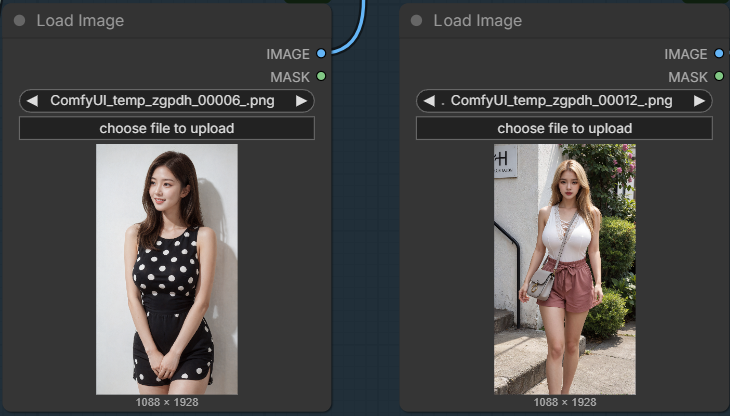
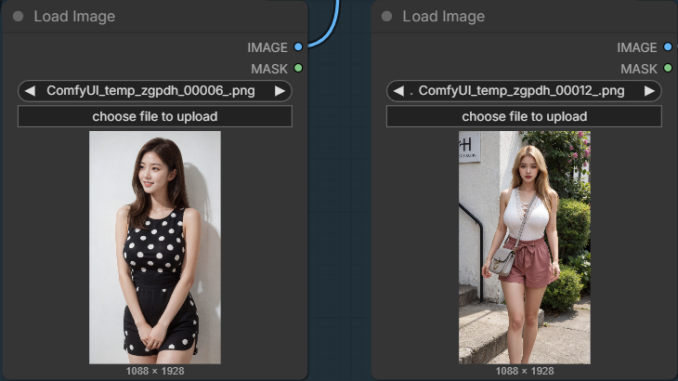
The workflow has 2 Load Image Nodes by default, and you can add more as needed. The model supports up to 9 reference images.
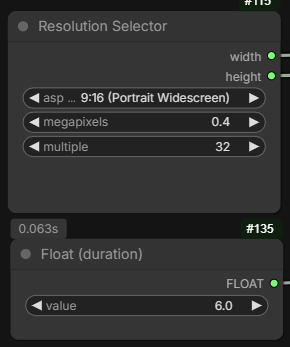
Specify the size and duration for the video. The duration is in seconds.
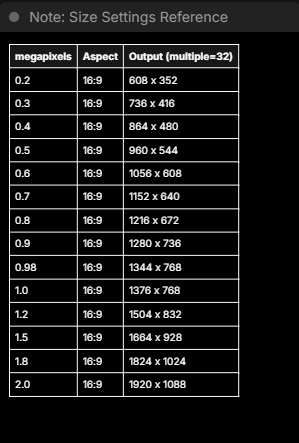
This is a look up table to show the size settings reference.
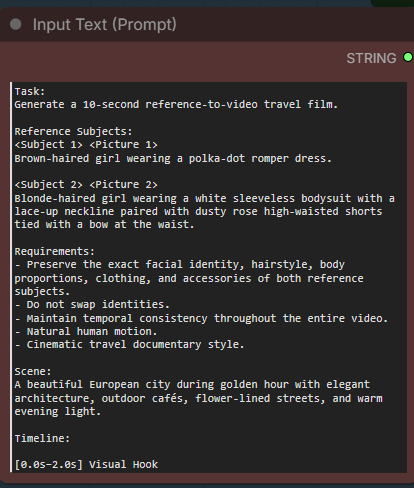
Enter prompt here. Please see the prompting guide for reference.

Pick the GGUF model file you downloaded.
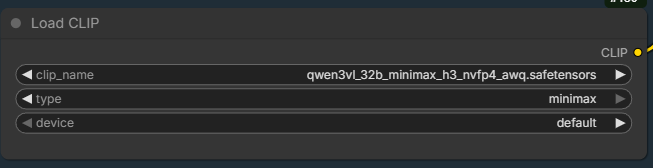
Text encoder.
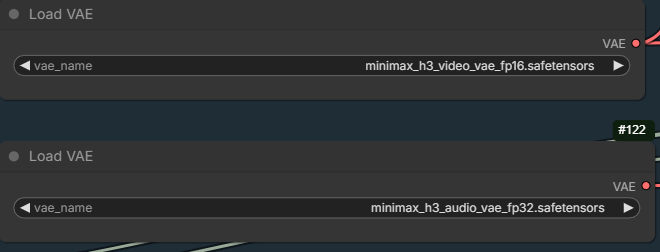
The 2 VAEs. The top one is video VAE and the bottom one is audio VAE.
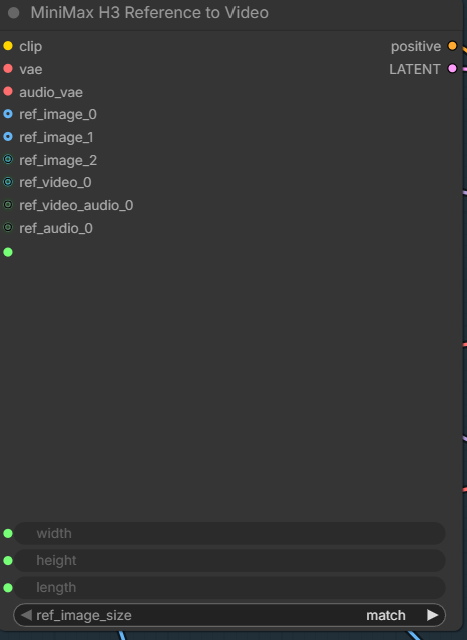
This is where you connect all the reference images, videos, and audios. It does not show all the connectors initially. A new connector will appear if you use up all the connectors currently shown.
Examples
Two Reference Images Example
Input images:
Prompt:
Task:
Generate a 10-second reference-to-video travel film.
Reference Subjects:
<Subject 1> <Picture 1>
Brown-haired girl wearing a polka-dot romper dress.
<Subject 2> <Picture 2>
Blonde-haired girl wearing a white sleeveless bodysuit with a lace-up neckline paired with dusty rose high-waisted shorts tied with a bow at the waist.
Requirements:
– Preserve the exact facial identity, hairstyle, body proportions, clothing, and accessories of both reference subjects.
– Do not swap identities.
– Maintain temporal consistency throughout the entire video.
– Natural human motion.
– Cinematic travel documentary style.
Scene:
A beautiful European city during golden hour with elegant architecture, outdoor cafés, flower-lined streets, and warm evening light.
Timeline:
[0.0s–2.0s] Visual Hook
<Subject 1> walks into frame from the left foreground while <Subject 2> is already standing near a stone railing looking toward the city. <Subject 1> briefly glances toward the camera before continuing forward. <Subject 2> notices <Subject 1> and turns naturally. They begin walking together without stopping.
Camera:
Dynamic forward tracking shot with slight handheld travel-camera energy during the first second, then transitions into smooth stabilized motion.
[2.0s–4.0s]
Both subjects walk side by side along a charming European street. They occasionally look at nearby architecture and storefronts instead of looking directly at the camera. Their conversation appears relaxed through subtle head turns and natural hand gestures.
Camera:
Smooth side tracking shot.
[4.0s–6.0s]
The subjects pause beside an old stone bridge overlooking a river. <Subject 1> rests one hand on the railing while observing the scenery. <Subject 2> adjusts a loose strand of hair as a gentle breeze moves naturally through the scene.
Camera:
Slow cinematic orbit around both subjects.
[6.0s–8.0s]
They continue walking through a narrow flower-lined street. They exchange a brief glance before continuing to admire the surroundings. Pedestrians naturally pass in the background. Clothing and hair respond realistically to the breeze.
Camera:
Backward gimbal tracking while maintaining both subjects in frame.
[8.0s–10.0s]
The subjects arrive at a scenic overlook above the city. They stand beside one another, quietly taking in the sunset before slowly turning toward the camera. Their expressions remain calm and confident with only subtle natural expressions.
Camera:
Slow pull-back combined with a gentle crane upward to reveal the panoramic city skyline.
Motion:
Natural walking cadence.
Subtle eye movement.
Occasional brief eye contact between subjects.
Relaxed posture.
Realistic breathing.
Physically accurate clothing simulation.
Natural hair movement driven by a light breeze.
No exaggerated posing or repeated smiling.
Audio:
Soft lo-fi travel music with light acoustic guitar and piano.
Natural city ambience including footsteps on stone pavement, distant conversations, café ambience, birds, a nearby fountain, and gentle wind.
No dialogue.
Style:
Ultra-realistic cinematic travel film.
Luxury travel commercial aesthetic.
Natural lighting.
Premium color grading.
Physically accurate shadows and reflections.
Professional gimbal cinematography.
Editorial travel photography.
Output:
Storyboard Example
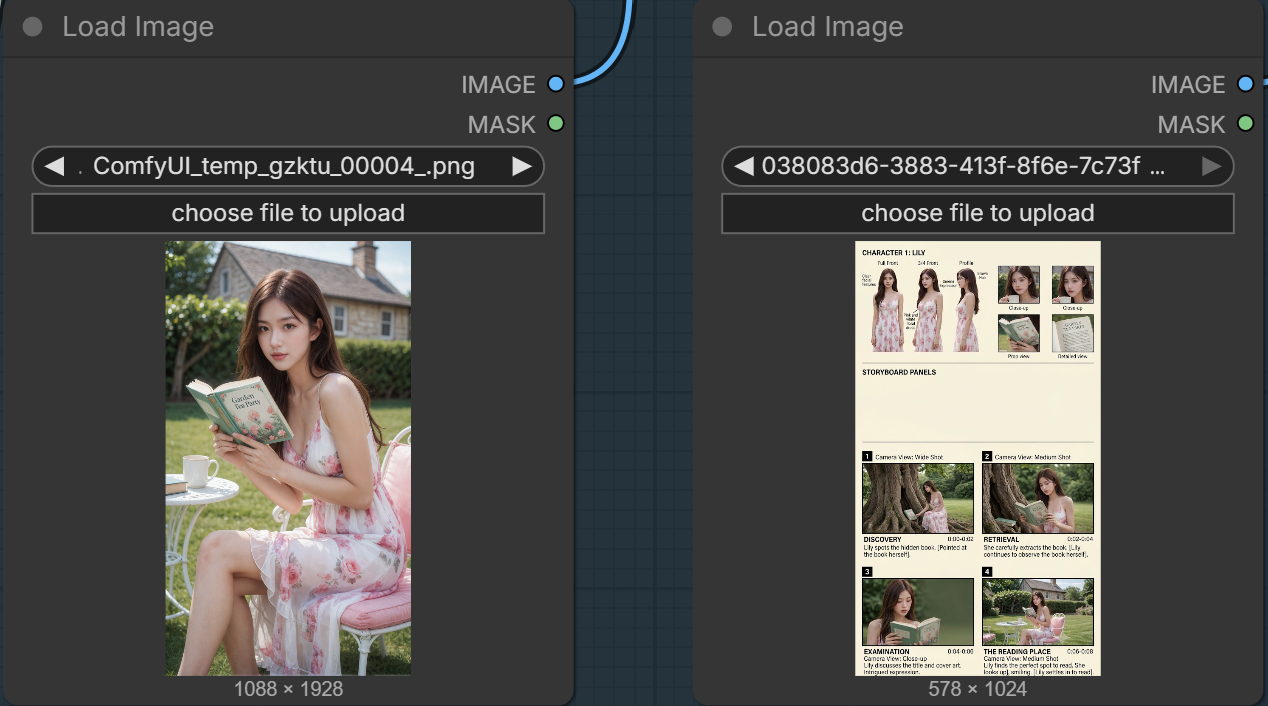
One useful feature of MiniMax H3 is that you can use a storyboard as a reference image. You can use Gemini or ChatGPT to generate the storyboard for you.
Input images:
Prompt:
### subject_definitions
<Subject 1> is the young East Asian woman whose visual appearance, face, long brown hair, and pink floral dress come from <Picture 1>.
<Picture 1> is the reference image establishing the identity, visual style, wardrobe, and facial features of <Subject 1>.
<Picture 2> is the storyboard reference image providing shot-planning, composition, camera views, and action sequences across [Shot 1], [Shot 2], [Shot 3], and [Shot 4].
### summary
[reference generation] The target video follows <Subject 1> in a 4-shot sequence planned by <Picture 2>. Starting near a large tree trunk in a garden, <Subject 1> discovers a hidden book, retrieves it, examines its cover art, and then sits on a white wrought-iron chair in front of a stone cottage to read peacefully.
### retention_analysis
<Subject 1> (appears in [Shot 1], [Shot 2], [Shot 3], [Shot 4]): fully_preserved – the appearance, floral dress, hairstyle, and facial identity from <Picture 1> are maintained consistently across all four shots.
<Picture 1> (character identity): fully_preserved – serves as the primary character visual anchor for <Subject 1>.
<Picture 2> (storyboard structure): fully_preserved – defines the chronological 4-shot layout, action flow, and camera perspectives.
### detailed_description
[Shot 1]
The shot opens with a wide angle set in a lush green garden in front of a massive ancient tree trunk with sprawling roots. <Subject 1>, wearing her pink and white floral dress from <Picture 1>, kneels beside the tree roots. She points gently toward a green book tucked between the tree roots, her face showing a look of soft discovery. Bright daylight illuminates the scene.
Camera movement: Static wide shot with a smooth, subtle push-in toward <Subject 1>.
Sound: Soft rustling of grass, gentle breeze through tree leaves, chirping of distant birds.
[Shot 2]
The scene cuts to a medium shot centered on <Subject 1>. She carefully reaches down into the roots of the tree and extracts the green hardcover book. She holds it up in front of her chest, looking down at it with curious interest. Her brown hair falls gently over her shoulders.
Camera movement: Medium tracking shot, maintaining focus on <Subject 1>’s hands and upper torso as she lifts the book.
Sound: Faint paper foliage rustle, soft outdoor ambient noise.
[Shot 3]
The camera transitions to a close-up framing <Subject 1>’s face and the green book held open in her hands. The cover displays floral art and readable title text. <Subject 1> gazes down intently at the cover and title page, her expression thoughtful and intrigued. Sunlight highlights her soft skin and hair.
Camera movement: Close-up static shot with a slight, delicate slow pan tracking her glance.
Sound: Soft page turning sound, gentle wind chimes in the background.
[Shot 4]
The final shot shifts to a medium shot set on a sunlit lawn near a stone cottage. <Subject 1> is seated comfortably on a white wrought-iron chair with a pink cushion next to a small outdoor table with a tea mug. She holds the open book in her lap, relaxes her posture, and looks up toward the camera with a gentle, serene smile before returning to her reading.
Camera movement: Medium shot pulling back slightly to reveal the complete idyllic tea garden setting.
Sound: Soft clink of a ceramic mug on a metal table, peaceful garden ambient soundscape fading smoothly.
### overall_soundscape
Subtle outdoor ambient sounds featuring soft wind through tree leaves, distant birds singing, gentle grass rustling, paper rustle, and a soft ceramic clink.
non_diegetic_music
Light, warm acoustic acoustic guitar and soft piano melody playing gently throughout the sequence, enhancing the tranquil atmosphere.
Output:
Conclusion
The MiniMax H3 GGUF Reference-to-Video workflow provides a powerful way to create consistent AI-generated videos using reference images. Compared with traditional text-to-video generation, R2V gives you more control over character identity, clothing details, and visual style, making it a valuable tool for creating character-driven videos and storytelling content.
Since this workflow uses the same MiniMax H3 GGUF models covered in the previous article, users who have already completed the initial setup can start experimenting with Reference-to-Video without downloading additional large model files. Only the workflow configuration and reference image inputs need to be added.
While AI video generation is still evolving, MiniMax H3 shows impressive potential for maintaining consistency and producing more controllable video results. With ComfyUI’s flexible workflow system, you can further customize the process, combine different inputs, and explore new creative possibilities.
In the next steps, experiment with different reference images, motion settings, and prompts to discover what works best for your own AI video projects.
Leave a Reply