Filed under MacBook, Windows by amida168 on August 19, 2009 at 3:54 pm
one comment
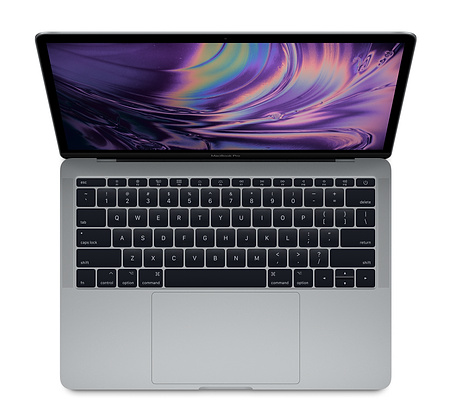
Ever since Windows 7 Beta, I have installed various versions of Windows 7 on various MacBook and MacBook Pro. When I got the new 13″ MacBook Pro
, I thought it’s a cake walk to install Windows 7 RTM on it. I was only half right.
The installation of Windows 7 RTM itself is not very difficult. The procedure is similar to the steps in my previous post about installing Windows 7 Beta on my own MacBook. The problems lies in the drivers installation.
The Leopard DVD has most of the drivers. At first, I could not get the drivers to install, because Windows 7 is not officially supported. I then found out this patch that lets you install the BootCamp drivers on the Leopard DVD. The patch is called Apple BootCamp Patch LIMO. Here is the link to the download site. Follow the instructions on the readme file to install the drivers.
The sound chip driver was not installed even after the BootCamp drivers installation. This took me the longest to figure out. I tried the Realtek driver first, because that’s what I did for the other MacBook. However, the sound chip was not made by Realtek. Using the vendor ID and device ID, I identified the sound chip’s manufacturer is Cirrus. There is already a Cirrus driver on the Leopard disc. You can use the Cirrus driver for Vista. The driver works, but the volume output is low. This is a major complaint on the Apple’s discussions forum. Here is the original thread. cmosquera, henry128 and others have figured out a way to fix the volume problem. Here are the downloads:
Vista/Windows 7 32 bit
http://rapidshare.com/files/265858428/FixCirrusAudioVista32.exe
Vista/Windows 7 64bit
http://rapidshare.com/files/265858429/FixCirrusAudioVista64.exe
Here is a problem that I do not have a solution yet. That is the microphone volume. I am able to record voice using the sound recorder program and the bulit-in mic. However, the other applications like Skype cannot use the microphone at all. The program recognizes the microphone as the sound input device, but it keeps complaining that the sound level is too low. If you know how to fix this, please tell us in the comments section.
The last part is the graphic card driver. The card is not recognized, so manual installation is required. The graphic card is a Nvidia GeForce 9400M. A simple download from the Nvidia takes care of it.
Filed under MacBook by amida168 on June 29, 2009 at 2:03 pm
no comments
The Windows 7 Beta on my MacBook was about to expire, so I reinstalled Vista on it. After the installation, I put in the Leopard DVD and installed the drivers. Initially, the drivers installation was not successful. I just downloaded the BootCamp 2.1 update from Apple and intalled it. All the drivers except the audio driver were installed.
I tried different methods to install the missing audio driver, but Vista cannot find the proper driver for it. My other MacBook (early 2008) uses Realtek driver, so I thought this uses the same driver. I downloaded the latest driver from Realtek and tried different versions and they all failed to install.
Finally, I looked up the VEN(DOR) ID for the device and found that it’s from SigmaTel! I installed the SigmaTel driver from the Leopard DVD and it started to work right away. I am not sure why the BootCamp drivers installation did not figure out the right driver the first time, but I learned that I’d better checking the VEN(DOR) ID next time I ran into the same problem.
Just in case you don’t know how to check the VEN ID. You can right click on a device in Device Manager and select Properties. Under the Details tab, select Hardware Ids and you can see the VEN ID and DEV ID.
Here is a screenshot of one example.

In this case, the VEN ID is 1106 and DEV ID is 3403. After you know the VEN ID, you can use the site like PCIDatabase.com to search for the company.
Filed under Computer Hardware, MacBook by amida168 on June 8, 2009 at 11:16 am
one comment
One of my MacBook was purchased back in 2006. The battery was working fine until the beginning of this year. The capacity dropped like overnight. Suddenly, the fully charged battery could not last more than 40 minutes. At first, I thought I only need a replacement battery since the I had it for more than two years.
I ran across this page about battery problems for MacBook or MacBook Pro purchase between February 2006 and April 2007. If your battery has the following symptoms, you might get a free replacement.
- Battery is not recognized causing an “X” to appear in the battery icon in the Finder menu bar.
- Battery will not charge when computer is plugged into AC power.
- Battery exhibits low charge capacity/runtime when using a fully charged battery with a battery cycle count (as shown in System Profiler) of less than 300.
- Battery pack is visibly deformed.
I took my MacBook to Apple Store last week. They tested my battery on the spot and ruled my battery is eligible for a free replacement. They changed it with a brand new battery.
Note that not every MacBook or MacBook Pro battery is eligible. To recap the three requirements:
- The MacBook and MacBook Pro must be purchased between 2006/2 and 2007/4.
- The battery has one or more of the aforementioned symptoms.
- The battery must be tested as BAD.
Filed under MacBook, iPhone by amida168 on March 4, 2009 at 12:52 pm
2 comments
Filed under MacBook, Windows by amida168 on February 19, 2009 at 6:34 pm
10 comments
Under Windows, you press Print Screen key to capture the full screen or alt + Print Screen to capture the active window. However, there is no Print Screen key on a MacBook. How can you capture the screenshots when you boot the machine to Windows OS?
One solution I found is to use the on-screen keyboard. Click on the Start and type On-Screen and click on On-Screen Keyboard to bring up the keyboard. Click on PrtScn to capture the whole desktop or press and hold the alt(option) key on the keyboard while click on PrtScn to capture just the active window.
The problem with this approach is that when you capture the whole desktop, the on-screen keyboard is also captured. This also happens when the keyboard overlaps with the active window because the on-screen keyboard is always on top. Here is a screenshot demonstrating this situation.

The other option is using a 3rd party program. The one I have been using is called ScreenHunter. I tested it under Windows 7 Beta and it worked great. You can download a free version here. Note that the default hot key is F6. If you have Boot Camp installed under your MacBook, you have to press and hold fn key when you press F6. Otherwise, it won’t capture the screenshot.
Does ScreenHunter work for you? Let us know what you think.
Filed under MacBook, Vista by amida168 on January 14, 2009 at 5:31 pm
61 comments
After I installed the Realtek audio driver on my MacBook under Windows 7 Beta, I could hear music just fine. However, I found that I could not record anything through the microphone. I checked my other MacBook under Vista, and the microphone didn’t work, either. I checked another laptop with Windows 7 Beta, and still, the microphone did not work. I then realized that none of the built-in microphones under Vista and Windows 7 Beta worked.
Some tweaking about the microphone properties got it to work. Here are the steps:
- Click on Start (the Windows icon) and type sound.

- Click on Sound under Control Panel.
- Click on Recording tab. Select Microphone and click on Properties.

- Click on Levels tab. The default Microphone Boost is set to 0. Increase it.

Close all the dialog boxes, and the microphone will be ready for use.
Filed under MacBook, Windows by amida168 on January 13, 2009 at 3:18 pm
18 comments
When I installed Windows 7 Beta (Build 7000) on my early 2008 MacBook yesterday, the audio driver did not work. The driver provided by Boot Camp is not the right one. Using the hardware id, I learned that the audio card is made by Realtek. I downloaded the driver directly from Realtek and it worked. Here is the download link. The one I downloaded is Vista Driver (32/64 bits) Driver Version R2.14. Extract the files and run the setup.exe.
BTW, if you are looking for some older versions, you can use this ftp site.
ftp://202.65.194.211/pc/audio/
This is a mirror site used by Realtek. Note that the download speed is kinda slow, so be patient.
[Update: 11/16/2009]
The ftp site is protected by password now. It’s not working unless you know the username and password.
Filed under MacBook, Windows by amida168 on January 12, 2009 at 2:28 pm
9 comments
I got a chance to install Windows 7 Beta on my MacBook today. The installation is pretty smooth. The boot camp assistant has a detailed guide about installation. To get the installation guide, open Boot Camp Assistant under Mac OS and click on Print Installation & Setup Guide to print it. Follow the instructions for Vista. I’ll summarize the steps here.
1. Open Boot Camp Assistant and partition the hard drive for Windows 7. You need at least 16 GB for it. I use 32 GB for my installation.
2. Once the partition is ready, insert the Windows 7 installation media and reboot the machine.
3. Installation begins after reboot. For more screenshots, please refer to this post. When you are prompted with installation type, click on Custom (advanced).

You need to install Windows 7 on Disk 0 Partition 3 BOOTCAMP. However, the partition is not formatted correctly. If you click on Next, the installer stops.

Click on Show details of this error and you see that this partition has to be formatted. Click on Drive options and then format the BOOTCAMP partition. When it’s done, you can continue the installer.
4. After a few minutes and the installation is done.

5. The final step is to insert the Leopard installation disc and install the additional Windows drivers.
Everything seems to be working fine except the sound driver. The system indicates it’s installed, but there is no sound and microphone is not working either. I tried some tricks that worked under Vista, but none of them works. I’ll post again once I got the audio to work. BTW, the machine is a MacBook (early 2008 model).
Filed under Mac OS, MacBook by amida168 on March 1, 2008 at 10:33 am
no comments

Apple has unveiled a new line of Macbook and Macbook Pro this week. In addition to the new Intel Core 2 Duo Chip (Penryn), the biggest feature is the inclusion of the Multi-Touch trackpad.
With Multi-Touch, you can scroll, swipe, pinch and expand, rotate to manipulate text, photo and image. You can visit this page to see a demo of the Multi-Touch trackpad.
While looking for the information about the new MacBook, I was surprised to find that they are on sale already. MacMall offers $150.00 rebate, FREE shipping, FREE Parallels Desktop 3.0, FREE Epson Stylus Printer on several configurations of the new line-up. If you are a bargain hunter, you can buy the previous generation of MacBook at close-out price. Click the following link to go to the MacMall’s sale page.
MacBook Pro starts at $1767.99 + FREE Parallels, Printer, Toast, USB Hub, Shipping & more after Rebate(s)

Filed under MacBook, Promotion by amida168 on November 20, 2007 at 1:59 pm
no comments
[Updated: 3/28/2008]
MacBook Pros feature the Intel Core 2 Duo processor; Multi-Touch trackpad technology; a discrete, powerful graphics processor; a choice of two display sizes; advanced connectivity; and a powerful architecture. It is the epitome of mobile computing–and it can serve as a desktop replacement as well.
Amazon now offers $150.00 rebate for MacBook Pro’s. Click here
to go to the the sale page on Amazon.
[Updated: 10/20/2008]
If you are interested in the newest MacBook introduced in October 2008, please click on this link
to go to the sale page.
[Updated: 9/10/2009]
Alternatively, ClubMac offers $50.00 ~ $150.00 rebate, FREE Parallels Desktop, FREE Lexmar All-in-One Printer, FREE carrying case, FREE ClipArt and more on several configurations of the new line-up. Click the following link to go to the ClubMac’s sale page.
New MacBook Pro starts $1,118.99 PLUS Free Exclusives with Mac purchase after rebate