This is my first unlocking guide for Navigon 2100. It is base upon the Mio C230 unlock release 4.1. What’s new is My Apps (WolfNCU) which lets you add your own programs to the desktop easily. A skins swticher is also included for you to switch skins for MN6.
If you’re thinking about purchasing a new GPU, we’d greatly appreciate it if you used our Amazon Associate links. The price you pay will be exactly the same, but Amazon provides us with a small commission for each purchase. It’s a simple way to support our site and helps us keep creating useful content for you. Recommended GPUs: RTX 5090, RTX 5080, and RTX 5070. #ad
BEFORE YOU FOLLOW THE PROCEDURES TO MODIFY YOUR PNA. YOU KNOW THAT YOU MIGHT RENDER YOUR PNA UNUSABLE AND YOU MIGHT VOID YOUR WARRANTY. YOU DO THIS AT YOUR OWN RISKS. THE FOLLOWING STEPS HAVE BEEN TESTED ON US MODEL OF NAVIGON 2100 ONLY. THEY ARE NOT MEANT FOR NAVIGON 2100 PURCHASED IN OTHER COUNTRIES EVEN THOUGH THEY MIGHT WORK.
Background
Before you begin, make sure you read the post entirely and you have no questions about each step. A little background might help you understand what you are doing. At startup, Navigon executes autorunce.exe which invokes MN6, the navigation software for Navigon. We just change the name of the original autorunce.exe and put our unlocking script in its place. This way we trick the Navigon to run the unlocking script.
Step by Step Instructions
- Put the SD card that comes with Navigon into your computer’s card reader. If you don’t have a SD card reader, you can connect your Navigon to the computer directly using a mini-USB cable(not included).
- Change the file autorunce.exe on the SD card to autorunec.exe.
- Download the zip file from here. (This link has been updated to download the release 4.2.1)
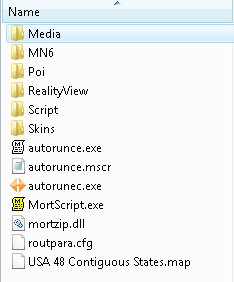
- Unzip the file and copy everything to the SD card. Note that if you already have a Skins directory, just copy the content of Skins directory to your existing Skins directory. Here is a screenshot of the folders and files on the storage card’s root directory.
- Put the SD card back to the unit. Turn it off completely by pressing and holding the power button for a few seconds.
- Turn on Navigon 2100 by pressing the power button and holding it for a few seconds. A dialog pops up telling you the unlock is done and begging for donation. 🙂 Click on OK to continue.
Mini Manual
There are 3 desktops included in this package. You can use the left and right arrows on the lower right corner to switch between the desktops. The top row and bottom row are the same for each desktop. The top row from left to right:
- Restart: Restarts the unit.
- Toggle Screen Orientation: Toggles the screen between landscape or portrait mode.
- Taskbar: Brings up the taskbar.
- Toggle Keyboard: Toggles MioTool(keyb.exe) which you can use to open an on-screen keyboard. You need a stylus to us it. Make sure the cursor is in the input field of the window when you use it. Tap the ab icon again to close the on-screen keyboard.
- Volume: Changes the volume. The default volume is set to maximum. You can use this to change volume before playing a game with sound like Tetris.
The bottom row from left to right:
- GPS: Invokes MN6.
- Media: Invokes TCPMP. This is a versatile media player. It plays various video formats and MP3. It can also be used to view photos. I added the plugin to play FLV video downloaded from YouTube or other flash video sites. Plugins for playing Podcast video are also included.
- FileMan CE: Invokes FileMan CE, a file manager for CE devices. You can use it to launch other programs not on the desktop or manage files.
Main Desktop
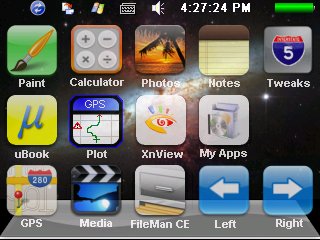
- Paint: Invokes PocketPaint. This is a simple paint program.
- Calculator: Invokes MyCalculator. To exit out MyCalculator, tap About and then the “X” in the about screen.
- Photos: Invokes GQe. You can use it to view photos on the storage card.
- Notes: Invokes NotePad, a notepad program for creating/viewing text files.
- Tweaks: Tweaks Management. I have modified a MioMap Skins switcher to switch MN6 skins.
- uBook: uBook reader. It can open HTML, TXT, RTF, PDB and PRC (not secure) ebook files. A free Webster dictionary is included. I don’t know if anyone is interested in reading a dictionary, but it’s there.
- NoniGPSPlot: A straight line GPS application.
- XnViewPocket: Image viewing application. You can use it for photo slide show.
- My Apps: If you want to add your own programs, this is the place.
Games Desktop
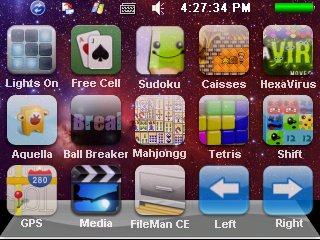
In this desktop, there are a lot of new games. Most of the games are from XFlib. If you like the games, please consider a donation to their site. You can download a lot more games from the site. Some games run in portrait mode. Ameridan has come up with a way using scripts to rotate the screen automatically. I have borrowed the scripts to run these games.
- Lights On: Invokes LightsON. The goal of the game is to turn all lights on.
- Free Cell: Invokes FreeCell, a poker game.
- Sudoku: A Sudoku game from XFlib.
- Caisses: A Sukoban clone game from XFlib.
- HexaVirus: My personal favorite from XFlib. Your goal is to active every virus in 30 moves or less.
- Aquella: A JezzBall-like game from XFlib.
- BallBreaker: An interesting game from XFlib to test your reflexes. All the balls are shooting at your cursor. Try to lure the balls to hit the block(s) and break them.
- SmartMahjongg: My favorite PocketPC game. It’s now possible now that we have .Net compact framework 3.5. The game is a bit slow to load, please be patient. If you like it, please consider a donation. This is the author’s site.
- Tetris: A classic Tetris game. Click on the block to rotate it. Click on the left or right side of the window to move the block.
- Shift: Another game from XFlib. Click on the border of the screen to move the blocks that can move in the direction. When 3 or more of the same block form, they disappear.
Utilities Desktop
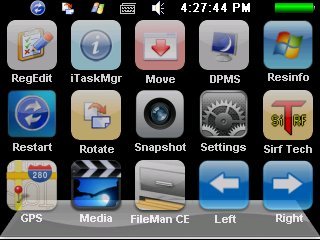
- RegEdit: Registry editor for your PNA.
- iTaskMgr: Shows you CPU, Process and Task(Application) info. You can use this to terminal a process or switch to an application.
- Move: Utility to move windows around.
- DPMS: Turn your screen off.
- Resinfo: Invokes Resinfo. It shows you some resources informations for your device. Kinda like task manager in Windows. You can use it to terminate applications or processes.
- Restart: Restarts PNA. Use this when an application crashes or after you load new files to the SD card.
- Rotate: Rotates the screen counter-clockwise by 90 degrees.
- Snapshot: Invokes CapScrUtil. A screen capture utility. Remember to store the image to either Storage Card or My Flash Disk for easy access to the screenshots.
- Settings: Invokes Control Panel. Note that some of the settings might mess up your unit. Please use it with caution.
- SirfTech: Utility to manage settings for GPS. Can be used to turn off static navigation. This program is NOT included in the package. Please download it from the author’s site.
Note
- I have not found a way to terminate MN6 gracefully. Therefore, a utility called WolfToolbar is included for quiting MN6. WolfToolbar is executed first every time you try to start MN6. You can exit out MN6 by clicking on WolfToolbar icon and then click on Task. This brings up the task manager, you then click on Process tab and select MN6.exe to terminate it. If you think WolfToolbar is really annoying and you don’t want to use it, find the file MioNav.mscr in the Script directory and delete the line that says
Run ("\Storage Card\Script\wolftoolbar.exe") - If you want to use your own background image, just create a 320×240 bitmap file. Put them in the Scriptdesktop directory. Edit the ini files in the directory to use the bitmap file you created. main.ini is for Main desktop, gmaes.ini is for Games desktop and utilities.ini is for Utilities desktop. Change the variable BackgroudBitmap to point to the new file.
- If you want to change or add the icons(shortcuts) on the desktop, you can do so by editing the files in note #2. An icon entry is like this.
ICONXPBUTTON
x = 0
y = 95
Command = \Storage Card\Script\your_program.exe
SizeNormal =64
SizePushed =64
ScaleAlpha = 80
IconNormal = icons\youricon.ico
ScaleAlpha = 100
IconPushed = icons\youricon.ico
- When you have the program and icon(64×64) ready, copy the program to Script directory and copy the icon to Scriptdesktopicons directory and modify the variable Command, IconNormal and IconPushed. Note that you have to use absolute path for Command, but use relative path for IconNormal and IconPushed. If you follow this rule, you can use the included SystemInformation32.exe in that directory to test the desktops on your computer. This tool is very useful for those who like to change the desktops frequently. I have commented out some of the ICONXPBUTTON sections on the ini files. If you want to use them, remove the # signs in front of the lines.
- If you experience programs with your unit, you can hard reset the machine using the power button on the top.
- The use of unlicensed maps is illegal. Please don’t ask me where can you get maps not licensed for your device or how can you get MN6 to recognize the unlicensed maps. Any question regarding unlicensed maps will either be deleted or ignored.
Backing Off
If you don’t like it the way it is, you want to undo everything. It’s very easy to revert back to the factory state, just delete all the files you copied to your unit and rename the autorunec.exe back to autorunce.exe. Hard reset your unit afterward.
If you find my articles useful and you would like me to continue this project, please consider making a donation to my site. Thank you!
how do i join your forum? izzit under twitter?
The forum is closed.
i did the hack now i cant set it back to the factory setup can someone help i turn on the unit and stays in the splash window of navigon thats it navigon 2100 i did the reset
If you delete all the files you copied to the SD card and rename the autorunec.exe back to autorunce.exe. Hard reset the GPS and your unit will be back to the factory setup.
First, I apologized to the knowledge of English. I use google translator.
Please send me someone to backup registry navigon 2410th Specifically I need hlmk / loader
Trying to remove miopocket 3.0 with my flash drive I’ve wiped the registry and now I’m in trouble. The device responds, but I do not have pictures. White screen: (
http://img180.imageshack.us/img180/7592/slikae.png
I do not have the registry key to send you. However, if you hard reset your Navigon 2410, you might be able to get the registry back.
Hi,
I am trying to get your bundle working on my new Navigon 8450 with some success, however I’m not quite there yet. I think that the 8450 comes with a pretty bare-bones version of windows CE; for example, there is no taskbar. The utility included to show it fails with an error about not being able to find the window.
About half the apps run, and the other half cause the device to reboot when I start them. A stab in the dark – perhaps missing or incompatible DLLs?
I’m happy to put some work in getting this going if you could point me in the right direction; you must have faced all this sort of stuff when creating the bundle to begin with 🙂
– Phil
You can download a useful application to find out what are the missing DLLs for a certain application.
http://dependencywalker.com
Once you know what are missing, you can just search for the files. There are quite a few unlock packages out there. You might find them useful.
Can someone plz help me? I added this to my 2100max and the gps did not work. so I deleted the files and it will not load up past the start screen 🙁 I even downloaded the factory files and still nothing. anyone please help me? Thanks!
Or if anyone knows how to get the gps to work with this?
I am sorry to hear that. What’s the message when you tried to use the factory files to restore your SD card? You might have to hard reset the GPS after restoration.
there is no message. just the navigon background, and thats it. wont load up or anything. and how do I hard reset? just press the reset button on the bottom? if so I already did that 🙁
Thanks
Yes, that’s the reset button. You can try to find other 2100 max user and see if they can share the files on the SD card with you. Otherwise, you might have to contact Navigon support and ask them how can you restore the files on the SD card.
I did download the factory files off pirate bay. has everything on em, but it still does the same. Is there somthing else I have to do? like edit something? And I cant contact them cause I bought it off craigslist and I have no paperwork for it.
any thoughts? 🙁
I donã€t think you need proof of purchase to register your unit with Navigon. Why donã€t you give it a try.
If you have everything on the SD card and you have reset the unit. The only thing you can try is to use a different SD card.
It’s also possible that your unit is broken. These GPS units are not made to last. My old C230 is broken as well.
I’m getting the exact same problem that Ed received. I first of all tried the unlock. The GPS wouldn’t respond, tried to come back to factory conditions.. downloaded the factory files from piratebay just as Ed did. Loaded them back to the SD card.. plugged it in and even though the files are not there.. and the SD card is formatted it shows “wolftoolbar.exe” on the screen as soon as i turn the unit on. Then, it goes to the navigon screen and freezes.
Any thoughts?
Try to restore the factory files on a different SD card.
the hack is working but the GPS botton on the bottom left is not working, it freeze after a few second.
Many thanks. It just works well.
is out of order at me. I press it the reason button and nothing happens. i have navigon 1200.
I have this working just fine on my Navigon 2100. I was wondering if you know of a way to get iGo8 on it and/or how to get map updates.
Navigon no longer supports map updates in the USA (i think).
Please send me an e-mail if you can possibly help.
please i whant to restore my device an i am missing all the files. my navigon did not come with the sd card i need all the files for the sd card and the dvice
so i can use it again i did the hack but i cant start the mio soft ware and i cant open the key board is sais task bar missing so please let me restore it to original!!
Is yours a navigon 2100? Are you saying you do not have the original SD card?
i have tested on navigon 40 plus- no function, after start up appears screen”succesfull unlocked” than navigon freeze, but succesfully rolled back 🙂
my navigon 2100 wouldn’t connect to my gps…i think cuz its hack. i cnt fix it somebody help me plzzzz.
hack for Navigon 2100 us model, did work thanks, but i lost the speech function on my GPS. i restored it to the factory settings and hard reset a few times also still no speech…………… any one can help..